
Windows Defender, now known as Microsoft Defender Antivirus, is the built-in antivirus solution included with all modern versions of Windows. It offers robust real-time threat detection and automatic updates, providing essential protection without the need for third-party solutions. However, users may occasionally encounter an issue where Windows Defender will not enable, leaving the system vulnerable to malware and other threats.
This article outlines the most common causes of this problem and provides trustworthy, step-by-step methods to resolve it.
Common Reasons Why Windows Defender Won’t Enable
Before diving into the solutions, it’s important to understand potential reasons behind this issue. Knowing the cause can significantly narrow down the troubleshooting process.
- Third-party antivirus software is installed
- Group Policy or registry settings are blocking it
- Corrupted system files
- Windows Update issues
- Incompatible or outdated Windows version
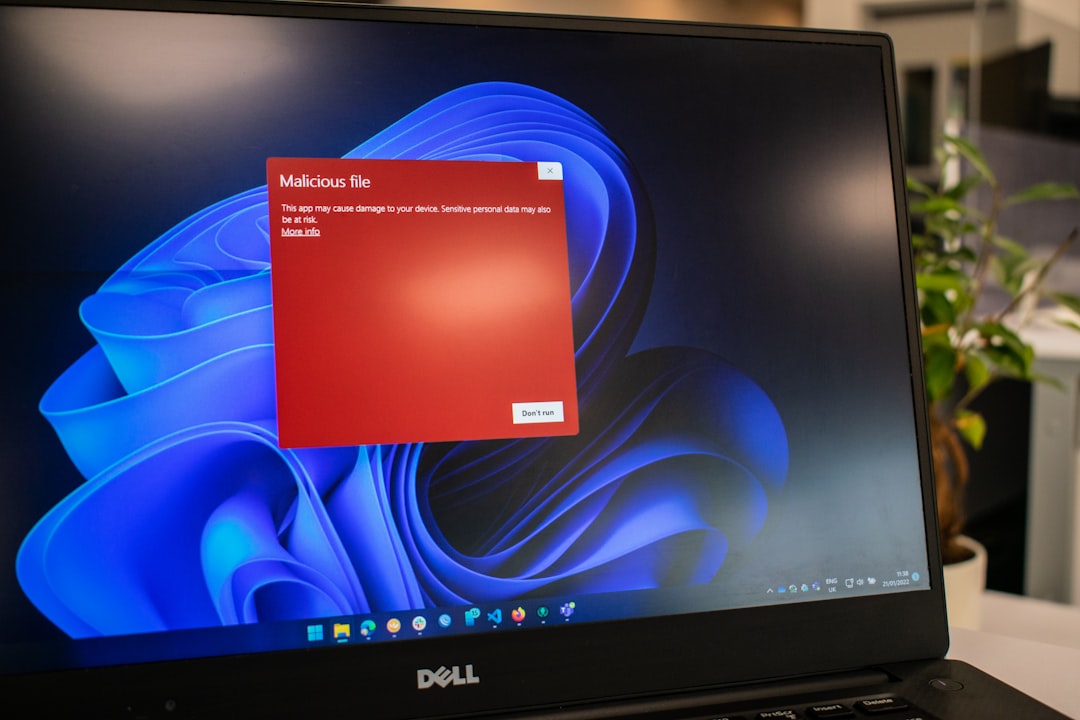
Step-by-Step Solutions to Enable Windows Defender
1. Uninstall Conflicting Antivirus Software
If you have a third-party antivirus program installed, Windows Defender will automatically disable itself to prevent conflicts. To fix this:
- Open Control Panel and go to Programs and Features.
- Find any third-party antivirus software (e.g., Norton, McAfee, Avast), right-click, and choose Uninstall.
- Restart your computer and check if Windows Defender has re-enabled automatically.
2. Use Windows Security Settings
Sometimes, Windows Defender may have simply been disabled in the system settings. To verify and enable it manually:
- Open the Start Menu and go to Settings > Privacy & Security > Windows Security.
- Click Virus & threat protection.
- Select Manage settings under Virus & threat protection settings.
- Ensure that Real-time protection and other key features are turned on.
3. Check Group Policy Settings (Windows 10/11 Pro)
If Group Policy settings are disabling Windows Defender, you can reverse that with the Local Group Policy Editor:
- Press Windows + R, type gpedit.msc, and press Enter.
- Navigate to Computer Configuration > Administrative Templates > Windows Components > Microsoft Defender Antivirus.
- Locate the setting Turn off Microsoft Defender Antivirus. Double-click and set it to Disabled or Not configured.
- Click OK and restart your computer.
4. Modify the Windows Registry
Warning: Editing the registry can cause system issues if done incorrectly. Always back up the registry before making any changes.
- Press Windows + R, type regedit, and press Enter.
- Navigate to: HKEY_LOCAL_MACHINE\SOFTWARE\Policies\Microsoft\Windows Defender
- If you see a key called DisableAntiSpyware, right-click and delete it.
- Restart your PC and try to enable Windows Defender again.

5. Run System File Checker (SFC)
Corrupt system files might be preventing Windows Defender from running. Use the SFC tool to scan and repair them:
- Open Command Prompt as Administrator by right-clicking Start and choosing Terminal (Admin) or Command Prompt (Admin).
- Type
sfc /scannowand press Enter. - Wait for the system scan to finish and follow any repair prompts.
6. Ensure Windows is Up to Date
An outdated or improperly installed update could be the culprit. Keeping your system up to date may resolve the issue:
- Open Settings and go to Windows Update.
- Click Check for updates.
- Download and install any available updates, then reboot your system.
Additional Tips and Best Practices
- Avoid installing multiple antivirus programs. They can interfere with each other and reduce overall protection.
- Regularly scan your PC for malware. Malware can disable Defender silently.
- Run periodic maintenance tools. Applications like Disk Cleanup and Windows Troubleshooter help keep your system healthy.
When to Seek Professional Help
If none of these solutions work, it’s possible your system has more serious issues. For example, some rootkits or advanced malware may prevent Defender from functioning. In such cases, consider:
- Seeking help through Microsoft Support
- Booting into Safe Mode and running a full scan
- Using a dedicated malware removal tool like Microsoft Safety Scanner or Malwarebytes
Conclusion
Having Windows Defender disabled unexpectedly can be a serious security risk. By methodically following the steps above, most users can resolve the issue and restore full protection to their system. Consistently monitoring your PC’s security status and practicing safe computing habits will help ensure that Windows Defender and other protective mechanisms remain functional at all times.