
If you’ve encountered the dreaded Error Code 0x80004005 on your Windows 10 or Windows 11 system, you’re not alone. This seemingly mysterious error has puzzled users for years by offering only a cryptic description: “Unspecified error.” But don’t worry — although vague in message, the causes behind this error are generally well understood, and there are multiple ways to fix it depending on the situation.
Error 0x80004005 can pop up under several circumstances including Windows updates, network file sharing, compressed files, or even activation issues. In this guide, we’ll explain what the error means, why it happens, and walk you through several methods to resolve it — step-by-step.
Common Causes of Error 0x80004005
This error usually arises due to one of the following reasons:
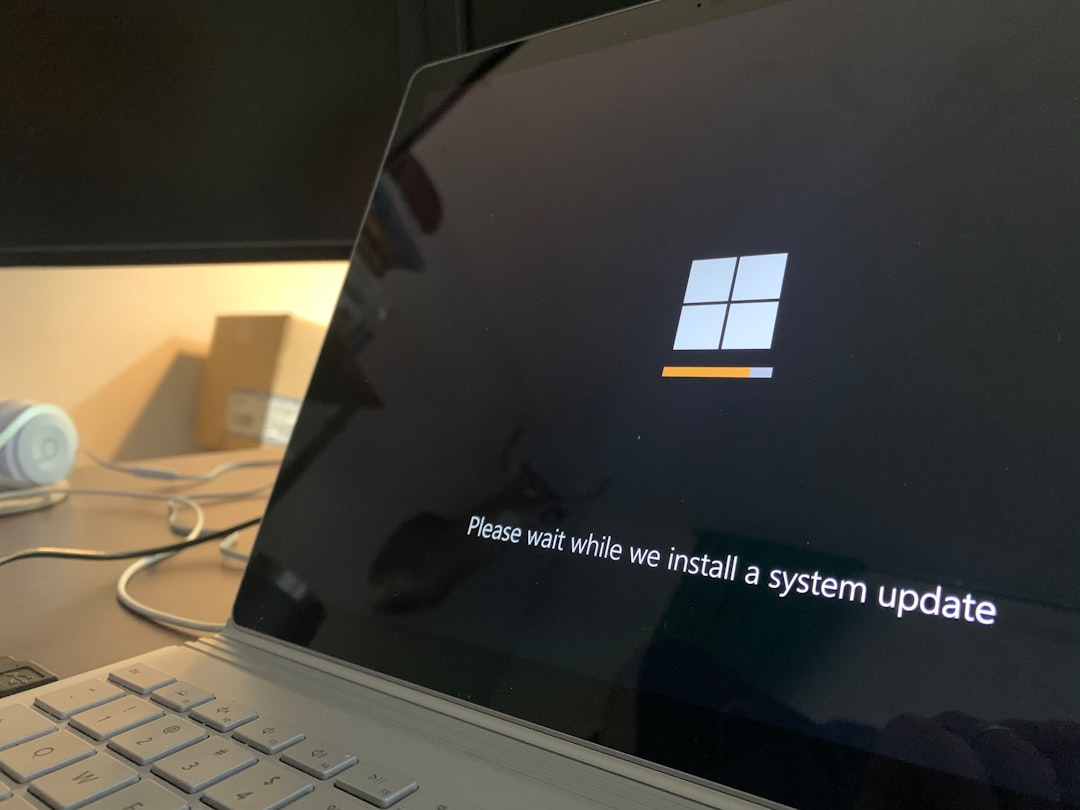
- Failed Windows Updates
- Connectivity issues with shared folders or drives
- Corrupted files or entries in the Windows Registry
- Problems extracting compressed files
- Issues with Windows Activation or system files
How to Fix Error 0x80004005
Since the error can be triggered by different scenarios, here are the most effective fixes categorized by situation. You may need to try several methods before finding the one that works for your case.
1. Fixing Windows Update Error 0x80004005
When 0x80004005 occurs during Windows Update, try the following:
- Run Windows Update Troubleshooter:
Settings > Update & Security > Troubleshoot > Additional Troubleshooters
Select Windows Update and run the troubleshooter. - Manually Reset Windows Update Components:
Open Command Prompt as Admin and run these commands one at a time:net stop wuauserv net stop cryptSvc net stop bits net stop msiserver ren C:\Windows\SoftwareDistribution SoftwareDistribution.old ren C:\Windows\System32\catroot2 Catroot2.old net start wuauserv net start cryptSvc net start bits net start msiserver - Update via Microsoft Update Catalog:
Download and install the update manually from the official Microsoft Update Catalog website.
2. Fixing Network File Sharing Error 0x80004005
This error commonly shows up when accessing shared folders:
- Enable SMB Protocol:
Go to Control Panel > Programs > Turn Windows features on or off and enable “SMB 1.0/CIFS File Sharing Support“. - Modify Registry Values:
Open Registry Editor and navigate to:
HKEY_LOCAL_MACHINE\SYSTEM\CurrentControlSet\Services\LanmanWorkstation\Parameters
Create a new DWORD AllowInsecureGuestAuth and set it to 1. - Check Permissions:
Make sure the shared folder has proper read/write permissions for the user or device connecting to it.
3. Fixing Compressed File Error 0x80004005
If you’re having trouble extracting .zip or .rar files:
- Try a Different Extractor: Use WinRAR or 7-Zip instead of the built-in Windows extraction tool.
- Check for Password Protection: A password-protected archive may silently trigger this error if not recognized.
- Scan with Antivirus: Sometimes, your antivirus might be blocking the file due to perceived threats. Try disabling the antivirus temporarily or scan the archive for malware.
4. Fixing Windows Activation Issues
If the error appears when trying to activate Windows:
- Verify Product Key: Make sure you’re using a valid key that matches your version of Windows.
- Run Activation Troubleshooter:
Go to Settings > Update & Security > Activation, then select Troubleshoot.
5. Perform a System File Check
Corrupt system files could cause the error. Use the following steps:
sfc /scannow
This command will scan and repair corrupted Windows system files.
6. Disable Unnecessary Startup Services
Conflicting startup programs might be causing the error. Try this:
- Press Windows + R, type
msconfigand press Enter. - Click the Services tab and check Hide all Microsoft services.
- Click Disable all and restart your PC.
If the error disappears, re-enable services one-by-one to find the culprit.
Conclusion
While Error 0x80004005 is frustrating due to its vague message, it’s far from unfixable. Whether it appears during Windows updates, file sharing, or compressed file extraction, there’s a solution for nearly every scenario. Be sure to create a backup before making registry changes or system-level tweaks, and don’t hesitate to run a malware scan as unusual behavior can sometimes originate from threats.
With patience and the right approach, you can get your Windows system back on track in no time.