
Noticing a spreading white spot on your Lenovo laptop screen can be both frustrating and concerning, especially if your device hasn’t endured obvious physical trauma. This issue not only affects the visual experience but can also signify deeper hardware problems. Understanding what causes these white spots, how to diagnose whether they’re worsening, and what actions to take is crucial in extending the lifespan of your laptop screen.
What Are White Spots on the Screen?
White spots, sometimes referred to as “pressure marks,” appear as bright, slightly glowing areas on an LCD screen. These spots are usually more noticeable against darker backgrounds and may vary in size. The issue is relatively common in LCD displays, including those used by Lenovo laptops, and can result from several different causes.

Common Causes of White Spots on Lenovo Screens
Before jumping into fixes, it’s essential to understand the potential causes behind these annoying screen blemishes:
- Pressure Damage: Excessive pressure on the screen, often due to a tight laptop bag or heavy object, can damage internal layers of the display.
- Dead or Stuck Pixels: Although not identical to white spots, dead or stuck pixels can appear white under certain conditions and may be confused with pressure marks.
- LED Backlight Bleed: Uneven backlight distribution can manifest as white patches, particularly on the screen’s edges.
- Manufacturing Flaws: Sometimes, internal defects from the manufacturing stage cause white spots to appear weeks or months after purchase.
- Frame Pressure: The way your laptop’s bezel (frame) holds the screen in place can sometimes apply uneven pressure, especially if screws inside are overtightened.
How to Diagnose if the White Spot Is Spreading
One of the biggest concerns users have is whether the white spot is getting bigger or multiplying. Here are steps to evaluate the progression:
- Use a Consistent Background: Set your screen background to plain black or dark gray to clearly spot and assess the area.
- Measure Changes Over Time: Use a ruler or grid overlay software to measure the diameter of the white spot weekly. Take screenshots and keep notes.
- Check at Multiple Angles: Slight movements in your viewing angle can reveal hidden spots that may be developing.
- Use Diagnostic Software: Lenovo offers built-in hardware diagnostics through Lenovo Vantage. You may also use third-party tools like Dead Pixel Buddy or Online Monitor Test.
If you notice the area growing or more spots appearing, it’s likely a sign of further internal screen damage.
What to Do If the White Spot Is Spreading
Once you’ve determined the problem is getting worse, several courses of action are available based on whether your device is under warranty and the severity of the damage.
1. Check Your Warranty Status
Lenovo laptops typically come with standard one-year warranties, but some models have extended coverage or protection plans. Visit Lenovo Support and enter your serial number to see if the device qualifies for a warranty screen replacement.
2. Contact Lenovo Support
If your laptop is under warranty and the screen has no visible external damage, Lenovo might replace it at no charge. Be sure to prepare the following before contacting support:
- Photos or videos of the white spot
- Purchase receipt or proof of ownership
- Description of when and how the spot appeared
3. Temporary Workarounds
If warranty coverage isn’t available, consider these short-term solutions while preparing for a repair:
- Use Darker Themes: Darker UI themes can help mask the white spots for less eye strain.
- External Monitor: Hooking your laptop to an external display can be a practical workaround if the spot interferes with daily usage.
- Adjust Display Settings: Lowering brightness can make the white spot less noticeable, though this won’t fix the issue.
4. Professional Repairs
If DIY isn’t your style or the damage is severe, visit an authorized Lenovo service center. Screen replacement costs vary but generally range between $100–$300 depending on your location and the model’s display type (e.g., FHD, 2K, or 4K).
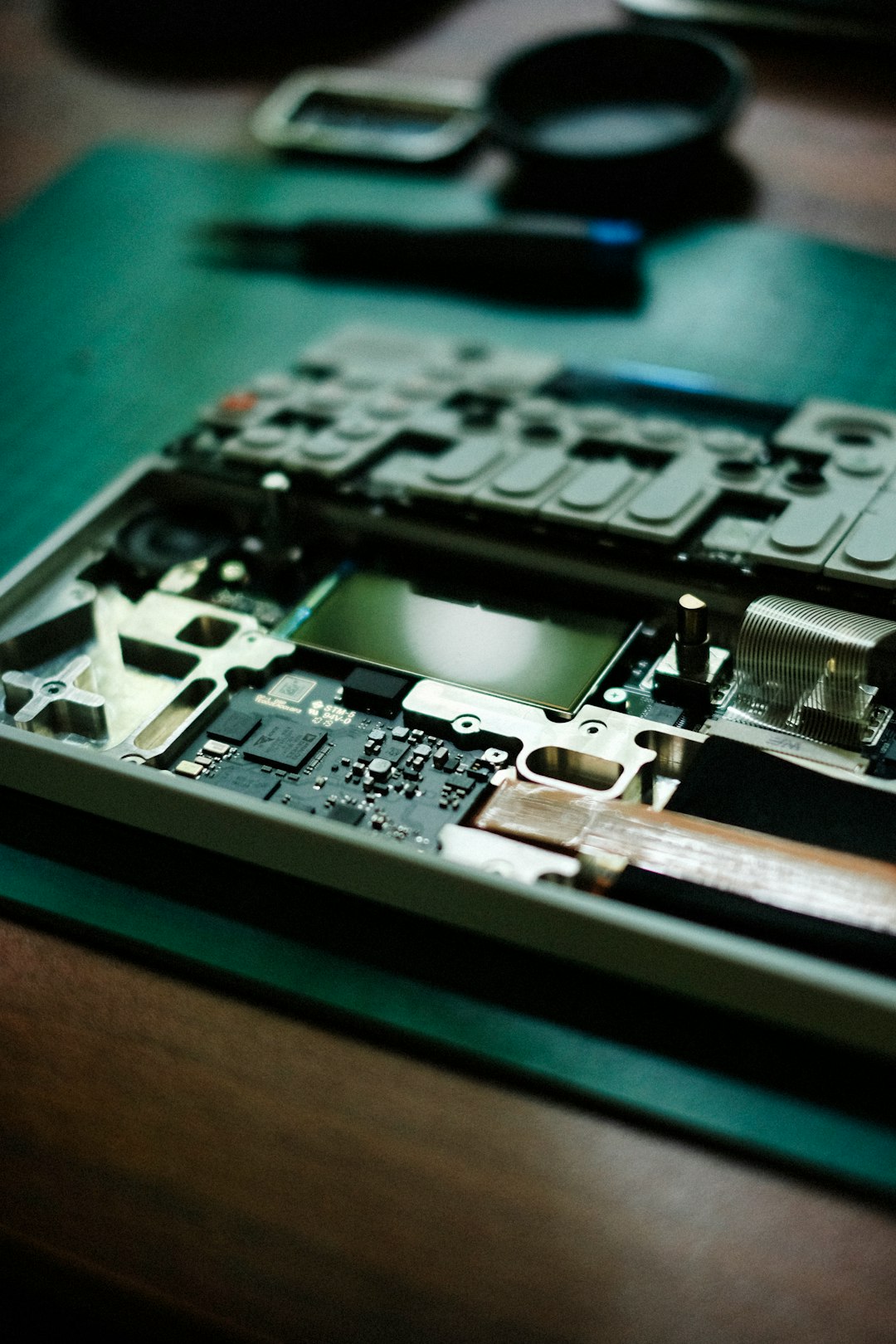
5. DIY Repairs (Advanced Users Only)
If you’re tech-savvy and the warranty has expired, you can explore replacement LCD panels compatible with your Lenovo model. Keep in mind:
- Always disconnect the battery before attempting repair.
- Use anti-static tools and clean environment to avoid further damage.
- Refer to your model’s service manual for detailed instructions.
Note: DIY repairs may void any remaining warranty or cause additional issues if done improperly.
Preventing White Spots on Your Screen
Once your current issue is resolved or controlled, it’s worth taking steps to avoid similar problems in the future:
- Use a Quality Laptop Sleeve: A padded case can prevent pressure damage during transport.
- Avoid Touching the Screen: Fingertaps and pressure can cause internal damage over time.
- Do Not Stack Items on Top: When not in use, store your laptop in a flat, pressure-free setting.
- Proper Screen Cleaning: Use a microfiber cloth and screen-safe solution to clean the display gently without applying pressure.
When It Might Be Better to Replace Than Repair
If your Lenovo laptop is more than 4–5 years old, repair costs may approach or exceed the value of the device. In this case, consider upgrading to a newer model. Additionally, modern laptops feature enhanced displays with OLED or mini-LED technology, reducing the likelihood of such issues in the future.
Conclusion
A white spot appearing — and especially spreading — on your Lenovo laptop screen is indeed a red flag. Fortunately, diagnosing the issue is relatively simple with the right tools, and addressing it can be equally straightforward depending on your warranty coverage. Whether you choose a professional fix, a careful DIY project, or start shopping for a replacement, taking swift action helps preserve the functionality and aesthetic of your laptop.
Frequently Asked Questions (FAQ)
-
Q: Can white spots on Lenovo screens go away on their own?
A: Unfortunately, no. White spots caused by hardware issues do not resolve themselves and may worsen with time. -
Q: Is a white spot the same as a dead pixel?
A: Not always. Dead pixels are tiny single-pixel-level anomalies. White spots are generally larger and caused by internal screen pressure or backlight issues. -
Q: Will a screen protector help prevent white spots?
A: No, screen protectors are meant to prevent scratches, not internal damage. Proper carrying and handling are more effective prevention methods. -
Q: Can software fix white spots?
A: No software can fix physical screen issues like white spots. Only hardware repair or replacement will resolve the problem. -
Q: Is screen replacement worth it?
A: If the rest of the device is in good shape and repair costs are moderate, replacement is often worth it. Otherwise, consider investing in a new laptop.