
Whether you’re a professional working on multiple tasks, a creative designer needing screen real estate, or simply someone who wants a more efficient workstation, using two monitors with your laptop can skyrocket your productivity. It can simplify multitasking, streamline workflows, and reduce the time spent switching between windows. Thankfully, setting up a dual monitor system isn’t as complicated as it may seem — especially once you know what hardware you’re working with.
This step-by-step guide will walk you through everything you need to know to connect two external monitors to your laptop, from checking compatibility to optimizing your display settings for the best performance.
Step 1: Check Your Laptop’s Compatibility
The very first step is to figure out whether your laptop supports multiple display outputs. Even though most modern laptops do, the number of supported monitors—and how you attach them—can differ based on the hardware you’re using.
Key things to check:
- Available Ports: Look for HDMI, USB-C, DisplayPort, mini DisplayPort, VGA, or Thunderbolt ports on your laptop.
- Graphics Card: Your laptop’s GPU must be capable of supporting multiple displays. In Windows, you can find this information by searching for “Device Manager” and checking the Display Adapters section.
- Maximum Display Support: Check the laptop manufacturer’s website to see how many external displays are officially supported.

Step 2: Check What Cables You’ll Need
Next, identify the type of cables required to connect your monitors. This depends on the ports available on both your laptop and the monitors.
- HDMI: Standard for most modern laptops and monitors.
- DisplayPort/mini DisplayPort: High-performance connection often used in professional setups.
- USB-C/Thunderbolt: Offers high-speed data and video transfer. Some laptops only have USB-C for video output.
- VGA: Older analog connection, rarely used today but still found on some equipment.
Tip: If your monitors have different inputs than your laptop, you may need adapters, such as HDMI-to-VGA or USB-C-to-HDMI.
Step 3: Connect the Monitors
Once you’ve gathered your cables and adapters, it’s time for the actual setup.
- Connect the First Monitor: Plug it directly into one of your laptop’s video output ports.
- Connect the Second Monitor: Use a different port for the second monitor. If your laptop lacks a second video port, you can use a USB-to-HDMI adapter or a docking station.
- Power On All Devices: Turn on your laptop and both external monitors.

Step 4: Configure Display Settings
Now that everything’s physically connected, you’ll need to arrange your displays correctly. Here’s how you do it:
For Windows:
- Right-click on your desktop and select Display settings.
- You’ll see your screens represented as numbered boxes (1, 2, 3). Click Identify to know which number corresponds to which screen.
- Drag the boxes to match the physical layout of your monitors.
- Scroll down to find “Multiple displays” and make sure “Extend these displays” is selected.
- Click Apply to save changes.
For macOS:
- Go to System Preferences > Displays.
- Click the Arrangement tab.
- Drag displays to match your actual desk setup. You can also choose which one is the primary display by dragging the white menu bar.
Step 5: Optimize for Productivity
With your monitors now up and running, it’s time to make the most out of them. Use the space intelligently to craft a digital workspace that allows seamless multitasking:
- Keep your main work on one screen (e.g. document editing or coding).
- Use the second screen for reference material, communication tools like Slack or Teams, or your email client.
- Use task managers or calendar apps full-screen on one monitor to stay focused.
Shortcut tip: Press Win + P on Windows to quickly switch between display modes: Duplicate, Extend, Second screen only.
Advanced Setup: Using a Docking Station
If you have limited ports or want a cleaner setup, a docking station can be a game-changer. These devices often support multiple displays, provide extra USB ports, and allow for quick plug-and-play use with your laptop.
- USB-C Docks: Designed for modern laptops with USB-C or Thunderbolt ports. Supports charging, data, and video.
- USB 3.0 Docks: Suitable for older laptops, but may require special display drivers.
Once connected via a docking station, follow the same configuration steps mentioned above. The setup becomes easier and tidier — especially for professionals working from home offices or shared corporate spaces.
Troubleshooting Common Issues
Sometimes your screens may not behave as expected. Here’s how to troubleshoot frequent problems:
- One Monitor Isn’t Detected: Try rebooting the laptop with the monitors connected. Also, check cables and adapters.
- Resolution Doesn’t Look Right: Open display settings and manually adjust the resolution for each monitor.
- Monitor Flickering or Lagging: This could be due to a low-quality cable or unsupported resolution. Consider upgrading to a better-quality adapter or dock.
- Displays Not Extending: Ensure that the “Extend these displays” option is selected in your display settings.
Bonus Tip: Use Software for Better Window Management
To make your multi-monitor setup even more productive, you can use apps and utilities designed specifically for managing windows and screen real estate.
- Windows PowerToys: It includes “FancyZones,” which helps organize your screen into efficient window layouts.
- DisplayFusion or Actual Multiple Monitors: Third-party software to manage multiple displays with additional features like taskbars on each screen and custom shortcuts.
- Magnet (macOS): Great for snapping and organizing windows on a Mac.
Final Thoughts
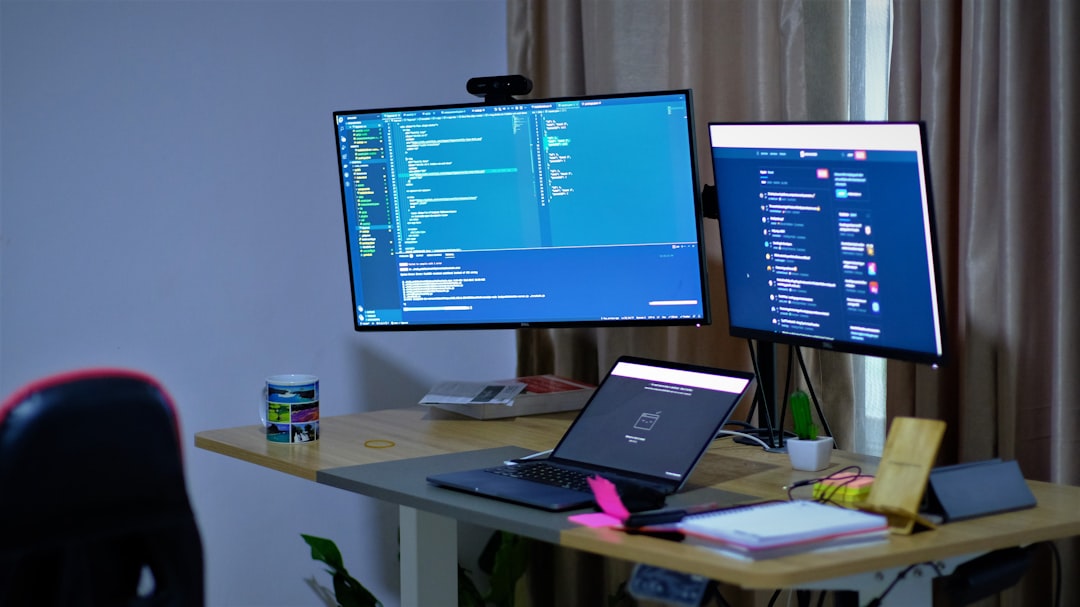
Hooking up two external monitors to your laptop isn’t just about having more screens — it’s about building a curated digital environment that enhances your ability to work, create, and collaborate. By understanding your laptop’s capabilities, choosing the right technology, and optimizing your workspace setup, you can elevate your productivity to the next level.
The initial investment in hardware may involve a few adapters or a docking station, but the payoff in efficiency and ease of use is absolutely worth it. So, the next time you find yourself juggling multiple windows or shuffling between apps, remember: the dual monitor setup isn’t just an option — it’s a productivity revolution waiting to happen.