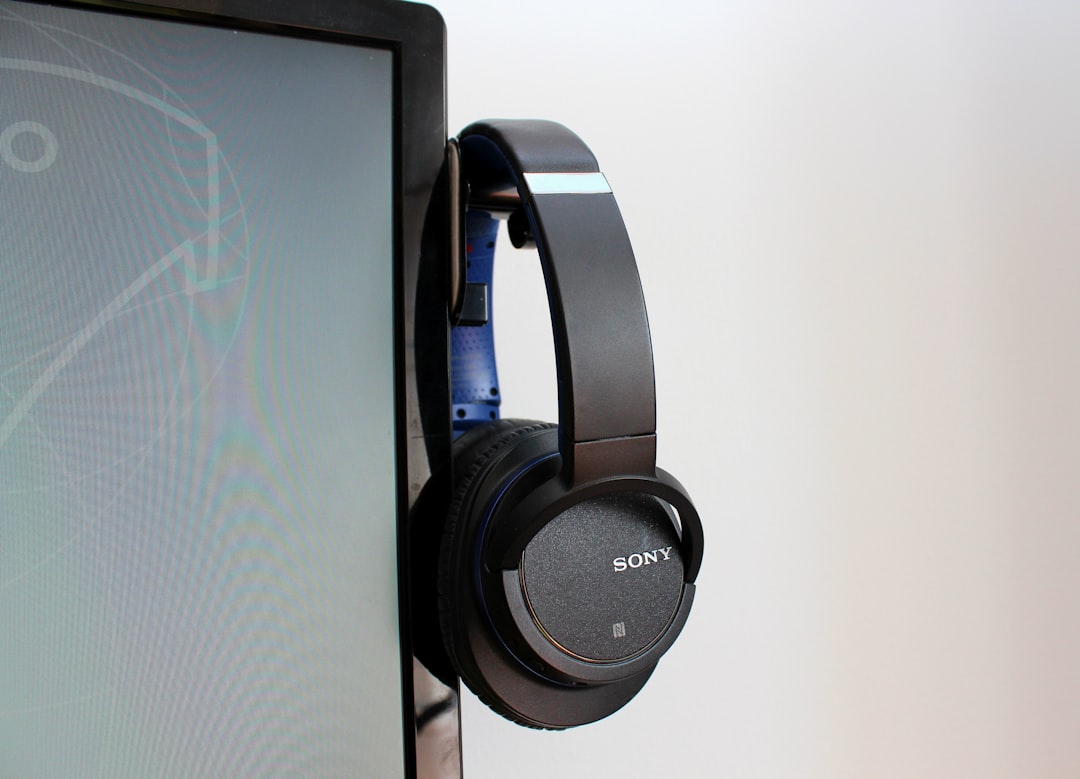
Got a new pair of Skullcandy headphones? Awesome! Whether you’ve unwrapped a fresh box or dug up some Bluetooth buds from your drawer, pairing them with your phone or PC is super easy. Don’t worry — you don’t need to be a tech wizard. Just follow these simple steps, and you’ll be jamming to your favorite tunes in minutes!
What You’ll Need
- A pair of Skullcandy Bluetooth headphones or earbuds
- A smartphone or a computer with Bluetooth
- A few minutes and your favorite playlist ready to go!
Understand the Buttons First
Before we start, let’s get familiar with your headphones. Most Skullcandy models have a multi-function button (MFB). This button does it all — power, pairing, and play/pause.
Some models (like the Crusher or Hesh lines) also have volume up and volume down buttons. But for pairing, the multi-function button is your best buddy.
How to Pair Skullcandy Headphones with Your Phone
Step-by-step for Android or iPhone:
- Turn on your headphones. Press and hold the MFB for about 3-5 seconds until you hear a voice say “Pairing” or see a flashing LED light. This means the headphones are in pairing mode!
- Grab your phone and go to the Settings app.
- Tap on Bluetooth. Make sure it’s turned on.
- Wait a second — your Skullcandy headphones should appear under “Available Devices.”
- Tap the name (like “Crusher Evo” or “Sesh”) to connect.
- Wait for a voice or message that says “Connected”.
That’s it! You’re now paired and ready to vibe.
How to Pair with a Windows PC
Using a PC? No problem! Here’s the quick version:
- Put your headphones into pairing mode as before by holding the MFB.
- On your PC, click the Start menu and go to Settings.
- Select Devices, then Bluetooth & other devices.
- Click Add Bluetooth or other device.
- Choose Bluetooth.
- Wait for your Skullcandy device to show up, then click it.
And boom — you’re paired with your PC!
How to Pair with a Mac
Mac users, we’ve got you too. It’s just as easy:
- Hold the MFB to get your headphones into pairing mode.
- Click the Apple menu and go to System Settings or System Preferences.
- Choose Bluetooth.
- Flip the Bluetooth switch ON if it’s off.
- Find your Skullcandy headphones on the list and click Connect.
Your Mac should now have your headphones connected — no wires, no stress!
Troubleshooting Tips
Something not working? Don’t worry — it happens. Try these:
- Headphones not showing up? Make sure they’re in pairing mode. Try turning them off and back on again while holding the MFB.
- Already paired to another device? Disconnect them from the other device first.
- LED not flashing? The battery might be low. Try charging your headphones.
Pairing with Multiple Devices
Some newer Skullcandy headphones can remember more than one device. But they can usually only play from one at a time.
- To switch devices, make sure you disconnect from the first one before trying to connect the second.
- Bonus tip: On Android or iPhone, you can rename your device under Bluetooth settings to something cool like “DJ SkullCandy”.
Resetting Bluetooth on Skullcandy Headphones
Still having trouble? A Bluetooth reset might help! Here’s how you can do it:
- Turn off your headphones.
- Hold the volume up + volume down buttons for 4 seconds. This clears previous pairings.
- Now hold the MFB to enter pairing mode again.
Voila! You have a clean slate to pair again.
What if One Earbud Isn’t Working?
This happens more often with true wireless earbuds like the Sesh Evo or Indy. Don’t panic!
Try this:
- Put the earbuds in the charging case and make sure they’re both charging.
- Take them out at the same time. They should sync automatically.
- If not, remove them from your phone’s Bluetooth settings and re-pair them again from scratch.
Extra Fun Tips
Now that you’re paired up, let’s have more fun:
- Use voice assistants! Hold the MFB to activate Siri or Google Assistant.
- Manage calls and music with taps. One tap to pause, two to skip forward, three to go back.
- Check the Skullcandy app for cool features if your model supports it!
Final Thoughts
Pairing your Skullcandy headphones doesn’t have to be a chore. It’s quick, painless, and once you’re connected, you’re free to enjoy hands-free music, podcasts, and calls.
So plug into your groove. Whether you’re walking, working, or just chilling out — your Skullcandy headphones are your new best friend.
Now go ahead, hit play!