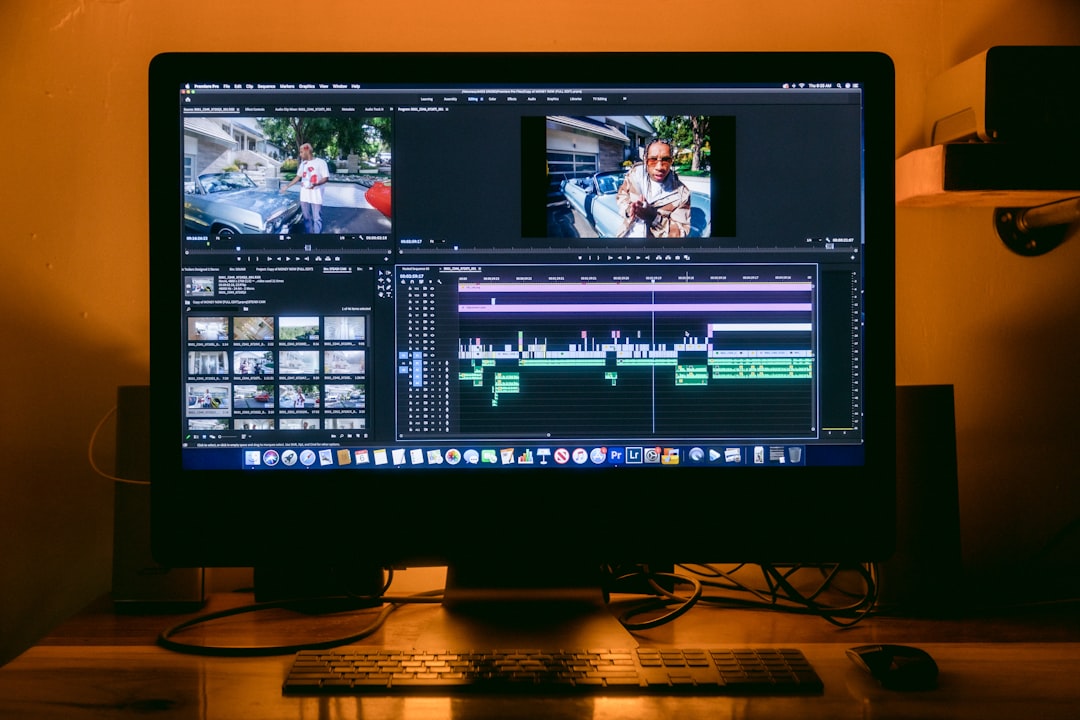
Adobe Premiere Pro is an industry-leading video editing software used by professionals and enthusiasts alike. However, users sometimes encounter technical issues that can halt progress, one of the most frustrating being the “Error Retrieving Frame”. This error typically occurs during playback or export and can be caused by a variety of factors, including corrupt media files, hardware incompatibility, or software misconfigurations. Understanding the causes and how to fix them can save hours of troubleshooting and ensure a smoother editing experience.
What Does “Error Retrieving Frame” Mean?
The “Error Retrieving Frame” message in Adobe Premiere Pro generally indicates that the software is unable to read or decode a specific frame of video, either during playback or exporting. This can result in choppy previews, failed exports, or the inability to render certain clips. Common triggers include problematic file formats, corrupt footage, incorrect sequence settings, or even outdated drivers.
Common Causes of the Error
- Corrupt Media Files: Damaged or partially downloaded media files can cause reading issues.
- Codecs and Format Incompatibility: Some file formats and codecs are less stable or not fully supported.
- Hardware Acceleration Issues: GPU-accelerated rendering can sometimes clash with specific media.
- Plug-in Conflicts: Third-party plugins or effects may not be compatible with the media being used.
- Outdated Graphics Drivers: GPU drivers that aren’t up-to-date can cause decoding problems.
How to Fix the “Error Retrieving Frame” Issue
1. Identify the Problematic Clip
First, isolate the clip that’s triggering the error. Playback or exporting may consistently stop at the same timecode or frame. Place the playhead near that point and attempt to scrub through the clip slowly. If the issue reoccurs, note the filename and format of the clip.

2. Clear Media Cache
Adobe Premiere Pro saves media cache files to speed up editing. However, if these files become corrupted, they can interfere with playback and exporting.
- Go to Edit > Preferences > Media Cache.
- Click on “Delete Unused” or manually delete all cache files if necessary.
- Restart Premiere Pro and try your project again.
3. Convert or Transcode the Source Clip
If a particular file is causing the problem, try converting it to a more editing-friendly format like Apple ProRes or DNxHD/HR using software like Adobe Media Encoder or HandBrake. This can eliminate codec-related issues.
4. Disable Hardware Acceleration
Hardware acceleration can enhance performance but also lead to errors, especially on systems with older GPUs.
- Go to File > Project Settings > General.
- Under “Renderer”, select Mercury Playback Engine Software Only.
- Click OK and retry playback or export.
5. Update Graphics Drivers
Decoding certain video formats relies heavily on your system’s GPU. Outdated or misconfigured drivers can lead to frame retrieval errors.
- For NVIDIA users: Update through GeForce Experience or go directly to NVIDIA’s website.
- For AMD users: Use the Radeon Software interface or visit AMD’s official drivers page.
6. Replace the Affected Footage
If none of the above steps works and the affected clip consistently triggers the error, it’s possible the media itself is damaged. Try replacing it with:
- A backup of the original file.
- A transcoded version (converted to a different codec).
7. Check For Plug-in Conflicts
Disable or remove recently added plug-ins or effects applied to the problematic clip. Restart Premiere Pro and attempt the operation again. Some third-party plugins may not be optimized for the current version of Premiere.
8. Create a New Project and Reimport Assets
Sometimes, the issue lies within the project file’s metadata or sequence settings. You can try creating a new project and importing the previous project into it as follows:
- Create a new project file.
- Go to File > Import and select the older project file.
- Choose the sequences or assets needed.
9. Update Adobe Premiere Pro
Adobe consistently releases updates that improve performance and fix known bugs. Make sure you’re running the latest version:
- Open the Adobe Creative Cloud app.
- Check for updates under the Premiere Pro listing.
- Click Update if available.
10. Use Software Rendering During Export
If the error only appears during export, switching to software rendering can often bypass the issue.
- In the Export Settings, click on Render Using.
- Select Mercury Playback Engine Software Only.
- Try exporting the sequence again.
Troubleshooting Tips
- Check Hard Drive Health: Corrupted sectors or bad reads on physical drives can interfere with media access.
- Use SSDs where possible: Especially for source media and cache files, SSD performance is superior.
- Avoid Network Drives: Working off external or cloud-based storage can cause delays in frame retrieval.
FAQs
Q1: What does the “Error Retrieving Frame” usually mean?
A: It means Premiere Pro was unable to read or decode a frame of video, likely due to issues with the file format, codec, media corruption, or hardware acceleration.
Q2: Can I continue editing if this error appears?
A: You can, but any part of your timeline that includes the problematic clip may be unplayable or cause the software to crash. It’s best to fix the issue before proceeding.
Q3: Will deleting media cache hurt my project?
A: No, media cache files are temporary and will be regenerated. Deleting them can often fix unexpected behavior without affecting your project.
Q4: Are certain file types more prone to this error?
A: Yes, formats like H.265, variable framerate MP4s, or clips recorded on mobile devices may be more susceptible. Transcoding those files to editing-friendly formats like ProRes or DNxHR often helps.
Q5: How often should I update my graphics drivers?
A: It’s recommended to check for updates monthly or when you notice performance issues. Keeping drivers up to date ensures compatibility with the latest software updates.
Resolving the “Error Retrieving Frame” problem in Adobe Premiere Pro involves a mix of technical tweaks, media management, and understanding how your hardware and software interact. By carefully following the steps outlined above, users can eliminate the issue in most cases and return to editing without the headache of continual playback or export failures.