The Xbox One is a powerful gaming console known for its immersive experience and superior performance. However, when it comes to audio accessories like Bluetooth headphones, things get a bit tricky. Unlike some other modern devices, the Xbox One does not natively support Bluetooth audio. This means you cannot directly connect your Bluetooth headphones to the console without a workaround. Fortunately, there are several trusted and efficient methods to achieve wireless audio on the Xbox One, and this article walks you through each of them step-by-step.
Why Doesn’t the Xbox One Support Bluetooth Audio?
Before diving into the solutions, it’s important to understand why Bluetooth connectivity is not standard on the Xbox One. Microsoft designed the console with proprietary wireless protocols tailored to reduce latency and improve synchronization between the console and Xbox accessories, such as controllers and headsets. While this proprietary system is great for real-time gaming, it rules out native support for most Bluetooth audio devices.
Available Options to Connect Bluetooth Headphones to Xbox One
Although the Xbox One doesn’t support Bluetooth audio natively, there are multiple trusted workarounds available. These include:
- Using an Xbox-Compatible Bluetooth Transmitter
- Connecting via the Xbox App on Mobile Devices
- Using a Bluetooth-Enabled TV or Monitor
- Connecting via a Bluetooth Dongle with the Controller
Option 1: Using a Bluetooth Transmitter
This is one of the most effective methods for connecting Bluetooth headphones to your Xbox One. A Bluetooth transmitter plugs into the Xbox controller or console and transmits audio to your headphones.
Steps:
- Purchase a Bluetooth transmitter compatible with 3.5mm audio jacks.
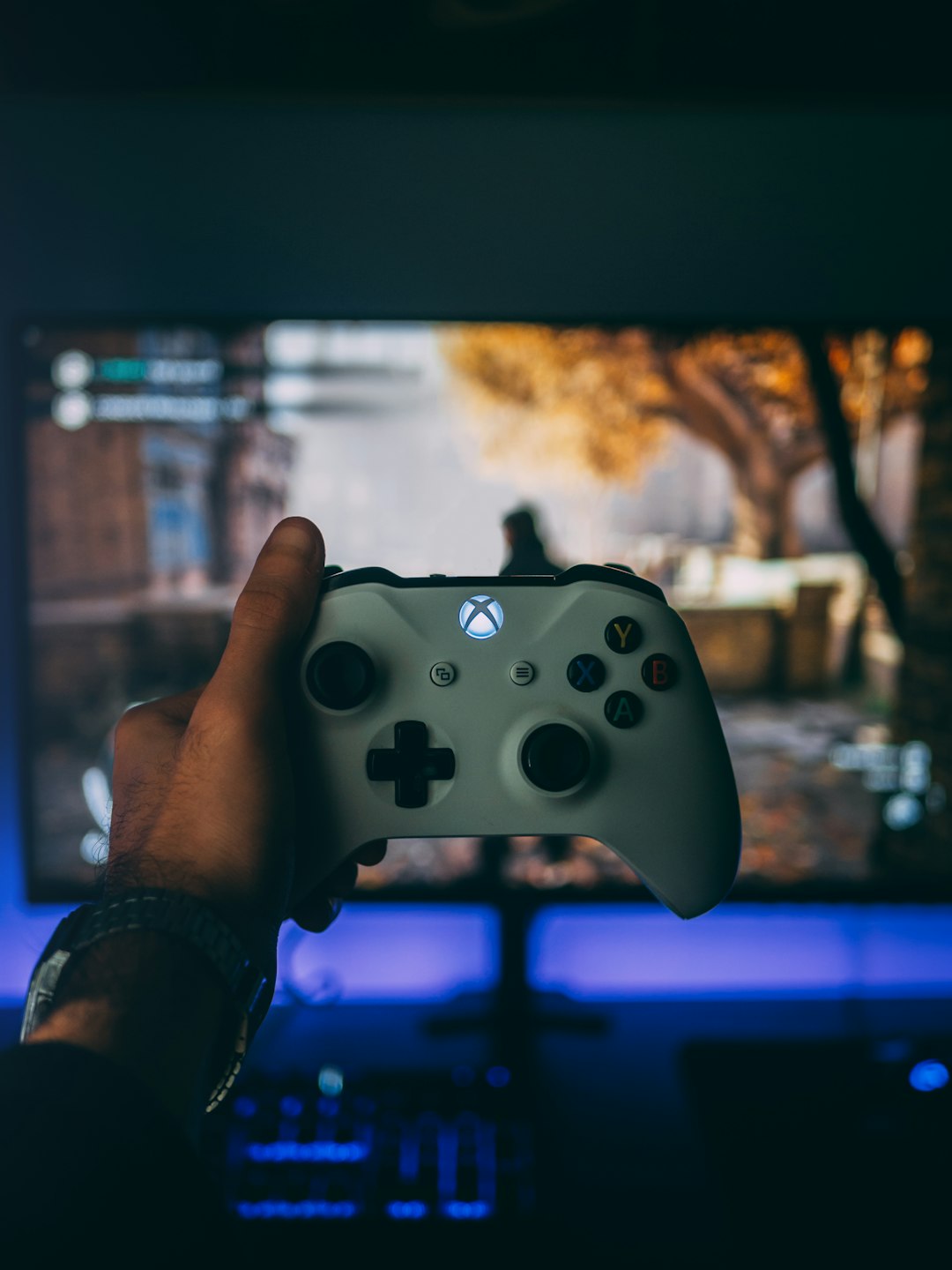
- Connect the transmitter to the 3.5mm headphone jack on your Xbox One controller. If your controller does not have a built-in headphone jack, you’ll need a Stereo Headset Adapter.
- Turn on your Bluetooth headphones and set them to pairing mode.
- Pair the transmitter with your headphones. This may take a few seconds depending on the devices.
- Adjust the volume from the controller and verify that the sound is flowing correctly to your headphones.
This setup is straightforward and provides stable audio with minimal delay, making it an excellent choice for gaming.
Option 2: Using the Xbox App on a Mobile Device
If you want another indirect but effective method, the Xbox App on your smartphone can be used to connect Bluetooth headphones.
Here’s how:
- Download the Xbox App from the Apple App Store or Google Play Store.
- Sign in using the same Microsoft account linked to your Xbox One.
- Make sure both your console and mobile phone are connected to the same Wi-Fi network.
- Connect your Bluetooth headphones to your phone.
- Start a party chat using the Xbox App. You’ll be able to use your Bluetooth headphones for in-game communication and party chat.
This method does not transmit all in-game sounds, but it is useful when you want to communicate with other players via voice chat while keeping your wireless setup intact.
Option 3: Connecting Through a Bluetooth-Enabled TV or Monitor
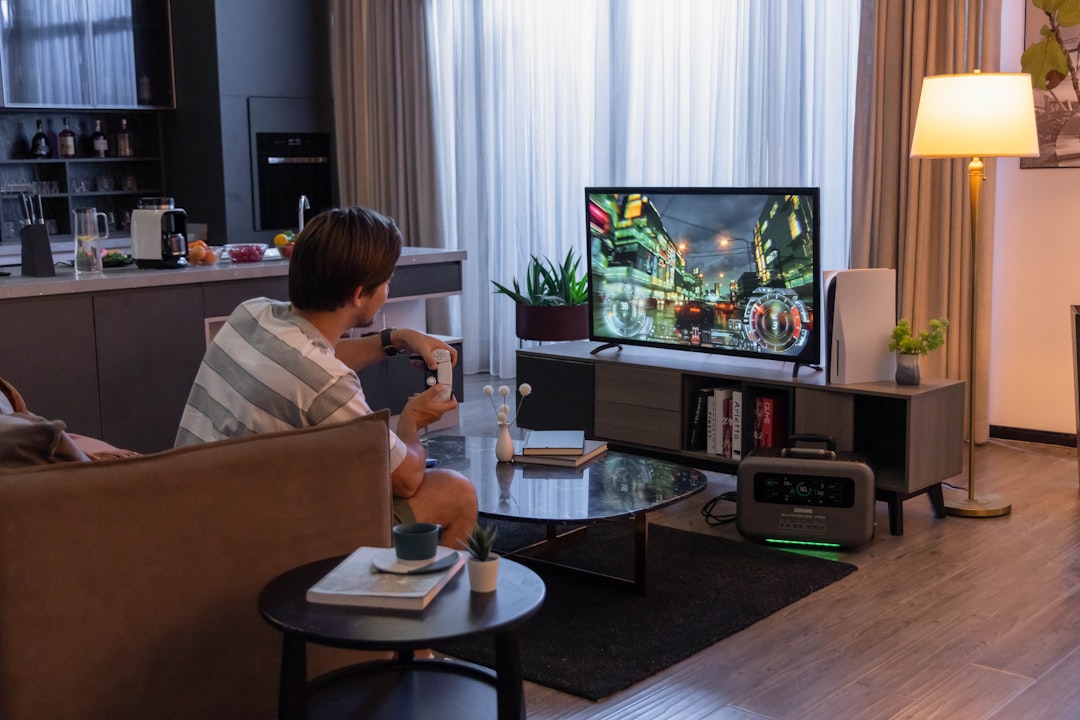
If you use a TV or monitor with built-in Bluetooth audio support, you can route your Xbox’s audio through your display and then connect your headphones directly to it.
Follow these steps:
- Verify that your TV or monitor has built-in Bluetooth audio transmission capabilities.
- Connect your Xbox One to the TV using an HDMI cable as usual.
- Turn on the Bluetooth function on the TV and put it in pairing mode.
- Place your headphones in pairing mode and complete the connection through the TV menu.
This is an effective solution if you often use your Xbox One in a home entertainment setup. However, latency may vary depending on your TV’s Bluetooth technology.
Option 4: Connecting via Bluetooth Dongle with the Controller
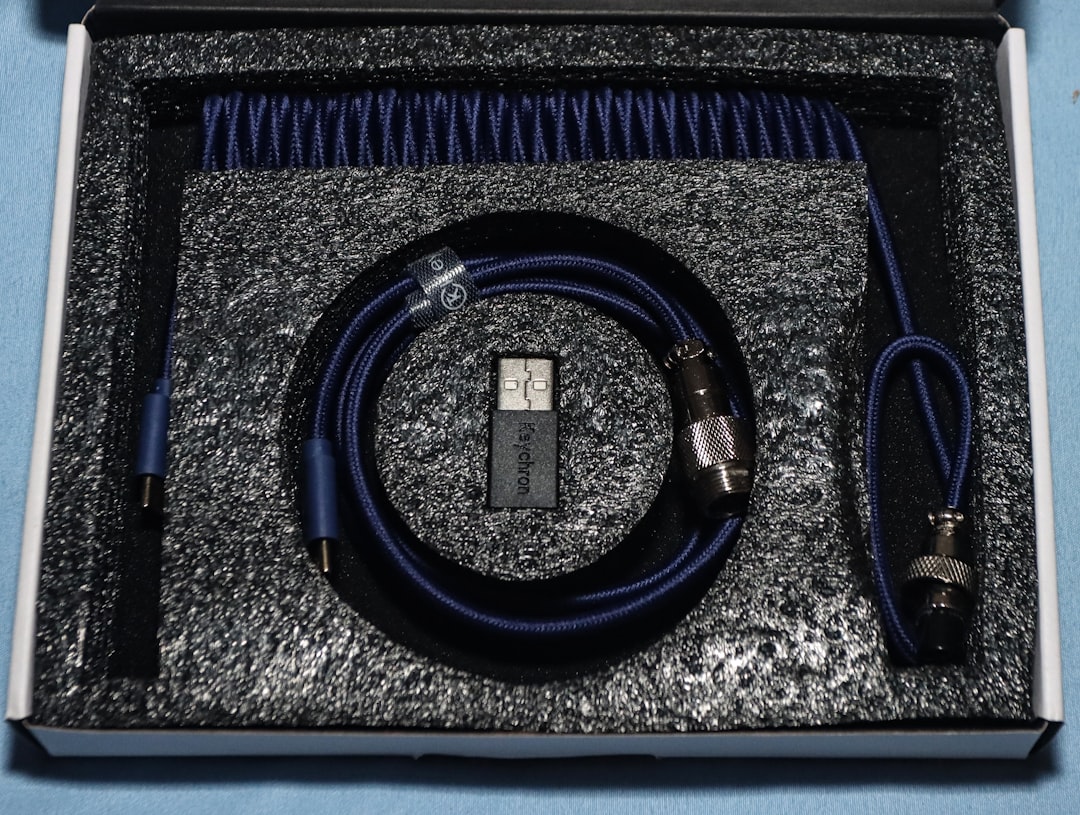
If a full-featured Bluetooth transmitter is unavailable, a USB Bluetooth dongle with audio capabilities can sometimes be connected via the Xbox controller — though results may vary because Xbox does not support audio over USB. This makes it a less reliable option, but worth mentioning.
Process:
- Buy a Bluetooth dongle that supports audio transmission.
- Use a 3.5mm female to USB male adapter if required to connect the dongle to your controller or console.
- Pair your Bluetooth headphones with the dongle as per the dongle’s pairing instructions.
This option may require multiple components and may not work for all users, especially if Xbox firmware updates affect compatibility.
Tips for Better Audio Quality
Regardless of which method you choose, keep the following tips in mind to enhance your audio experience:
- Keep your devices fully charged to avoid disconnection or signal issues.
- Minimize electronic interference by staying close to the Bluetooth transmitter or paired device.
- Opt for low-latency headphones, especially those with aptX support, to reduce audio lag during gameplay.
- Update your controller firmware regularly through the console settings menu.
What to Avoid
It’s important to steer clear of unsupported accessories or fraudulent dongles advertised as being fully compatible with Xbox One. Xbox’s proprietary system limits the range of accessories that will work efficiently or at all. Always research product reviews before purchasing third-party transmitters or dongles to ensure they are reputable.
Alternative: Consider Xbox-Compatible Wireless Headsets
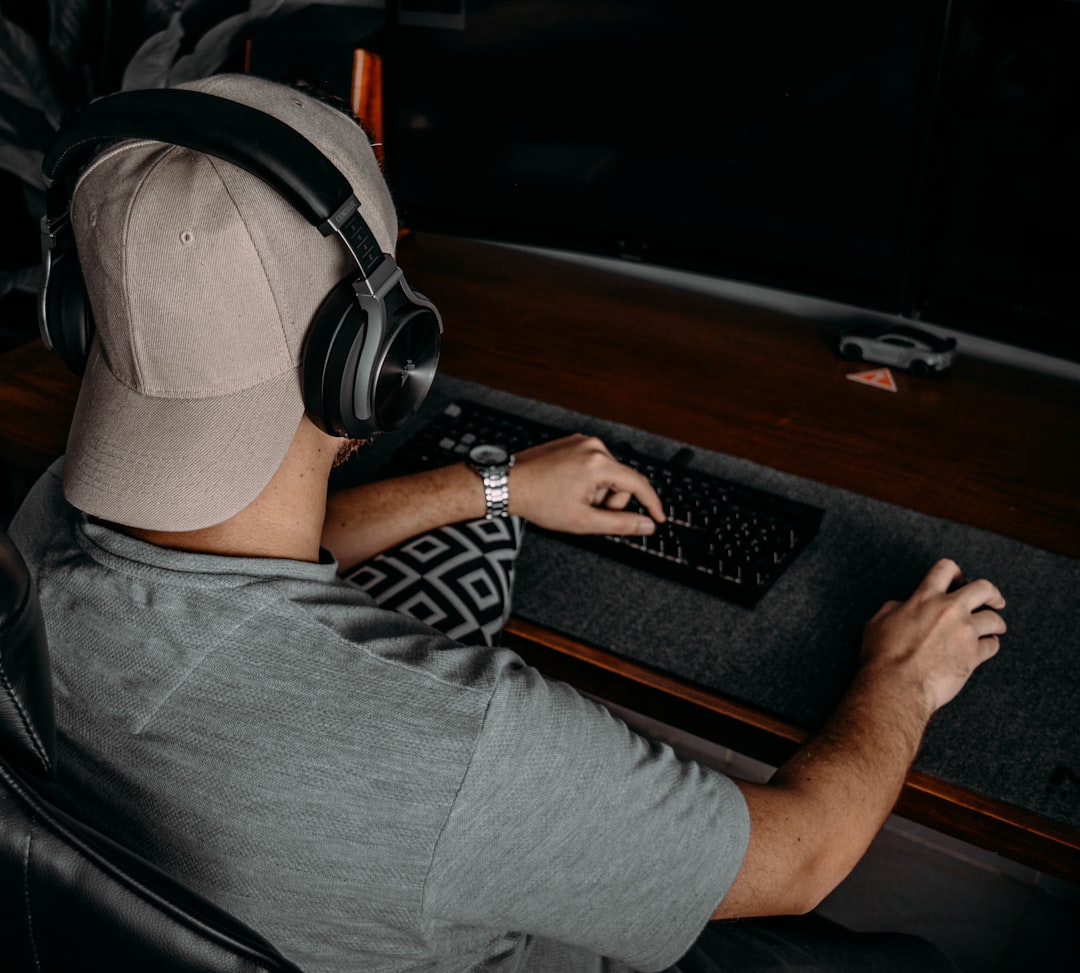
If you find that using Bluetooth devices presents too many challenges, you might consider investing in an Xbox-certified wireless headset. These headsets are designed to work seamlessly with the console’s proprietary protocols, ensuring excellent audio quality and voice chat with no extra setup.
Some of the best Xbox-compatible wireless headsets include:
- SteelSeries Arctis 9X – Versatile and directly compatible with Xbox One.
- Razer Kaira Wireless – Designed specifically for Xbox with high-quality audio drivers.
- Microsoft Xbox Wireless Headset – Affordable and highly integrated with Xbox’s ecosystem.
Conclusion
While the Xbox One lacks native support for Bluetooth audio, there are still several reliable ways to use your Bluetooth headphones with the console. Whether through a dedicated Bluetooth transmitter, the Xbox mobile app, or your TV’s Bluetooth capabilities, each method comes with its own pros and limits. Selecting the right method depends on your setup, budget, and audio quality requirements.
For the most seamless experience, consider using audio equipment certified for Xbox. If you prefer sticking with your current Bluetooth headphones, the steps outlined in this guide will help you get connected and back into the game with minimal hassle.