Whether you’re launching your first website or refining your brand’s digital presence, the logo you display on your WordPress site is fundamental to your visual identity. A well-placed, crisp logo can instantly make your site look polished and professional, while a blurry or misaligned image can have the opposite effect. Handling your logo correctly within WordPress — including choosing the right theme support, managing header placement, and optimizing for retina displays — is essential in today’s high-resolution web landscape.
TLDR:
A logo is a critical component of your WordPress website’s branding. Choose a theme with proper logo support, customize your header for optimal placement, and prepare a high-resolution version to accommodate retina displays. Use SVG or double-resolution PNG files for best results. Lastly, always test your logo across multiple devices for clarity and positioning.
The Importance of a Logo in WordPress
Your logo is often the first element visitors see when they land on your website. It’s not just a graphic; it represents your identity, communicates trust, and plays a major role in user recognition. In WordPress, placing your logo effectively requires more than just uploading an image — it involves strategic theme selection, ideal sizing, responsive tweaks, and optimizing for retina displays.
1. Choosing the Right WordPress Theme for Logo Integration
Not all WordPress themes handle logos the same way. Some come with built-in logo uploaders in the WordPress Customizer, while others require manual code edits or additional plugins. When choosing a theme, especially if brand consistency is vital, make sure it offers robust logo placement options.
Key features to look for in a theme that supports high-quality logo integration:
- Customizer support: Allows you to easily upload and preview your logo without touching code.
- Header layout control: Options to place your logo on the left, center, or above the navigation bar.
- SVG support: Enables crisp display at all resolutions with scalable vector images.
- Retina-ready: Makes sure your site doesn’t blur on high-resolution devices.
Premium themes like Astra, OceanWP, and GeneratePress all offer excellent support for branded logos and modern header customization.
2. Proper Header Placement for Maximum Impact
The header is the best real estate for a logo, but where exactly in the header depends on your site’s design and your logo dimensions. Most themes allow placement in the top-left corner — a convention web users are familiar with — but some also support center-alignment or the inclusion of logos above or within navigation menus.
Here are some tips for header logo placement:
- Stick to familiar positions: Users expect the logo in the top-left, especially on desktop views.
- Size it appropriately: Keep the height between 40px to 100px for most themes. A too-large logo may disrupt header layout.
- Spacing matters: Use padding and margin settings to keep your logo and menu items well-aligned and uncluttered.
- Consider mobile: Ensure the logo shrinks or stacks properly on smaller screens.
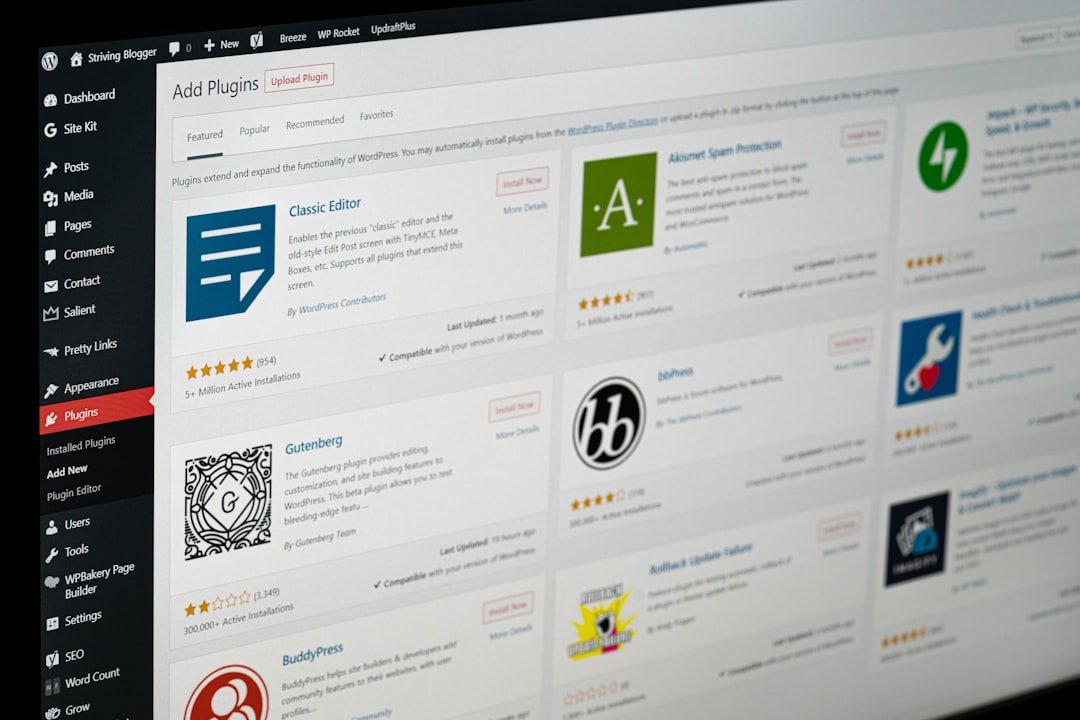
Most modern themes handle responsive resizing automatically, but you should still test header behavior on mobile devices during customization.
3. Uploading and Customizing the Logo in WordPress
You can upload your logo in WordPress via the Customizer:
- Go to Appearance > Customize.
- Select the Site Identity panel.
- Click Select Logo and upload your desired image.
WordPress will typically ask you to crop the logo. It’s better to upload a logo with precise dimensions in mind than rely on cropping. If your theme supports SVG images, upload SVGs instead of PNGs for optimal scaling across screen sizes.
Keep file sizes low (preferably under 200 KB) to avoid performance issues. For raster images like PNG or JPG, consider compressing them with tools like TinyPNG or ImageOptim before upload.
4. Retina Optimization: Making Your Logo Look Sharp on All Devices
With the proliferation of high-resolution screens (retina displays), a non-optimized logo can appear blurry or pixelated. To fix this, offer a higher resolution image and scale it down using CSS or theme settings. For instance, if your logo appears 150px wide, upload a 300px version.
There are two main methods to implement retina-ready logos in WordPress:
Option A: Double-Resolution PNG
Upload a version of your logo that’s twice the displayed size. Then, restrict its display size with CSS or theme options so it appears crisp on retina screens.
img.logo {
  width: 150px;
  height: auto;
}
This approach is simple and works with most WordPress themes.
Option B: Use SVG Format
Scalable Vector Graphics (SVG) are resolution-independent and the best bet for logos. Ensure your theme or a plugin allows SVG uploads, then upload a properly created SVG logo file.
To enable SVG upload support safely:
function enable_svg_upload( $mimes ) {
  $mimes['svg'] = 'image/svg+xml';
  return $mimes;
}
add_filter( 'upload_mimes', 'enable_svg_upload' );
Note: SVG files can contain script, so ensure they come from a trusted designer or source before uploading.

5. Best Practices for Maintaining Logo Consistency
Consistency in how your logo appears across devices, pages, and marketing assets reinforces brand trust. Here are some final best practices:
- Stick to one logo format: Avoid switching between versions (horizontal, square, stacked) too often.
- Use a favicon: Upload a favicon alongside your logo for browser tab branding under Customizer > Site Identity.
- Align colors and spacing: Match the logo’s colors with your theme for visual integration. Ensure padding and alignment are consistent across templates.
- Test across devices: Use tools like BrowserStack or simply check on different devices to catch alignment or resolution issues.
6. Troubleshooting Common Logo Issues in WordPress
Even with careful planning, you may run into some common problems. Below are quick fixes:
- Logo appears blurry: You’re likely displaying a low-resolution image. Replace it with a double-resolution PNG or an SVG file.
- Logo not centered or misaligned: Adjust padding and margin in the theme’s Customizer or via CSS edits.
- Cannot upload SVG files: Use a plugin like Safe SVG or add the custom code snippet shown above.
- Logo overlaps navigation menu: Adjust header layout settings or reduce the image width.
Final Words
Your site’s logo is not just a decorative asset — it’s a vital branding tool and a design focal point that anchors the rest of your layout. WordPress offers flexible tools and themes that make logo integration easy, but to stand out, you’ll need to make smart choices around image clarity, placement, and responsiveness. Investing time to prepare a retina-ready, well-positioned logo not only enhances your site’s appearance but also strengthens your brand credibility across the web.
Take the time to review your theme’s capabilities, optimize your logo for all screen types, and apply consistent branding techniques. Your visitors will notice — and remember.