
Virtual Private Networks (VPNs) have become essential tools for maintaining online privacy, data security, and unrestricted internet access. However, like any technology, VPNs can sometimes encounter connection issues that disrupt browsing, streaming, or remote work. Understanding how to troubleshoot these common problems can help users quickly restore secure access and minimize frustration.
TLDR: VPN connection issues are usually caused by unstable internet connections, incorrect login credentials, outdated apps, server overload, or firewall conflicts. Most problems can be fixed by checking the internet connection, restarting devices, switching servers, updating the VPN client, or adjusting security settings. Advanced solutions include changing protocols and flushing DNS. With systematic troubleshooting, most VPN disruptions can be resolved in minutes.
Why VPN Connections Fail
Before resolving a problem, it is helpful to understand why VPN issues occur. A VPN works by creating an encrypted tunnel between the user’s device and a remote server. If any part of this process fails—authentication, server communication, encryption negotiation—the connection may drop or fail to initiate.
Common causes include:
- Unstable internet connection
- Incorrect login credentials
- Outdated VPN software
- Blocked VPN traffic by firewall or antivirus
- Server overload or maintenance
- Incorrect VPN protocol settings
Identifying the root cause is the first step toward an effective solution.
1. Check the Internet Connection
It may seem obvious, but many VPN issues stem from a weak or disconnected internet connection. If the base connection isn’t stable, the VPN cannot establish its secure tunnel.
Users should:
- Disconnect the VPN and try accessing a regular website.
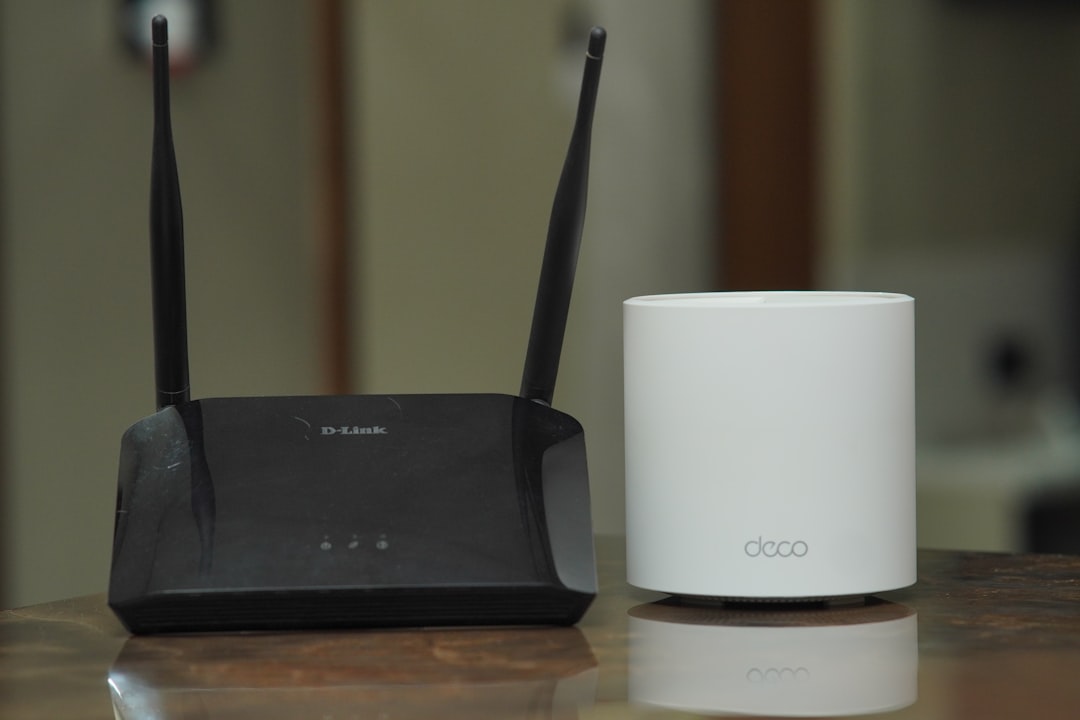
- Restart the router or modem.
- Switch from Wi-Fi to a wired connection if possible.
- Run a speed test to ensure adequate bandwidth.
If the internet connection itself is unreliable, resolving that issue will often restore VPN functionality.
2. Restart the VPN and Device
Temporary software glitches can interfere with VPN connections. A simple restart often clears these issues.
Steps include:
- Close the VPN application completely.
- Reopen it and attempt reconnection.
- Restart the computer or mobile device.
- Power cycle the router if needed.
This process refreshes network configurations and terminates background processes that may conflict with the VPN.
3. Verify Login Credentials
Incorrect usernames or passwords can prevent authentication. In some cases, users may have changed passwords recently or allowed subscriptions to expire.
To fix this:
- Re-enter login credentials carefully.
- Reset the password if necessary.
- Confirm the VPN subscription is active.
Authentication failures are often accompanied by specific error messages. Reviewing these messages can provide helpful clues.
4. Switch VPN Servers
Sometimes the issue is not on the user’s end but with the selected VPN server. Servers can become overloaded due to high traffic or undergo maintenance.
Users should try:
- Connecting to a different server in the same country.
- Selecting a nearby geographic location.
- Choosing a server optimized for streaming or browsing.
Switching servers often resolves slow speeds or connection timeouts immediately.
Image not found in postmeta5. Update the VPN Application
Outdated VPN software can create compatibility problems, especially after operating system updates. Developers frequently release updates that fix bugs and improve performance.
To ensure optimal performance:
- Check for updates within the VPN app.
- Download the latest version from the official website.
- Enable automatic updates if available.
Keeping software current helps maintain security and connectivity stability.
6. Change the VPN Protocol
VPN protocols determine how data is encrypted and transmitted. Common protocols include OpenVPN, IKEv2, WireGuard, and L2TP/IPsec. Occasionally, a specific protocol may be blocked by a network or may not function well under certain conditions.
Switching protocols within the VPN settings can often restore connectivity. For example:
- IKEv2 works well on mobile networks.
- WireGuard offers fast speeds and strong security.
- OpenVPN is widely compatible and reliable.
Testing different protocols can help determine which performs best on the given network.
7. Check Firewall and Antivirus Settings
Firewalls and antivirus programs are designed to block suspicious traffic—but they can sometimes mistakenly block VPN connections.
Users may need to:
- Temporarily disable firewall or antivirus software.
- Add the VPN app to the software’s exception list.
- Allow VPN ports through the firewall.
If the VPN works after disabling security software, adjusting the security settings instead of turning them off permanently is recommended for safety.
8. Flush DNS and Reset Network Settings
Corrupted DNS cache or incorrect network configurations can prevent successful VPN connections. Resetting these settings often resolves lingering issues.
On many systems, users can:
- Flush the DNS cache using command line tools.
- Reset network settings to default.
- Renew the IP address.
This clears outdated network information that may conflict with the VPN tunnel.

9. Disable Conflicting VPNs or Proxies
Running multiple VPNs or using proxy services simultaneously can interfere with connections. Only one VPN should operate at a time.
Users should:
- Uninstall unused VPN applications.
- Disable browser-based proxy extensions.
- Check system proxy settings.
Removing conflicts ensures that traffic flows through a single secure tunnel.
10. Contact Customer Support
If none of the above solutions work, contacting the VPN provider’s support team is the next logical step. Most reputable VPN services offer:
- 24/7 live chat support
- Email ticket systems
- Detailed setup guides
Providing error codes, screenshots, and device information can help support agents diagnose the issue more quickly.
Preventing Future VPN Problems
Preventive maintenance reduces the likelihood of future disruptions. Best practices include:
- Keeping devices and VPN apps updated.
- Using stable and secure internet connections.
- Avoiding public Wi-Fi without protection.
- Regularly restarting networking equipment.
- Monitoring subscription status.
Consistency and awareness go a long way toward maintaining a reliable VPN connection.
Conclusion
VPN connection issues can be frustrating, especially when privacy or remote access depends on a secure link. Fortunately, most problems have straightforward solutions. By methodically checking internet stability, server selection, software updates, protocol settings, and security configurations, users can resolve the vast majority of connection disruptions quickly. With proper troubleshooting and routine maintenance, VPN services remain one of the most effective tools for safeguarding digital activity.
Frequently Asked Questions (FAQ)
1. Why does the VPN keep disconnecting?
Frequent disconnections are usually caused by unstable internet connections, aggressive battery-saving settings on mobile devices, or overloaded VPN servers. Switching servers or protocols often resolves the issue.
2. Can a firewall block a VPN?
Yes. Firewalls may block VPN traffic if it appears unfamiliar or potentially unsafe. Adding the VPN to the firewall’s exception list typically fixes this problem.
3. Why is the VPN connected but not working?
This may occur due to DNS issues, IP conflicts, or restricted network settings. Flushing DNS or changing VPN servers often restores proper functionality.
4. Which VPN protocol should be used?
WireGuard is generally fast and secure, OpenVPN is highly compatible, and IKEv2 performs well on mobile networks. The best protocol depends on the user’s specific device and network conditions.
5. Does restarting the router help fix VPN problems?
Yes. Restarting the router refreshes the internet connection and can resolve temporary network errors affecting VPN connectivity.
6. Can VPNs be blocked by certain networks?
Some workplaces, schools, or countries restrict VPN usage. Switching protocols or using obfuscated servers may help bypass these restrictions where legally permitted.
7. Is it safe to disable antivirus software to test a VPN?
It is safe temporarily for testing purposes, but antivirus protection should be re-enabled immediately afterward. A better long-term solution is adding the VPN to the exception list.