
Encountering an authentication error while trying to access Rockstar Games services can be extremely frustrating, especially when you’re looking forward to diving into a title like GTA Online or Red Dead Online. These errors often prevent you from logging into the Rockstar Games Launcher or accessing online features, leaving gamers confused and stuck.
TL;DR: If you’re getting an authentication error on Rockstar services, it’s often due to network instability, incorrect login details, server outages, or software issues. Start by checking Rockstar’s server status, verifying your login credentials, and rebooting both your router and launcher. It’s also a good idea to temporarily disable antivirus or firewall software. If problems persist, reinstalling the Rockstar Games Launcher or contacting Rockstar Support may be necessary.
Understanding the Authentication Error
An authentication error means that your client (like the Rockstar Games Launcher or console) is unable to verify your account details with Rockstar’s servers. This can arise due to multiple reasons, including:
- Server downtime or outages
- Incorrect login information
- Firewall or antivirus software blocking the connection
- Corrupt Rockstar launcher or game files
- Issues with your internet or DNS settings
This issue is not unique to you—many users experience it during peak traffic hours or after updates to Rockstar’s systems.
Initial Checks to Perform
Before diving into technical solutions, perform these essential steps. These might save you significant time and hassle:
- Check Rockstar Server Status
Go to the official Rockstar Support page and click on the Service Status link. Make sure all systems are operational, especially for the game you’re trying to launch. - Verify Your Credentials
Ensure you’re entering the correct username and password. If two-factor authentication is enabled, double-check your device for the correct code. - Restart Your Systems
Restart your computer or console, then relaunch the Rockstar Games Launcher. Also, power cycle your internet router.
Once you’ve ruled out common user errors and verified that Rockstar’s servers are up, it’s time to dive into more detailed troubleshooting.
Step-By-Step Solutions
1. Clear Rockstar Games Launcher Cache
Sometimes, cached files can become corrupt, leading to login issues.
- Close the Rockstar Games Launcher completely.
- Press Windows + R and type
%LOCALAPPDATA%\Rockstar Games\Launcher - Delete the folder named WebView and Social Club.
- Restart the launcher and try logging in again.
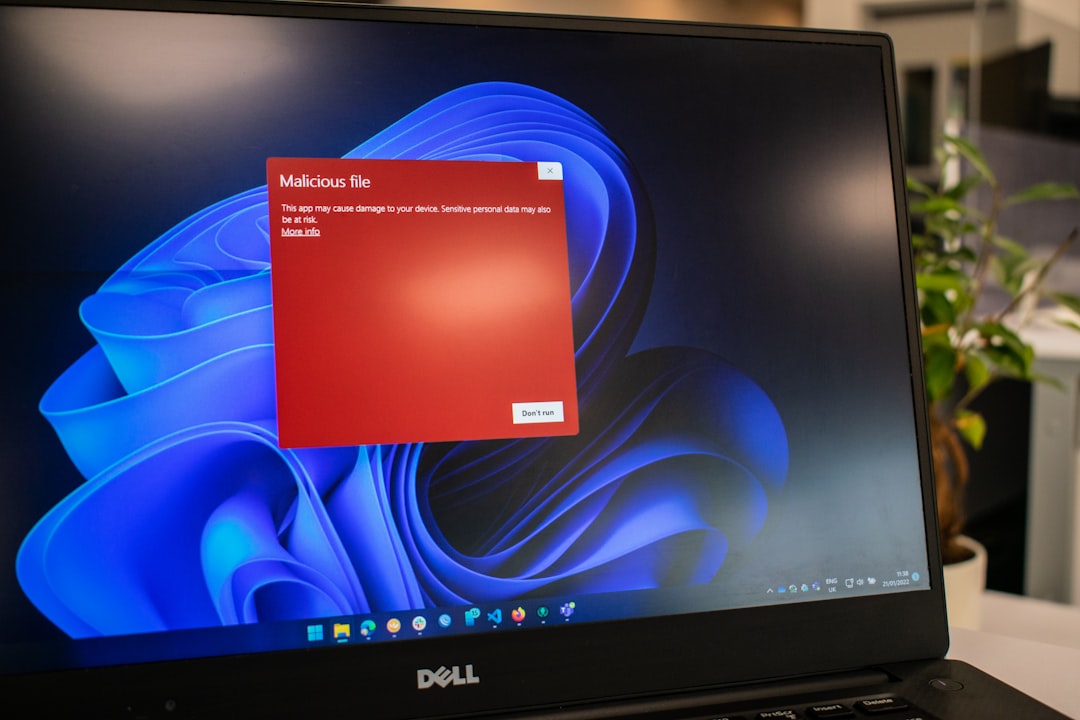
2. Temporarily Disable Antivirus or Firewall
Some security software may block Rockstar’s services. If this is the culprit, you won’t be able to authenticate properly.
- Disable your antivirus and firewall temporarily.
- Try logging into the launcher again.
- If it works, add Rockstar Games Launcher as an exception in your security settings.
Re-enable your antivirus once the test is complete. Do not leave your system vulnerable for extended periods.
3. Flush DNS and Reset Network
If your computer is having trouble reaching Rockstar servers due to a DNS configuration issue, this can also lead to authentication errors.
- Open Command Prompt as Administrator.
- Type the following commands and press Enter after each:
ipconfig /flushdnsnetsh int ip resetnetsh winsock reset- Restart your PC and try logging in again.
4. Reinstall Gameplay Components
If the Rockstar Games Launcher or Social Club is corrupted, a fresh reinstall might resolve the authentication failures.
- Uninstall the Rockstar Games Launcher via your system settings.
- Navigate to
C:\Program Files\Rockstar Gamesand delete any leftover folders manually. - Download the latest version of the launcher from Rockstar’s official site.
- Reinstall and confirm the installation of any missing dependencies like Social Club or DirectX.
5. Try a Different Network or Use a VPN
Your ISP might sometimes block or throttle specific services. You can test this by using a mobile hotspot or activating a VPN service.
- Turn off your current Wi-Fi and enable a mobile hotspot.
- Connect your system to the mobile network and attempt login.
- If this works, your main network might have filtering issues that need investigation.
- Using a reputable VPN provider can help bypass such restrictions.
However, proceed with caution when using VPNs; some game services may flag unknown IP addresses as suspicious.

6. Log in with a Web Browser First
Logging in through the Rockstar Games website before using the launcher can sometimes “refresh” your session tokens.
- Go to Rockstar’s Social Club login page.
- Log into your account and confirm your details are accurate.
- If successful, open the Rockstar Games Launcher and try again.
7. Check for Background Services and Start-Up Apps
Certain software—like VPNs, file-sharing apps, or even some malware—can interfere with the Rockstar Games Launcher.
- Press Ctrl + Shift + Esc to open Task Manager.
- Check for unfamiliar services or high-resource-consuming processes.
- Disable unnecessary startup programs via the Startup tab.
It’s also worth running a malware scan using tools like Malwarebytes to ensure your system integrity.
Contacting Rockstar Support
If none of these fixes work, it’s time to reach out to professional support. When contacting Rockstar:
- Include detailed logs if possible (you can find these in the
Documents/Rockstar Gamesfolder). - Take screenshots of the error message and steps you’ve already tried.
- Use the official Rockstar Support portal and submit a ticket under the appropriate category.
Responses may take 24–48 hours depending on ticket volume, but Rockstar’s technical team can often resolve account-specific or more complex issues that generic troubleshooting won’t address.

Conclusion
Authentication errors with Rockstar Services can be a nuisance, but most causes are either network-related or within your local system’s configuration. By following the steps outlined above—starting with verifying your login, clearing cache, and ensuring your network is stable—you boost your chances of resolving this issue on your own.
If all else fails, contacting Rockstar Support with a detailed explanation is your best fallback option. Keep in mind that good system maintenance and updated software are key to preventing such issues in the future.
Happy gaming—and may your next login be error-free.