
Snapchat is known for its snappy, fast-paced content sharing, often in the form of short, bite-sized videos. However, as content creation has evolved and the demand for long-form content has increased, users are looking for ways to share longer videos on Snapchat without the app automatically splitting them into smaller segments. Whether you’re a content creator, marketer, or just someone who wants to share an uninterrupted story, this guide will show you how to post long videos on Snapchat while bypassing the auto-split feature.
TL;DR Summary
If you’re tired of Snapchat breaking up your long videos into 10-second segments, you’re not alone. While Snapchat does this by default, there are third-party workarounds and specific strategies that allow you to upload extended clips as a single entity, especially to your Story or Spotlight. We’ll cover methods like video editing tools, using Snapchat’s in-app options wisely, and posting to different areas of the platform where longer content is supported.
Why Does Snapchat Auto-Split Long Videos?
Snapchat is designed for quick, engaging snapshots of your life. The platform automatically slices videos longer than 60 seconds into 10-second clips when posted to Stories or sent directly to friends. This keeps the app fast and user-friendly, but can be frustrating if you’re sharing:
- A tutorial longer than one minute
- A travel video vlog
- Promotional or branded content
The auto-split feature may hurt the overall quality of your presentation and cause viewers to lose context between clips. Luckily, there are legitimate and effective ways to overcome this limitation.
Option 1: Use Snapchat Spotlight or Memories
Snapchat Spotlight is Snapchat’s answer to TikTok and Instagram Reels. It allows longer videos (up to 3 minutes) to be uploaded in full, without splitting them into sections.
To post a long video to Spotlight:
- Record your video in your phone’s camera app or another editing app.
- Open Snapchat and swipe up to access Memories.
- Select the full-length video from your Camera Roll.
- Tap the to submit it to Spotlight.
Unlike Stories, Spotlight clips play straight through and can retain music, voiceover, and editing effects.
You can also post long videos to Memories for personal archiving or sharing later, without the auto-split.

Option 2: Combine Editing and Upload Techniques
If you’re determined to post longer videos to your Story or directly to friends—but without it being split into segmented clips—you’ll need to get creative with external video editing tools. Here’s how:
1. Create a Seamless, Multi-Segment Video
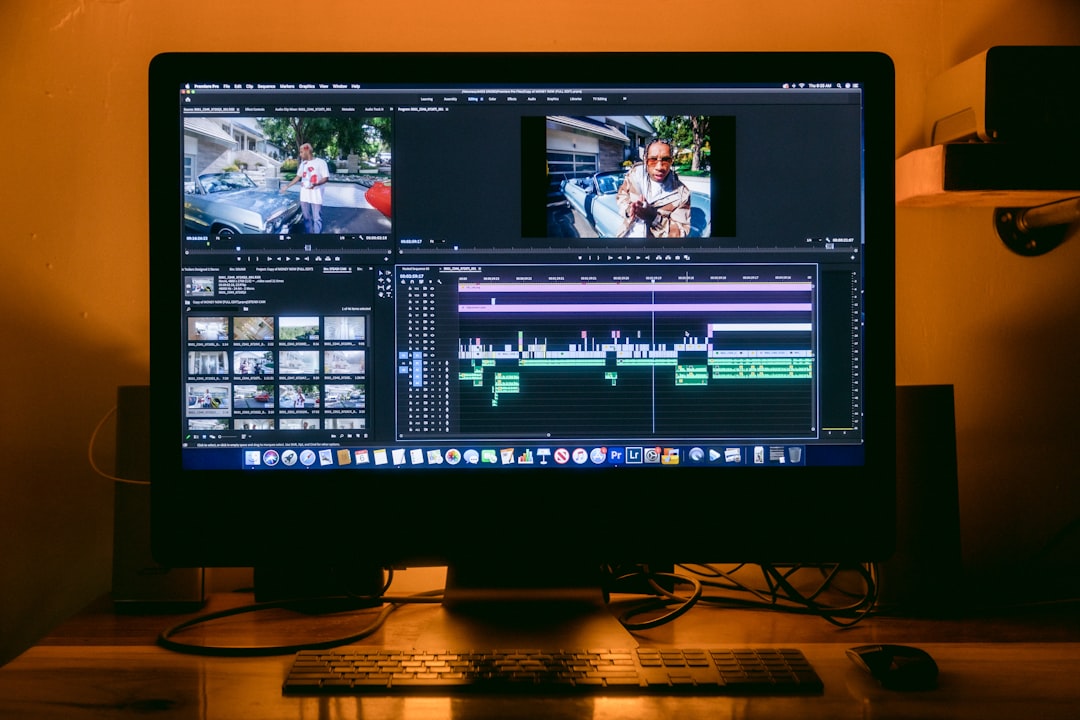
Although Snapchat will still separate the content, you can use a video editor like CapCut, InShot, or Adobe Premiere Rush to design your video so it plays continuously, even if visually separated.
Pro tips:
- Insert smooth transitions between every 10 seconds.
- Keep visual context consistent between segments.
- Add slide numbers or visual cues to indicate continuity.
This doesn’t “stop” auto-splitting, but ensures your viewers experience the story as one narrative.
2. Convert Long Video into a GIF or Collage
If your content is mostly visual, you can convert parts of your long video into a GIF using tools like Giphy, EZGIF, or Photoshop. Snapchat treats GIFs differently and may accept them as looped units. Alternatively, create a stylized collage or slideshow that condenses your content into one sharable Story image.
3. Use Screen Recording Apps for Continuous Playback
Another method involves screen recording your own long video, trimming it creatively so that when played through your Story, it presents as continuous playback. Using tools like AZ Screen Recorder on Android or iOS Screen Recorder, you can re-record already edited footage and then share it through Snapchat’s upload feature.
Option 3: Leverage Snapchat’s Web Upload (Snapchat for Web)
Snapchat launched a web-based interface – Snapchat for Web – which can sometimes behave differently when uploading content.
Try the following steps:
- Visit web.snapchat.com and log into your account.
- Select the Chat or Story option depending on your target audience.
- Drag and drop your long-form video into the interface.
Although not officially stated, some users report that Snapchat for Web doesn’t always enforce the same upload restrictions found in the mobile version. This method is experimental and may not work across all profiles or regions, but it’s worth testing if you’re managing content on a computer.
Option 4: Post a Link Instead of the Full Video
Another highly effective but often overlooked strategy is simply uploading a portion of your video with a call to action accompanied by a swipe-up link (if you qualify, or via Tools like Linktree). This way, you can:
- Avoid auto-splitting altogether
- Provide access to the entire video on YouTube, Vimeo, or your website
- Track user engagement better
Users with a Snapchat Business profile or verified influencers typically have swipe-up features on Stories to redirect viewers to external platforms for uninterrupted video experiences.
Option 5: Upgrade to Snapchat+ Features
Snapchat+ is a premium tier offering special capabilities. While Snapchat hasn’t specifically listed extended video uploads as a perk, subscribers occasionally receive newer features earlier than average users.
Snapchat+ users can also experiment with beta tools or file type options not yet publicly available. If you’re frequently sharing content professionally, investing in Snapchat+ may be worth exploring.
Tips to Ensure High-Quality Long Video Playback
Regardless of the upload method, always optimize your video beforehand to prevent playback issues:
- Use MP4 format with H.264 encoding
- Keep resolution around 1920×1080 (Full HD)
- Limit the file size to under 2GB for more reliable uploads
- Test your upload on a backup account for preview purposes
Remember that poor compression or unmatched aspect ratios can ruin the viewing experience—Snapchat prioritizes vertical format (9:16), so shoot your footage accordingly.
Conclusion: Choose the Right Strategy for Your Goals
When it comes to Snapchat, adapting to its ecosystem is essential. If you want to post long videos without having them automatically split, your best options range from submitting to Spotlight, mastering video editing workflows, leveraging Snapchat for Web, or enhancing reach with external linking and Snapchat+.
Each method has its own advantages depending on whether your goal is marketing, entertainment, education, or personal sharing. By understanding how Snapchat handles video content and deploying the right tools, you can easily make your long-form video appear seamless and uninterrupted.
Persistence and experimentation are key. As Snapchat continues to grow, expect more features tailored to long-format creators. Until then, these workarounds will keep you ahead of the curve.