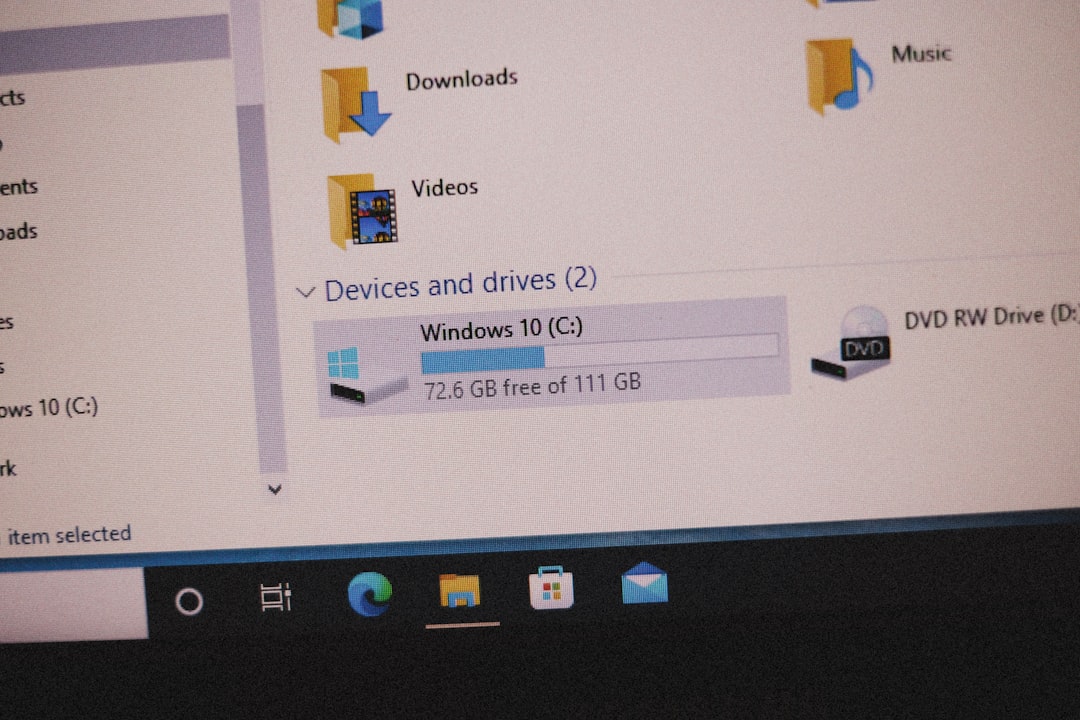
If you’ve ever admired the high-resolution images that adorn your desktop background in Windows and wondered where they are stored, you’re not alone. Windows, particularly Windows 10 and 11, feature a collection of stunning wallpapers that change dynamically, especially when using the Windows Spotlight feature. Discovering where Microsoft stores these images can be a bit of a treasure hunt, as the files are not found in the usual Pictures folder or standard directories.
TL;DR:
Windows wallpaper images, especially those from Windows Spotlight, are saved in hidden system folders. You can find most background images in the Assets folder buried inside the Packages directory, which requires enabling hidden folders and navigating via File Explorer. For default wallpapers like the Windows Hero image or Themes, you’ll find them in the Windows or Web folders. Understanding where these files exist allows you to save or repurpose them for personal use.
Why Locate Microsoft Wallpapers?
The reason users look for the original wallpaper files varies from simply wanting to save a favorite image, to sharing them across multiple devices or using them in creative projects. While Microsoft does not make it immediately obvious where the wallpapers are stored, these images are readily accessible with a few simple steps.
Windows Wallpaper Types
Before locating the files, it’s essential to understand the different types of wallpapers available in Windows:
- Default Wallpapers – Included with the operating system in the installation files.
- Spotlight Images – Regularly updated backgrounds featured on the lock screen, downloaded from Microsoft’s servers.
- Theme Wallpapers – Available from Microsoft Store or custom themes users apply.
Locate Default Desktop Backgrounds
Microsoft includes a collection of default backgrounds in every Windows installation. These files are stored in a native directory you can access easily.
To find them:
- Open File Explorer
- Navigate to the following path:
C:\Windows\Web\Wallpaper
The Wallpaper folder contains subfolders like Windows, Windows 10, Windows 11, and Flowers, each with images used in different builds and themes of the OS. These images are in standard .jpg format and ready for reuse.
Find Windows Spotlight Images
The more elusive wallpapers are those provided by Windows Spotlight. These stunning lock screen backgrounds change daily and are often the images users wish to save. However, they are stored in a hidden folder and not immediately viewable as image files.
Here’s how to find Windows Spotlight images:
- Press Windows + R to open the Run dialog box.
- Type the following path and press Enter:
%userprofile%\AppData\Local\Packages\Microsoft.Windows.ContentDeliveryManager_cw5n1h2txyewy\LocalState\Assets - This takes you to a folder full of files with no extensions.
Although these files look cryptic, many of them are actually high-resolution JPEG images. To view them:
- Copy the contents to a new folder (e.g., Spotlight Wallpapers under Pictures).
- Rename the files by adding a
.jpgextension. - You may use a batch rename utility or script to do this quickly.
After renaming, you can preview and save the images you like. These are typically 1920×1080 or higher in resolution and perfectly suitable for desktops and mobile backgrounds.
Enable Hidden Items to See the Files
If you do not see the AppData or Packages folder, you will need to enable the viewing of hidden files:
- Open File Explorer
- Go to the View tab
- Check the box labeled Hidden items
This setting will allow you to see otherwise invisible directories that Windows uses for application data.
Locate Current Desktop Wallpaper
If you want to locate the file currently being used as your desktop background, you can do that too, even if it’s not from the default or Spotlight paths.
Method 1: Use the Registry
- Press Windows + R, type
regedit, and press Enter - Navigate to:
HKEY_CURRENT_USER\Control Panel\Desktop - On the right pane, look for the entry named
WallPaper
This will show you the absolute path to the image file Windows is currently using as your desktop background.
Method 2: Use Command Prompt
You can also retrieve the wallpaper path using a one-liner command:
reg query "HKCU\Control Panel\Desktop" /v WallPaperThis method is quick and useful for scripting or automation scenarios.
How to Preserve Windows Wallpapers
Once you’ve retrieved these images, consider organizing them in a personal folder for future access. You might want to categorize them by resolution, content type (landscapes, architecture, abstract), or date retrieved. This way, you preserve a growing collection of Microsoft’s visually curated wallpapers for offline use.
To preserve them:
- Copy them to a folder like Pictures\Microsoft Wallpapers
- Use meaningful filenames
- Back up to cloud storage like OneDrive or Google Drive
Third-Party Apps to Manage Wallpapers
For users who often switch backgrounds or want more control over wallpapers, third-party applications can simplify this process. Popular options include:
- Wallpaper Engine – Offers advanced customization such as animated wallpapers.
- DisplayFusion – Manages wallpapers across multiple monitors.
- Spotbright – Automatically downloads and saves Windows Spotlight images.
These tools can automate finding and organizing wallpapers without manually accessing hidden folders.
Conclusion
Locating Microsoft wallpapers on Windows involves digging into system and user folders that are not readily apparent. Whether you want to retrieve the beautiful Spotlight images, access legacy wallpapers, or preserve your desktop’s current setup, knowing where these assets are stored helps you personalize Windows to your liking. While the process might seem technical, it’s straightforward once you understand the directory structure and enable visibility into hidden folders.
With tools like File Explorer, Registry Editor, and basic file management skills, you can unlock and repurpose some of the most striking images Microsoft has to offer. Armed with this knowledge, your desktop will never be a mystery again.