
Your data is valuable. Your photos. Your passwords. Your work files. Even your random notes. All of it matters. The good news? You do not need to be a hacker or tech genius to protect it. You can secure your data with free encryption software. And it is much easier than you think.
TL;DR: Free encryption software helps you lock your files so only you can access them. Tools like VeraCrypt, BitLocker, and 7-Zip are easy to use and cost nothing. Encryption scrambles your data into unreadable code without a password. With just a few clicks, you can protect files, drives, and even cloud storage.
What Is Encryption? (In Plain English)
Imagine putting your files inside a safe. Then locking it with a secret code. That is encryption.
Encryption turns your readable files into scrambled text. This scrambled version is useless to anyone without the password or key.
So if a hacker steals your laptop, they cannot read your files. If someone grabs your USB drive, they see gibberish. Not your documents.
Simple idea. Powerful protection.
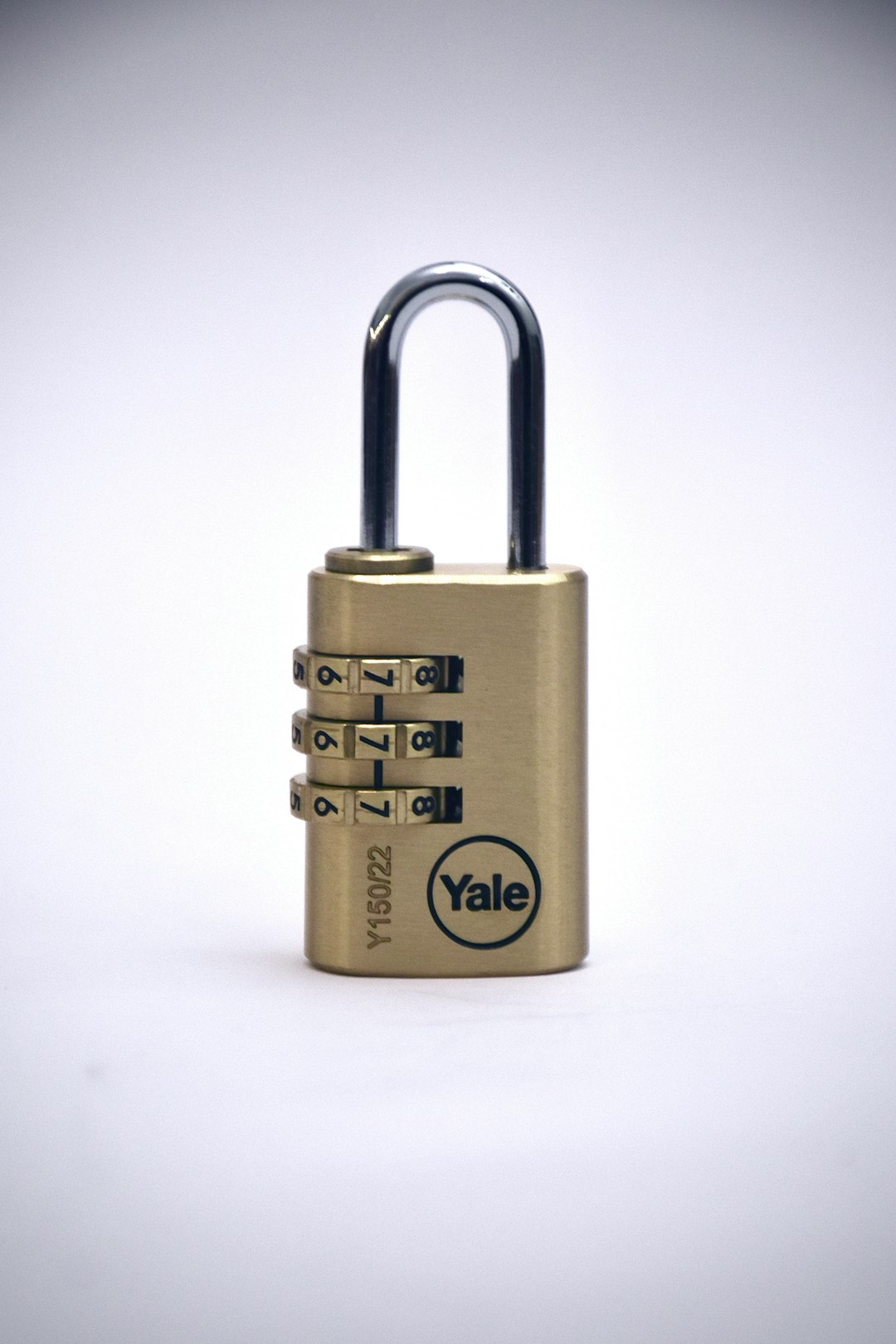
Why You Should Encrypt Your Data
You might think, “I have nothing important.” But almost everyone does.
Here is what you likely have:
- Saved passwords
- Bank statements
- Private photos
- Tax documents
- Work files
- Personal messages
If someone accesses this data, it can mean:
- Identity theft
- Financial loss
- Blackmail
- Embarrassment
Encryption blocks all of that. Even if your device is stolen.
Types of Encryption You Can Use
There are three main ways to encrypt your data.
1. Full Disk Encryption
This locks your entire hard drive. Everything is protected. When you turn on your computer, you enter a password. Without it, nothing loads.
Best for: Laptop users.
2. File or Folder Encryption
This protects specific files or folders. You choose what to lock.
Best for: Sensitive documents.
3. Encrypted Archives
This creates a password-protected compressed file. Like a locked ZIP file.
Best for: Sharing files securely.
Best Free Encryption Software
Here are some of the best free tools available today.
1. VeraCrypt
VeraCrypt is powerful and trusted. It is open source. That means anyone can review its code.
What it does:
- Encrypts entire drives
- Creates encrypted containers
- Supports Windows, Mac, and Linux
It may look technical at first. But setup guides are everywhere online.
2. BitLocker (Windows)
BitLocker is built into many Windows versions. No download needed.
What it does:
- Encrypts your full system drive
- Works quietly in the background
- Integrates with your Microsoft account
Very beginner friendly.
3. FileVault (Mac)
FileVault is built into macOS.
What it does:
- Full disk encryption
- Easy setup
- Strong security
Mac users already have this. Just turn it on.
4. 7-Zip
7-Zip is simple. Lightweight. Free.
What it does:
- Creates encrypted ZIP or 7z files
- Uses strong AES-256 encryption
- Great for sharing files securely
Perfect for beginners.
Image not found in postmetaQuick Comparison Chart
| Tool | Best For | Difficulty | Operating System | Free |
|---|---|---|---|---|
| VeraCrypt | Full control and advanced encryption | Medium | Windows, Mac, Linux | Yes |
| BitLocker | Full disk encryption | Easy | Windows | Yes (Pro versions) |
| FileVault | Full disk encryption | Very Easy | Mac | Yes |
| 7-Zip | Encrypted file archives | Easy | Windows | Yes |
How To Encrypt Your Files (Step-by-Step Example)
Let us use 7-Zip as an example. It is simple.
- Download and install 7-Zip.
- Right-click the file or folder.
- Click “Add to archive.”
- Enter a strong password.
- Select AES-256 encryption.
- Click OK.
Done. Your file is now locked.
Anyone who tries to open it must enter the password.
How To Choose a Strong Password
Your encryption is only as strong as your password.
Here is how to create a good one:
- Use at least 12–16 characters
- Mix uppercase and lowercase letters
- Add numbers
- Include symbols
- Avoid dictionary words
Bad example: password123
Good example: G7#kP2!zQ9@tL4
Tip: Use a password manager to remember it.
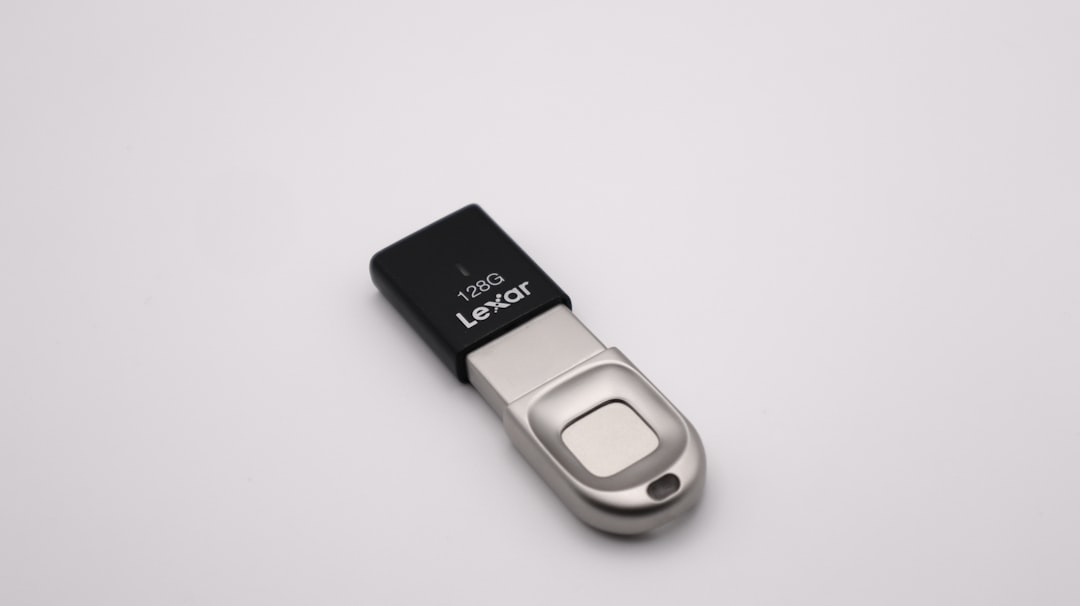
Encrypting USB Drives
USB drives are easy to lose. That makes them risky.
You can encrypt them using:
- VeraCrypt
- BitLocker To Go (Windows)
Once encrypted, the USB will require a password on any computer.
What About Cloud Storage?
Google Drive. Dropbox. OneDrive. They are convenient. But your files sit on someone else’s server.
Extra protection is smart.
Before uploading sensitive files:
- Encrypt them with 7-Zip
- Or store them inside a VeraCrypt container
This way, even if your cloud account is hacked, your files stay unreadable.
Common Mistakes To Avoid
Encryption is powerful. But small mistakes can ruin it.
Avoid these:
- Losing your password. No password = no access. Forever.
- Using weak passwords. Easy to guess.
- Storing the password next to the file. That defeats the purpose.
- Forgetting backups. Encrypted backups are essential.
Always store recovery keys in a safe place.
Is Free Encryption Safe?
Yes. Many free tools use the same encryption standards as banks and governments.
Look for:
- AES-256 encryption
- Open source software
- Regular updates
Free does not mean weak. It often means community-supported.
Extra Security Tips
Encryption works best when combined with smart habits.
- Keep your system updated
- Use antivirus software
- Enable two-factor authentication
- Avoid public WiFi for sensitive tasks
- Lock your screen when away
Think of encryption as your vault. But you still lock your house door.
When Should You Definitely Encrypt?
Always encrypt if you:
- Travel frequently
- Store work documents
- Handle client data
- Use a shared computer
- Keep financial records digitally
It only takes one device theft to regret not doing it.
Final Thoughts
Securing your data does not require expensive software. It does not require deep technical skills. And it does not take hours.
Free encryption software gives you control. It locks your files. It protects your privacy. It keeps your digital life safe.
Start small. Encrypt one folder today. Then enable full disk encryption tomorrow.
Simple steps. Strong protection.
Your data belongs to you. Keep it that way.