Using an HP Envy Pen can make your laptop feel less like a machine and more like a digital notebook, sketchbook, or creative studio. Whether you want to take handwritten notes, annotate PDFs, draw in a design app, or navigate Windows with more precision, the pen can be a very useful accessory—once it is properly powered, paired, and recognized by your laptop.
TLDR: First, confirm that your HP Envy laptop supports an active pen, because not every touchscreen model does. Install or charge the pen’s battery, turn on Bluetooth if your pen uses it, and pair it through Windows Settings when needed. In many cases, the writing tip works automatically once the pen has power, while Bluetooth is mainly used for shortcut buttons. If the pen does not respond, check drivers, Windows Ink settings, battery orientation, and laptop compatibility.
Understanding How the HP Envy Pen Connects
Before you begin, it helps to understand one important detail: an HP Envy Pen does not always “connect” in the same way as a mouse, keyboard, or pair of headphones. Many HP active pens communicate with the laptop’s touchscreen digitizer directly when the pen tip touches or hovers near the display. That means the pen may write or draw without showing up as a connected Bluetooth device.
Bluetooth, when available, is usually used for extra features such as a top button shortcut, launching an app, opening Windows Ink Workspace, or controlling presentation functions. So if your pen writes on the screen but does not appear in the Bluetooth list, that may be completely normal depending on the model.
HP has sold several styluses under names such as HP Pen, HP Rechargeable MPP Pen, HP Tilt Pen, and pens bundled with specific HP Envy x360 models. The exact setup process can vary slightly, but the main steps are similar.
Step 1: Check That Your Laptop Supports an Active Pen
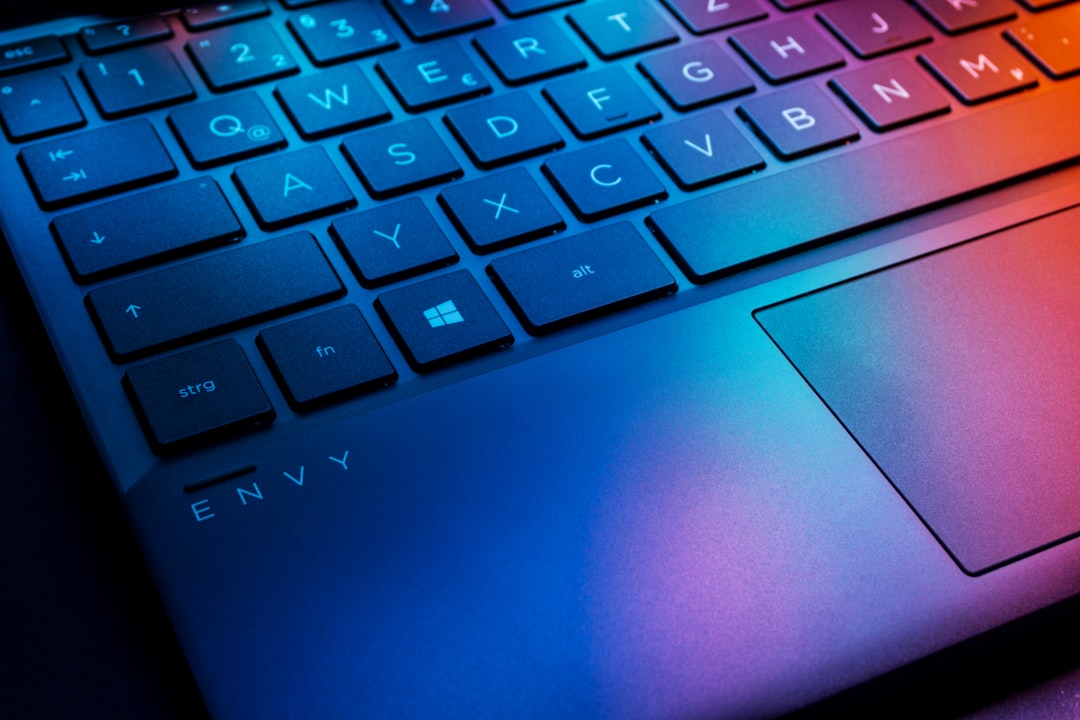
The first and most important step is compatibility. A touchscreen alone does not guarantee pen support. Some laptops can respond to fingers but do not have the digitizer technology needed for an active stylus. HP Envy x360 convertible models often support active pens, but you should still verify your exact model.
To check compatibility, try one of the following:
- Look up your laptop model: Find the model number on the bottom of the laptop or in Settings > System > About, then search HP’s support page for pen compatibility.
- Check the original specifications: Look for terms such as active pen support, MPP pen support, or Windows Ink compatible.
- Review the box or manual: If your laptop came with a pen, it is obviously supported, but the stylus may still need power or pairing.
- Use HP Support Assistant: This HP utility can identify your device and help locate documentation, updates, and accessories.
If your laptop does not support active pen input, no amount of Bluetooth pairing will make the pen write on the display. Bluetooth can connect buttons, but the drawing and writing function requires compatible screen hardware.
Step 2: Identify Your HP Envy Pen Type
Next, determine whether your pen uses a replaceable battery, a rechargeable battery, or no visible pairing button. This affects how you prepare it.
- AAAA battery pens: Many HP pens use a small AAAA battery inside the barrel. You may need to unscrew the pen to insert or replace it.
- Rechargeable pens: Some newer HP styluses charge through USB-C or another small connector. These need to be charged before use.
- Bluetooth-enabled pens: These often have a top button or side button that can be held down to activate pairing mode.
- Non-Bluetooth active pens: These may work as soon as the battery is installed and the tip touches the screen.
If you are unsure which pen you have, examine the pen carefully. A removable top cap, charging port, LED indicator, or printed model number can give you clues. You can also search the pen’s model number online or through HP support resources.
Step 3: Install or Charge the Battery
A pen that has no power will not write, pair, or respond. For a battery-powered HP Envy Pen, unscrew the barrel or remove the cap according to the design. Insert the battery in the correct direction, paying close attention to the positive and negative markings. AAAA batteries are slim and can be easy to insert incorrectly, so take a moment to check.
For a rechargeable HP pen, connect it to a charger using the proper cable. If the pen has an LED light, it may glow or blink while charging. Let it charge for a reasonable amount of time before testing it, especially if it has been unused for months.
Tip: If your pen suddenly stops working after previously functioning well, the battery is the first thing to suspect. Active pens can appear “dead” even though the laptop is perfectly fine.
Step 4: Test the Pen on the Screen
Once the pen has power, open a simple app that supports writing, such as Microsoft Whiteboard, OneNote, Paint, or the Windows search box. Touch the pen tip gently to the screen and try to draw a line.
If the pen writes immediately, the main pen function is already working. You may not need Bluetooth unless you want to configure shortcut buttons. Try hovering the pen slightly above the screen. Some active pens show a small cursor or pointer before the tip makes contact, which indicates that the display is detecting the stylus.

Step 5: Pair the Pen with Bluetooth, If Needed
If your HP Envy Pen includes Bluetooth features, you can pair it through Windows. This is usually necessary for button shortcuts, not basic writing. To pair the pen, follow these steps:
- Click the Start button on your laptop.
- Open Settings.
- Select Bluetooth & devices.
- Make sure Bluetooth is turned on.
- Click Add device.
- Choose Bluetooth.
- Put your HP pen into pairing mode. This is often done by holding the top button for several seconds until an LED flashes.
- When the pen appears in the device list, select it and complete pairing.
The exact button combination may differ by model. On some HP pens, you hold the top button for three to seven seconds. On others, you may need to press and hold two buttons. If nothing appears in the Bluetooth device list, check the pen’s manual or support page for the specific pairing method.
After pairing, Windows may show the pen under connected devices. You can then customize its behavior in Windows settings.
Step 6: Configure Windows Pen Settings
Windows includes several settings for pen input. To access them, open Settings, then go to Bluetooth & devices and select Pen & Windows Ink. Here you can adjust options that affect how the pen behaves.
Useful settings may include:
- Choose your dominant hand: This helps Windows position menus and touch targets more naturally.
- Ignore touch input when using the pen: This can reduce accidental marks from your palm while writing.
- Pen shortcuts: If supported, configure what happens when you click, double-click, or press and hold the pen button.
- Handwriting input: Adjust how Windows interprets handwriting and text entry.
If you plan to take notes, enabling palm rejection features can make a big difference. It lets you rest your hand on the display more naturally, similar to writing on paper.
Step 7: Update Drivers and Windows
If the pen does not respond, or if pressure sensitivity feels inconsistent, outdated drivers may be the problem. HP Envy laptops often rely on touchscreen, firmware, chipset, and graphics drivers to manage pen input correctly.
To update your system:
- Run Windows Update from Settings > Windows Update.
- Install optional driver updates if they are relevant to the touchscreen, firmware, or input devices.
- Open HP Support Assistant and check for HP-specific driver and BIOS updates.
- Restart your laptop after updates are installed.
Do not skip the restart. Pen and touchscreen drivers may not load properly until Windows restarts.
Common Problems and Quick Fixes
Even when everything should work, small issues can get in the way. Here are common problems and the most practical solutions.
The Pen Does Not Write
- Replace or recharge the battery.
- Check that the battery is inserted in the correct direction.
- Confirm that your laptop model supports active pen input.
- Test the pen in more than one app.
- Restart the laptop.
The Pen Writes but Bluetooth Will Not Pair
- Remember that writing may work without Bluetooth.
- Hold the pairing button longer, usually until the LED flashes.
- Remove old pen entries from Bluetooth settings and try again.
- Turn Bluetooth off and back on.
- Check whether your pen model actually supports Bluetooth.
Pressure Sensitivity Does Not Work
Pressure sensitivity depends on the pen, the screen, the drivers, and the app. Some simple apps do not support pressure levels. Try a drawing app known to support stylus pressure, then check for driver updates. If your pen supports tilt, make sure the app supports tilt as well.
The Cursor Is Offset from the Tip
An offset cursor can happen because of scaling, display rotation, or driver issues. Make sure your screen resolution is set to the recommended value. If you are using the laptop in tablet mode, rotate it back and forth once to see if Windows recalibrates the orientation. Updating graphics and touchscreen drivers can also help.
Best Apps to Try with an HP Envy Pen
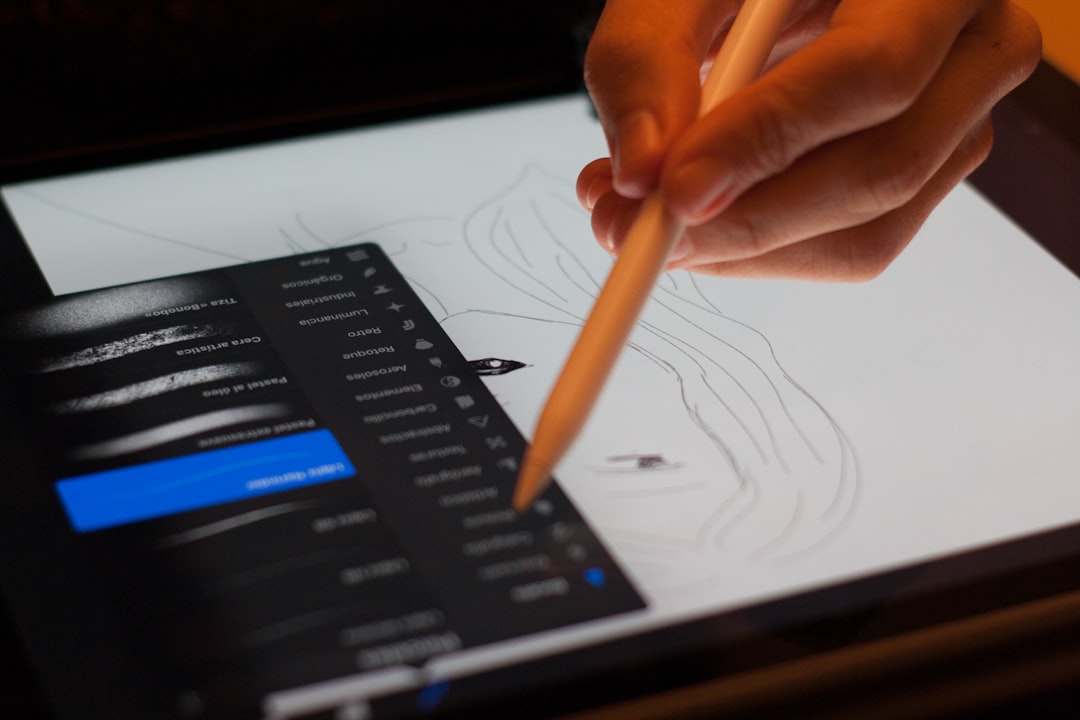
Once connected, the pen becomes much more useful with the right software. For note-taking, OneNote is one of the easiest options because it syncs across devices and supports handwriting, highlighting, and sketching. Microsoft Whiteboard is good for brainstorming and visual planning. For artists, apps such as Clip Studio Paint, Adobe Photoshop, Krita, or Sketchbook can take advantage of pressure sensitivity if your pen and laptop support it.
Students may enjoy marking up lecture slides or PDFs, while professionals can use the pen to sign documents, review designs, or annotate screenshots. The HP Envy’s convertible design, especially on x360 models, makes this even better because you can fold the keyboard back and write more comfortably.
Useful Tips for a Better Pen Experience
- Keep spare nibs: Pen tips wear down over time, especially if you write or draw often.
- Use a clean screen: Dust and grit can make writing feel scratchy and may affect smoothness.
- Store the pen safely: Active pens are easy to lose, so use a case, magnetic attachment, or pen loop if available.
- Avoid pressing too hard: You usually do not need much force. Let pressure sensitivity do the work.
- Experiment with apps: Different programs handle ink, smoothing, pressure, and palm rejection differently.
Final Thoughts
Connecting an HP Envy Pen to your laptop is usually simple once you know what kind of connection is actually required. Start by confirming compatibility, then power the pen, test it on the screen, and pair it with Bluetooth only if your model supports shortcut features. If something does not work right away, the most common causes are a weak battery, unsupported laptop model, outdated drivers, or misunderstanding the difference between active pen input and Bluetooth pairing.
With the setup complete, your HP Envy laptop becomes a more flexible tool for writing, creating, studying, and working. A good stylus can turn everyday tasks into something more natural and hands-on—and once you get used to tapping, sketching, signing, and annotating directly on the screen, it is hard to go back.