
When a Windows 11 computer begins to feel sluggish, everyday tasks such as opening apps, browsing the web, switching between windows, or starting the PC can become frustrating. Slow performance usually does not mean the computer is broken; in many cases, it is caused by overloaded startup apps, low storage space, outdated drivers, unnecessary background processes, or system settings that need adjustment. With a few practical changes, most users can make Windows 11 feel faster and more responsive without replacing hardware.
TLDR: Windows 11 can often be sped up by disabling unnecessary startup apps, freeing storage space, updating the system, and reducing background activity. Users should also check for malware, adjust visual effects, remove unused programs, and make sure the PC is not running low on memory or disk capacity. If the computer still runs slowly after software fixes, upgrading to an SSD or adding more RAM may provide the biggest performance improvement.
1. Restart the Computer Properly
One of the easiest ways to fix a slow Windows 11 PC is to perform a full restart. Many computers are left in sleep mode for days or weeks, which can allow temporary files, memory usage, and stalled background processes to build up. A proper restart clears the system memory and gives Windows a fresh start.
To restart the PC, the user can open the Start menu, select the Power icon, and choose Restart. This is different from simply closing the lid or putting the computer to sleep. If Windows 11 feels unusually slow after updates, app installations, or heavy multitasking, restarting should be the first troubleshooting step.
2. Disable Unnecessary Startup Apps
Startup apps are programs that launch automatically when Windows 11 starts. Some are useful, such as security software or cloud backup tools, but many are unnecessary and can slow down boot time. Too many startup apps can also keep running in the background, using memory and processor resources.
To manage startup apps, the user can follow these steps:
- Right-click the Start button.
- Select Task Manager.
- Open the Startup apps tab.
- Review the list and look for apps with a high startup impact.
- Select unnecessary apps and click Disable.
Common candidates include game launchers, messaging apps, update helpers, and software that does not need to open immediately. Disabling a startup app does not uninstall it; it only prevents it from launching automatically.
3. Free Up Storage Space
Windows 11 needs free disk space to work efficiently. When the main drive becomes nearly full, the system may struggle to create temporary files, install updates, and manage virtual memory. This can make the computer feel slower overall.
The built-in Storage settings can help identify what is taking up space. The user can go to Settings > System > Storage to view categories such as apps, temporary files, documents, pictures, and videos. From there, unnecessary files can be removed safely.
Useful ways to recover storage include:
- Deleting temporary files through Storage Sense.
- Uninstalling large apps that are no longer used.
- Moving photos, videos, and archives to an external drive or cloud storage.
- Emptying the Recycle Bin.
- Removing old downloads from the Downloads folder.
As a general rule, keeping at least 15% to 20% of the system drive free helps Windows run more smoothly.
4. Update Windows 11
Updates often include performance improvements, bug fixes, driver updates, and security patches. A slow PC may be affected by a known Windows issue that has already been fixed in a later update.
To check for updates, the user can open Settings > Windows Update and select Check for updates. If updates are available, Windows should be allowed to download and install them. After installation, a restart may be required.
It is also helpful to check Advanced options > Optional updates, especially for driver-related updates. However, optional drivers should be installed carefully, particularly if the system is already stable.
5. Uninstall Unused Apps
Unused programs can take up storage, add background services, create startup entries, and increase system clutter. Removing unnecessary apps is a simple way to reduce workload and improve performance.
The user can uninstall apps by going to Settings > Apps > Installed apps. From there, apps can be sorted by size or installation date. Large programs, trial software, old games, manufacturer utilities, and duplicate tools are good places to start.
Before uninstalling anything, the user should avoid removing drivers, security software, or system components unless they are sure those items are not needed. When in doubt, checking the app name online can help identify whether it is safe to remove.
6. Adjust Visual Effects for Better Performance
Windows 11 includes animations, shadows, transparency effects, and other visual features that make the interface look modern. On older or lower-powered PCs, these effects can consume resources and make the system feel less responsive.
To reduce visual effects, the user can open Settings > Accessibility > Visual effects. Turning off Transparency effects and Animation effects may make the interface feel snappier.
For more control, the user can search for View advanced system settings, open Performance Settings, and select Adjust for best performance. This disables many visual enhancements. A balanced approach is to choose Custom and keep only the effects that are visually important.
7. Check for Malware and Unwanted Software
Malware, adware, and unwanted browser extensions can slow down Windows 11 significantly. Some malicious programs run silently in the background, using CPU power, memory, disk activity, or network bandwidth. Others modify browser settings and make web browsing slower.
Windows 11 includes Microsoft Defender, which is suitable for scanning most systems. The user can open Windows Security, choose Virus & threat protection, and run a Quick scan. If the computer is behaving strangely, a Full scan or Microsoft Defender Offline scan may be more effective.
Signs of possible malware include:
- Unexpected pop-ups or browser redirects.
- Unknown programs appearing in the installed apps list.
- High CPU or disk usage when no major apps are open.
- Security settings being changed without permission.
- The browser homepage or search engine changing unexpectedly.
Removing suspicious browser extensions can also help. Each browser has an extensions or add-ons page where unnecessary items can be disabled or deleted.
8. Manage Background Apps and Processes
Some apps continue running even when they are not actively being used. These background processes may sync files, check for updates, send notifications, or monitor activity. While some are useful, too many can reduce performance.
The Task Manager is the best place to see what is using system resources. The user can press Ctrl + Shift + Esc to open it, then review CPU, memory, disk, and network usage. If one app is using excessive resources, closing it or uninstalling it may improve speed.
Windows 11 also allows users to limit background activity for some apps. In Settings > Apps > Installed apps, the user can select an app’s advanced options and change its background permissions when available. Setting unnecessary apps to Never can reduce background load.
9. Improve Power Settings
Power settings affect how Windows balances performance and battery life. On laptops, Windows 11 may reduce performance to save energy, especially when the device is running on battery. If the PC feels slow, it may be using an energy-saving mode.
The user can open Settings > System > Power & battery. Under Power mode, selecting Best performance can make the system more responsive. On desktops, performance mode may be preferable most of the time. On laptops, it is useful when plugged in or when maximum speed is needed.
However, higher performance settings can increase battery drain and fan noise. A balanced setting may be better for everyday portable use.
10. Upgrade Hardware if Needed
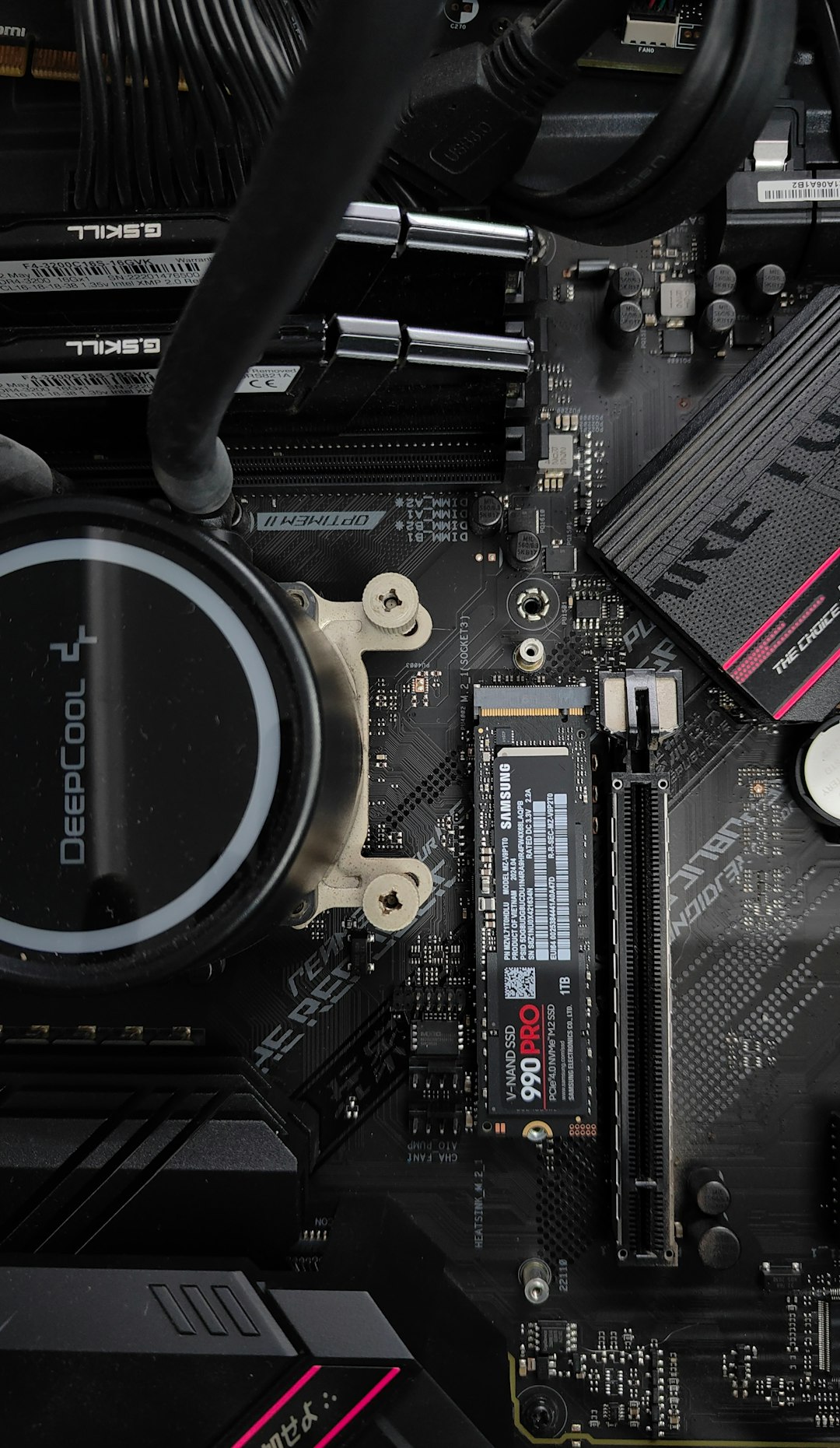
If Windows 11 remains slow after software fixes, the hardware may be the limiting factor. Two upgrades usually make the biggest difference: switching from a hard disk drive to a solid-state drive, and adding more RAM.
An SSD can dramatically improve startup time, app loading, file transfers, and overall responsiveness. Many older PCs feel much faster after replacing a traditional hard drive with an SSD. If the computer already has an SSD but still feels slow, checking its health and available space may be worthwhile.
RAM is also important. Windows 11 can run on 4 GB of memory, but performance is often limited at that level. For smoother multitasking, 8 GB is a practical minimum, while 16 GB is better for users who keep many browser tabs open, edit media, or run demanding apps.
Extra Tip: Keep the System Organized
Regular maintenance helps prevent Windows 11 from slowing down again. The user should periodically review startup apps, remove unused programs, clear temporary files, and restart the PC after major updates. A clean desktop, organized folders, and fewer unnecessary browser extensions can also contribute to a smoother experience.
It is also wise to avoid installing multiple programs that perform the same function, such as several antivirus tools or system cleaners. These can conflict with one another and reduce performance instead of improving it. Windows 11 already includes many built-in maintenance tools, so extra optimization software is often unnecessary.
FAQ
Why is Windows 11 running so slow?
Windows 11 may run slowly because of too many startup apps, low storage space, outdated drivers, malware, heavy background processes, or limited hardware resources. Older PCs with hard drives or low RAM are especially likely to feel slow.
Does Windows 11 need more RAM than Windows 10?
Windows 11 can use more resources than Windows 10 in some situations, especially with modern visual effects and background services. While it can run with 4 GB of RAM, 8 GB or more is recommended for smoother everyday performance.
Will disabling startup apps damage the computer?
No. Disabling startup apps does not remove them or damage Windows. It only prevents selected programs from opening automatically when the PC starts. Important security software should usually remain enabled.
Is an SSD worth it for speeding up Windows 11?
Yes. Replacing a traditional hard drive with an SSD is one of the most effective upgrades for Windows 11. It can improve boot time, app loading, file access, and overall responsiveness.
Should a user install PC cleaner software?
In most cases, third-party PC cleaners are not necessary. Windows 11 includes built-in tools such as Storage Sense, Disk Cleanup, Task Manager, and Windows Security. Some cleaner apps may remove useful files or run unnecessary background services.
How often should Windows 11 be restarted?
A Windows 11 PC should be restarted at least once every few days, or whenever performance feels unusually slow. Restarting after updates, driver installations, or major software changes is also recommended.
What is the fastest way to make Windows 11 feel quicker?
The fastest improvements usually come from disabling startup apps, freeing storage space, restarting the PC, and closing resource-heavy programs. For older machines, upgrading to an SSD provides the biggest noticeable speed boost.