If your iPhone screen is twitching, test it before paying for repair. A twitchy display can be caused by software, a bad app, low storage, water damage, a loose screen connector, or a dying display panel. The smart move is simple. Do quick display diagnostics first, then choose the repair path that fits the result.
TLDR: If the twitching appears in a screenshot or screen recording, software is more likely. If it only happens on the physical screen, the display or connector may be the problem. For example, if Maria’s iPhone 13 jumps around after a drop, and a screenshot looks perfect, the repair shop will likely inspect the screen hardware first. In many real repair counters, cracked or dropped phones make up over 50% of twitching screen cases.
What Does “Screen Twitching” Mean?
“Twitching” is the phone version of an eye spasm. Annoying. Weird. Slightly rude.
It can look like:
- The screen flickers fast.
- Icons shake when they should not.
- The display flashes green, white, or gray.
- The screen taps things by itself.
- Scrolling jumps up and down.
- Part of the screen freezes.
Some people call this ghost touch. Some call it flicker. Some call it “my phone is possessed.” Fair.
The good news? Not every twitch means a costly repair. Sometimes your iPhone is just grumpy about software.
Start With the Screenshot Test
This is the fastest clue.
Take a screenshot when the twitching happens. Then view that screenshot on another device. You can send it to a laptop, tablet, or friend’s phone.
- If the glitch appears in the screenshot: It may be software, the app, iOS, or graphics rendering.
- If the screenshot looks normal: The screen hardware may be the issue.
This test takes less than one minute. It can save you from guessing. It can also save you from buying a new screen when an app update would have fixed it.
Try a Screen Recording Too
A screen recording gives another clue. Turn it on from Control Center. Record the twitching. Watch the video on another device.
If the video shows the twitch, software may be involved. If the video looks fine, but your iPhone screen still dances like it had six coffees, suspect hardware.
Honestly, it feels like the screen waits until you stop recording to behave badly. Still, try it. The pattern matters.
Quick Software Fixes Before Repair
Do these before booking a repair. They are boring. They also work more often than people expect.
1. Restart the iPhone
Yes, the classic. Yes, it still helps.
Turn the phone off. Wait 30 seconds. Turn it back on. This clears small software bugs and display weirdness.
2. Update iOS
Go to Settings > General > Software Update.
Install the latest iOS version. Display bugs can come from system errors. Apple patches these often.
3. Update or Remove Bad Apps
If twitching happens in one app only, blame the app first.
Update it. If that fails, delete it. Reinstall it. If it still acts up, leave a review with details and use another app for now.
4. Check Storage
Go to Settings > General > iPhone Storage.
If storage is almost full, your phone can lag, freeze, and act strange. Keep at least 5GB to 10GB free if you can.
5. Turn Off Weird Display Settings
Check these spots:
- Settings > Accessibility > Motion
- Settings > Accessibility > Display & Text Size
- Settings > Display & Brightness
Turn off settings like Auto Brightness or Reduce White Point for testing. If the twitching stops, you found a clue.
When Display Diagnostics Help
Display diagnostics are tests that check screen behavior. Some are simple home tests. Others are done by Apple or authorized service shops.
At home, you can test:
- Touch response across the full screen.
- Brightness changes.
- Flicker at low brightness.
- Ghost taps while the phone sits still.
- Screen issues after charging.
Apple Support may run remote checks. A repair shop can also inspect the screen, connector, battery, and internal damage.
Diagnostics are best when the issue is unclear. They help answer the big question. Is this a software tantrum or a hardware problem?

Signs You Probably Need Repair
Skip the drama. If you see these signs, repair is likely:
- The phone was dropped recently.
- The screen is cracked.
- There are green or white vertical lines.
- The display twitches even on the Apple logo screen.
- Touch inputs happen by themselves.
- The screen flickers after water exposure.
- Pressing near the screen edge changes the flicker.
A loose connector can cause twitching. So can a damaged OLED or LCD panel. Water can also create strange screen behavior days after contact. Sneaky little villain.
Repair Alternative 1: Apple Repair
Apple repair is the safest route for many users. You get genuine parts. You also keep service records clean.
This is a strong choice if:
- Your iPhone is under warranty.
- You have AppleCare+.
- You want original parts.
- You plan to sell the phone later.
The downside is cost. Out-of-warranty screen repair can be pricey. AppleCare+ can make it much cheaper, but only if you already have it.
Repair Alternative 2: Authorized Service Provider
An Apple Authorized Service Provider is close to Apple repair in quality. They use approved tools and parts. Prices can be similar to Apple, but locations may be easier to reach.
This is great if your local Apple Store is booked for days. Expect to spend time on check-in and testing. It drives me crazy when a five-minute flicker turns into a 45-minute appointment, but proper testing does protect you from bad guesses.
Repair Alternative 3: Independent Repair Shop
Independent shops can be faster and cheaper. Some are excellent. Some are not.
Ask these questions first:
- Do you use original, refurbished, or aftermarket screens?
- What warranty do you offer?
- Will Face ID still work after repair?
- Will True Tone be preserved?
- Can you test before replacing parts?
A good shop will answer clearly. A bad shop will mumble and point at a dusty drawer. Run.
Repair Alternative 4: DIY Screen Replacement
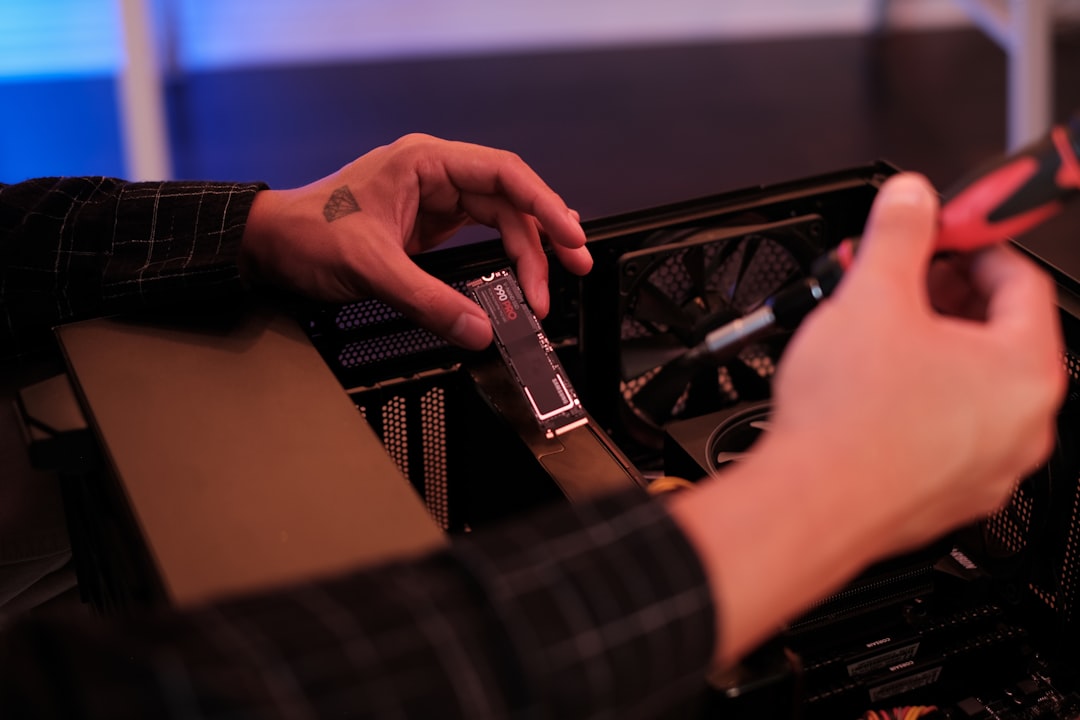
DIY repair is possible. It is also risky.
You need tools, patience, and steady hands. You may damage cables. You may lose water resistance. You may break Face ID parts. That tiny screw? It has opinions.
DIY makes sense if:
- The phone is old.
- You accept the risk.
- You already fix electronics.
- The repair cost is more than the phone is worth.
If the iPhone is newer, think twice. One mistake can turn a twitchy screen into a silent black rectangle.
Should You Replace the Phone Instead?
Sometimes repair is not worth it.
Consider replacement if:
- The phone is more than five years old.
- The battery is also weak.
- The back glass is broken.
- Repair costs more than 40% of a replacement phone.
- You already wanted more storage or a better camera.
But do not rush. A simple screen repair can give a good iPhone two more years of life.
Best Order of Action
Here is the simple plan:
- Restart the iPhone.
- Update iOS and apps.
- Check storage.
- Take a screenshot and screen recording.
- Test brightness and touch.
- Contact Apple Support or a trusted shop.
- Compare repair cost with replacement value.
Bottom line: A twitching iPhone screen is not always a death sentence. Test first. Repair second. Replace only when the math makes sense. Your wallet will thank you, and your phone might stop doing its tiny haunted dance.