
We’ve all been there. You’re out and about, your phone buzzes, and—boom—you see an Xfinity hotspot. Score! But wait… why won’t it connect? Ugh! No worries. We’re about to decode the mystery of Xfinity Wi-Fi hotspot connection hiccups together. Let’s fix it—with fun, simplicity, and a few easy steps.
So, what are Xfinity Wi-Fi hotspots?
These are Wi-Fi networks provided by Comcast for Xfinity customers. You’ll find them in restaurants, parks, airports—even coffee shops. Basically, they’re everywhere!
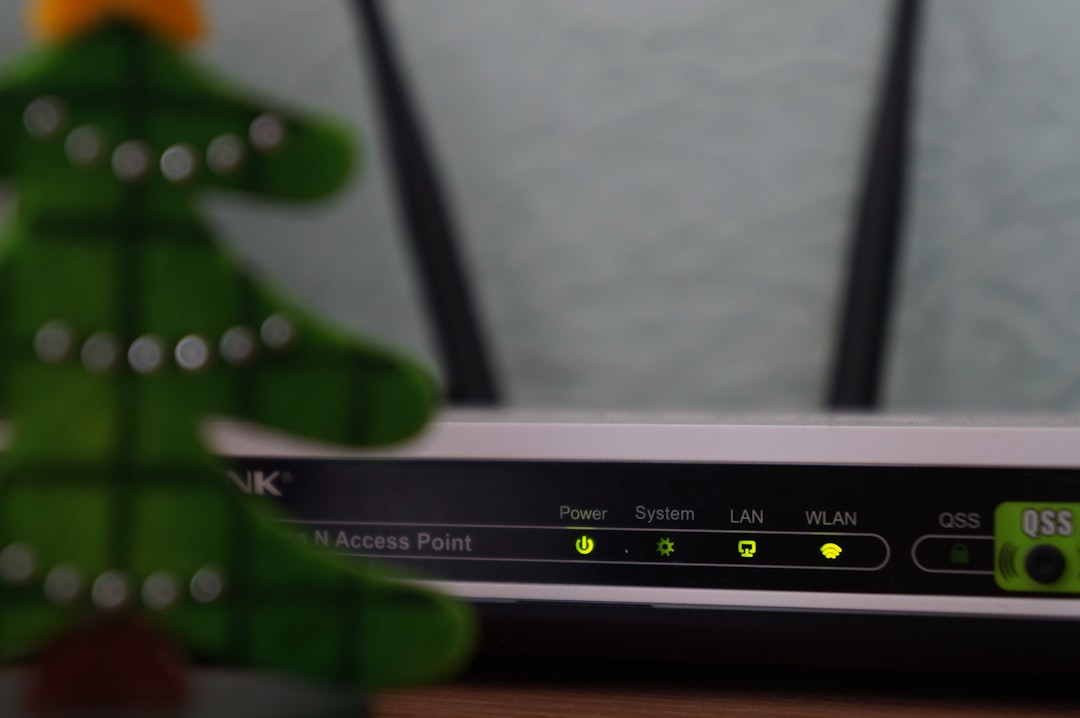
But even though they’re awesome, they can glitch. Here’s how to deal with those “why is this not working?!” moments.
1. Make Sure You’re an Xfinity Customer
Sounds basic, right? But you need an Xfinity account to use their hotspots. Make sure:
- You’re signed in with your correct username and password
- Your bill is paid (Wi-Fi warriors don’t skip payments!)
2. Use the Official Xfinity WiFi Hotspots App
This app is your hotspot BFF. It:
- Finds nearby hotspots
- Saves your login info
- Connects you automatically
Download it from the App Store or Google Play. It’s small but mighty!
3. Forget and Reconnect
Your device can sometimes get confused. Clear its memory! Do this:
- Go to your phone’s Wi-Fi settings
- Select the Xfinity hotspot you’re struggling with
- Tap “Forget this Network”
- Reconnect and enter your login info again
It’s like giving your device a fresh start.
4. Check Signal Strength
If the signal is as weak as a cup of decaf coffee, try moving closer. Walls, furniture, and other electronics can block Wi-Fi. Aim for three solid bars if you want a smooth connection.
5. Restart Everything
It’s the oldest trick in the book. But it works!
- Restart your phone, laptop, or tablet
- Turn Wi-Fi off and on again
- Try toggling airplane mode on and off
It’s Wi-Fi magic in action.
6. Install a Secure Profile
Not feeling secure? Xfinity has a security profile for iOS and Android. It helps your phone recognize their hotspots and protects your data.
To install it:
- Open the Xfinity app
- Go to “Connect” → “WiFi Hotspots”
- Follow the steps to install the profile
7. Watch Out for Fake Hotspots
Some “Xfinity” networks might be imposters (gasp!). Only connect to hotspots named:
- XFINITY
- xfinitywifi
If the name looks fishy, don’t tap it!

8. Use a VPN for Safety
Even with real hotspots, public Wi-Fi is risky. A VPN = a safety blanket for your data. Pro tip: Some Xfinity plans include free VPNs. Score!
9. Update Your Devices
Outdated software = buggy connections. Make sure your:
- Phone
- Tablet
- Laptop
is running the latest version. Updates fix bugs and boost speed.
10. Contact Xfinity Support
Still no luck? Time for backup. Reach out to Xfinity support:
- Use the Xfinity Assistant chatbot
- Call 1-800-XFINITY
- Visit your local store
Bonus Tip: Bookmark Your Favorite Hotspot Locations
If you find a spot that works well, remember it! Bookmark it on your phone’s map so you’re never struggling mid-coffee again.
Final Thoughts
Nothing kills the vibe like Wi-Fi drama. 😞 But with these simple fixes, you’ll be back online in no time. Having issues doesn’t mean you’re cut off from the digital universe—it just means it’s time for a quick hotspot glow-up.
Now go forth, brave scroller! Tap, connect, and surf with confidence.