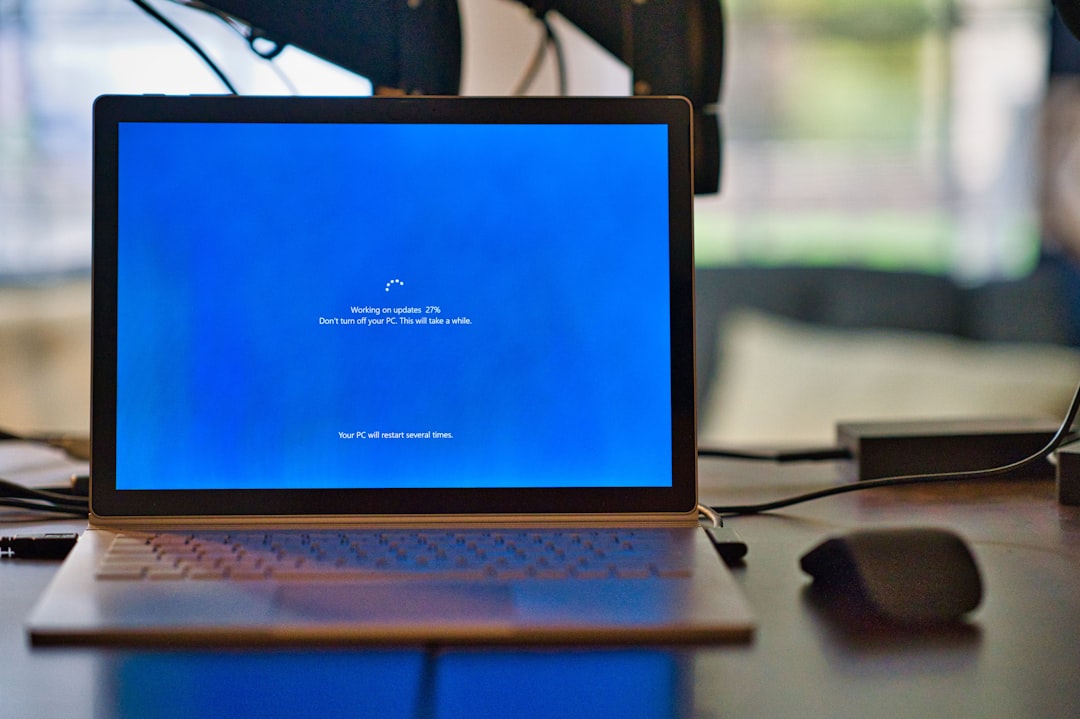
One of the most frustrating experiences for AMD graphics card users is when a seemingly innocent Windows update unexpectedly replaces your custom-installed AMD graphics driver with an older and often inferior version. This can lead to reduced performance, missing features, and even system instability. While the Windows Update system plays an important role in maintaining system security and compatibility, its automated nature can sometimes create more harm than good, especially for users who rely on up-to-date graphics drivers for work or gaming. This article will provide a trustworthy and comprehensive guide to fix the issue where Windows Update has replaced your AMD graphics driver.
Why Windows Update Replaces AMD Drivers
Windows Update is designed to keep your system secure and compatible with the latest software and hardware standards by delivering updated drivers alongside security patches. However, Microsoft often lags behind AMD in terms of driver version releases. Therefore, when Windows Update installs what it considers the “most compatible” driver, it may override a newer driver you’ve manually installed from AMD’s website with an outdated or basic version.
In some cases, this automatic update can disable advanced graphics settings, disrupt monitor configurations, or even lead to crashing applications that require specific driver support.
How to Confirm That Your Driver Was Replaced
If you suspect that Windows Update has reverted your AMD graphics driver, follow these steps to confirm:
- Right-click on the Start button and select Device Manager.
- Expand the Display adapters section.
- Right-click your AMD graphics card and select Properties.
- Go to the Driver tab and take note of the Driver Version and Driver Date.
Compare this information with the latest driver version listed on the official AMD website. If the version installed on your system is older than what AMD provides, it’s very likely that Windows Update has overwritten your driver.
Step-by-Step Fix: Reinstall the Latest AMD Driver
To restore full functionality, you’ll need to manually reinstall the latest AMD graphics driver and take preventive steps to stop Windows from doing it again.
Step 1: Download the Official AMD Driver
Visit the AMD support page to download the correct driver for your specific GPU and Windows version. Make sure to select the Adrenalin Edition for access to features like performance monitoring, Radeon Chill, and enhanced graphics settings.
Step 2: Use Display Driver Uninstaller (DDU)
Before installing the new driver, it’s highly recommended to use a tool like Display Driver Uninstaller (DDU) to completely remove any remnants of the previous drivers.
- Download and extract DDU.
- Boot your system into Safe Mode.
- Run DDU and select Clean and restart for AMD drivers.
Using DDU ensures that you won’t have any conflicting files from older or corrupted driver installations.
Step 3: Install the Latest Driver
Once you’ve cleaned your system of residual drivers, install the latest Adrenalin software you downloaded earlier. Follow the on-screen instructions and perform a clean installation during the setup process.
Step 4: Prevent Windows from Automatically Replacing the Driver
To avoid dealing with the issue again, you need to disable Windows’ ability to update your graphics driver automatically. Here’s how:
Method 1: Disable Automatic Driver Updates via System Settings
- Press Windows Key + S and search for Advanced system settings.
- Go to the Hardware tab.
- Click on Device Installation Settings.
- Select No (your device might not work as expected) and click Save Changes.
Method 2: Group Policy Editor (Pro and Enterprise editions)
- Press Windows Key + R and type gpedit.msc.
- Navigate to: Computer Configuration → Administrative Templates → Windows Components → Windows Update → Do not include drivers with Windows Updates.
- Double-click and set it to Enabled.
Method 3: Use Registry Editor (for Home edition users)
- Press Windows Key + R and type regedit.
- Navigate to: HKEY_LOCAL_MACHINE\SOFTWARE\Microsoft\Windows\CurrentVersion\DriverSearching.
- Double-click on the SearchOrderConfig key and set its value to 0.
These steps will stop Windows from trying to “fix” your already functional AMD driver with something inferior.
Verify Driver Version After Fix
After installing the latest AMD driver and disabling automatic updates, you should verify that your driver installation was successful:
- Open Device Manager.
- Navigate to Display adapters and right-click your AMD GPU.
- Check the Driver tab for version and date.
Then open the AMD Adrenalin software to confirm that advanced features such as Radeon Chill or Radeon Boost are available. If everything checks out, your system is now properly configured.
Common Issues and Troubleshooting
If you still encounter problems after following the previous steps, consider the following additional actions:
- Black screen after installation: Use DDU again and reinstall the driver with HDMI or DP cable connected directly to the motherboard for initial setup.
- Installer fails repeatedly: Disable antivirus temporarily during installation and re-download the driver to avoid corrupted files.
- Driver installs but features are missing: Ensure you downloaded the full Adrenalin Software, not just a minimal setup package.
Advanced Users: Use Windows Update Blocker Tools
For users who want even more control over which updates are installed, tools such as Show or Hide Updates Troubleshooter (wushowhide.diagcab) can be used to prevent specific drivers from reinstalling via Windows Update.
After reinstalling your preferred AMD driver, run the troubleshooter and hide the problematic driver update that Windows wants to push. This can add an extra layer of protection to your setup.

Conclusion
AMD graphics drivers are crucial for maintaining optimal system performance, enabling game features, and ensuring system stability. The unfortunate truth is that Windows Update, with its best intentions, can interfere with this balance by automatically installing outdated drivers. Fortunately, by taking the right steps—uninstalling corrupted drivers with DDU, reinstalling the latest AMD driver, and blocking future automatic updates—you can regain control over your system and enjoy uninterrupted performance.
For gamers, digital artists, and power users who rely on the advanced features of AMD’s Adrenalin software, staying proactive about driver management is not just recommended—it’s essential. Bookmark this guide and revisit it each time you apply a major Windows update to ensure your system is running the most stable and performant driver available.