The Kernel-Power error is a fairly common and disruptive issue faced by users of Windows 10 and Windows 11. This error, often associated with the Event ID 41, usually appears when a system unexpectedly shuts down, restarts, or fails to boot properly. It doesn’t specify the exact cause but highlights that the system rebooted without cleanly shutting down first. Understanding and fixing this error requires a methodical approach. This article will guide users through step-by-step solutions to diagnose and resolve the Kernel-Power error in Windows 10 and 11.
What Causes Kernel Power Errors?
Before diving into the fixes, it’s essential to understand what might be triggering the error:
- Power supply issues or sudden power loss
- Faulty or incompatible hardware (e.g., RAM, GPU)
- Driver conflicts or corruption
- Overclocking of CPU or GPU
- System overheating
- Fast startup feature malfunction
Identifying the cause is an important part of the resolution process. Now, let’s go through a step-by-step guide to fix this error.
Step 1: Disable Fast Startup
Fast Startup is a Windows feature that reduces the boot time of your PC, but it can contribute to Kernel-Power error in some cases.
- Press Windows + R, type control, and press Enter.
- Navigate to Hardware and Sound > Power Options.
- Click on Choose what the power buttons do.
- Click Change settings that are currently unavailable.
- Uncheck Turn on fast startup (recommended).
- Click Save changes and restart your PC.
Step 2: Update All Drivers
Outdated or corrupted drivers, especially audio and graphics drivers, can cause Kernel-Power errors.
- Press Windows + X and click on Device Manager.
- Expand categories like Display adapters, Sound, video and game controllers, etc.
- Right-click on each device and select Update driver.
- Choose Search automatically for drivers.
You can also visit the official websites of your hardware manufacturers for the most recent drivers.
Step 3: Remove Overclocking Settings
If you’ve overclocked your CPU or GPU using tools like MSI Afterburner or BIOS settings, revert those configurations back to default.
- Enter the BIOS by pressing the appropriate key during system boot (commonly F2, Del, or Esc).
- Look for CPU frequency, voltage, and memory timing settings.
- Set everything back to Default or Auto.
- Save and exit BIOS settings.
Overclocking can lead to hardware instability, especially under heavy load conditions, which may cause power issues.
Step 4: Check for Hardware Issues
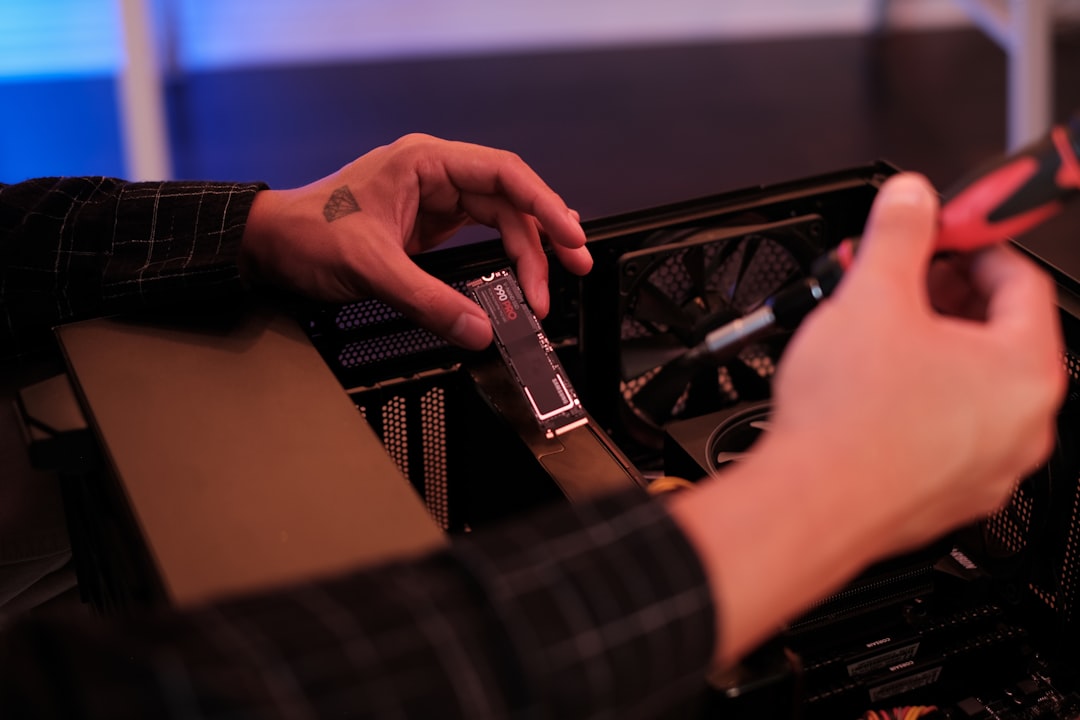
Faulty RAM, power supply units (PSUs), or even malfunctioning hard drives can prompt the Kernel-Power error.
- Run the built-in Windows Memory Diagnostic tool:
- Type Windows Memory Diagnostic in the search bar, and select the app.
- Click Restart now and check for problems.
- Test your PSU if you suspect voltage drops. Use a multimeter or PSU tester (caution advised).
- Use apps like CrystalDiskInfo to monitor hard drive health.
Step 5: Modify Power Settings
Sometimes, Windows power settings can interfere with system stability.
- Go to Control Panel > Power Options.
- Select High Performance or create a custom plan.
- Click Change plan settings > Change advanced power settings.
- Under PCI Express > Link State Power Management, set it to Off.
- Under Processor power management, make sure Minimum processor state is at least 5%-10%.
These tweaks ensure that your components are receiving steady power for optimal performance.
Step 6: Update BIOS and Windows
Your system firmware (BIOS/UEFI) and operating system should always be up to date.
- Visit your motherboard manufacturer’s website, locate your model, and update BIOS according to the provided instructions.
- In Windows, go to Settings > Update & Security > Windows Update and download all pending updates.
BIOS updates often include critical bug fixes related to power management issues.
Step 7: Scan for Malware and Corrupted Files
Malware or system corruption can also generate random restarts and Kernel-Power errors.
- Use Windows Security or any trusted antivirus software to perform a full system scan.
- Open Command Prompt as Administrator and run these commands:
sfc /scannowDISM /Online /Cleanup-Image /RestoreHealth
These tools will check for and repair corrupted system files that may be affecting power features.
Additional Prevention Tips
- Ensure your PC is on a stable power source or consider using an uninterruptible power supply (UPS).
- Keep hardware drivers up-to-date regularly.
- Keep your PC cool and dust-free to prevent overheating.
- Monitor event logs to catch recurring patterns before they lead to crashes.
FAQ: Fixing Kernel Power Error in Windows 10/11
- Q: What is Event ID 41?
A: It’s a system log indicating that the pc restarted or shut down unexpectedly without cleanly shutting off. This is often related to power issues or system crashes. - Q: Can a faulty PSU cause Kernel-Power errors?
A: Yes, a faulty or underpowered PSU can cause voltage drops, leading to unexpected restarts and triggering Kernel-Power errors. - Q: Is overclocking a potential cause?
A: Absolutely. Overclocking can cause system instability if the hardware can’t handle increased speeds or voltages, leading to shutdowns or restarts. - Q: Will reinstalling Windows resolve this error?
A: Reinstalling might help if the problem is due to corruption, but it won’t fix hardware or power-related issues. It’s better to troubleshoot methodically first. - Q: How do I view Kernel-Power events?
A: Use Event Viewer: Windows + X > Event Viewer > Windows Logs > System. Look for Event ID 41.
By following these steps and best practices, users can effectively diagnose and fix Kernel-Power errors on their Windows 10 or 11 devices. Regular maintenance and careful tracking of recent changes can go a long way in preventing these issues from recurring.