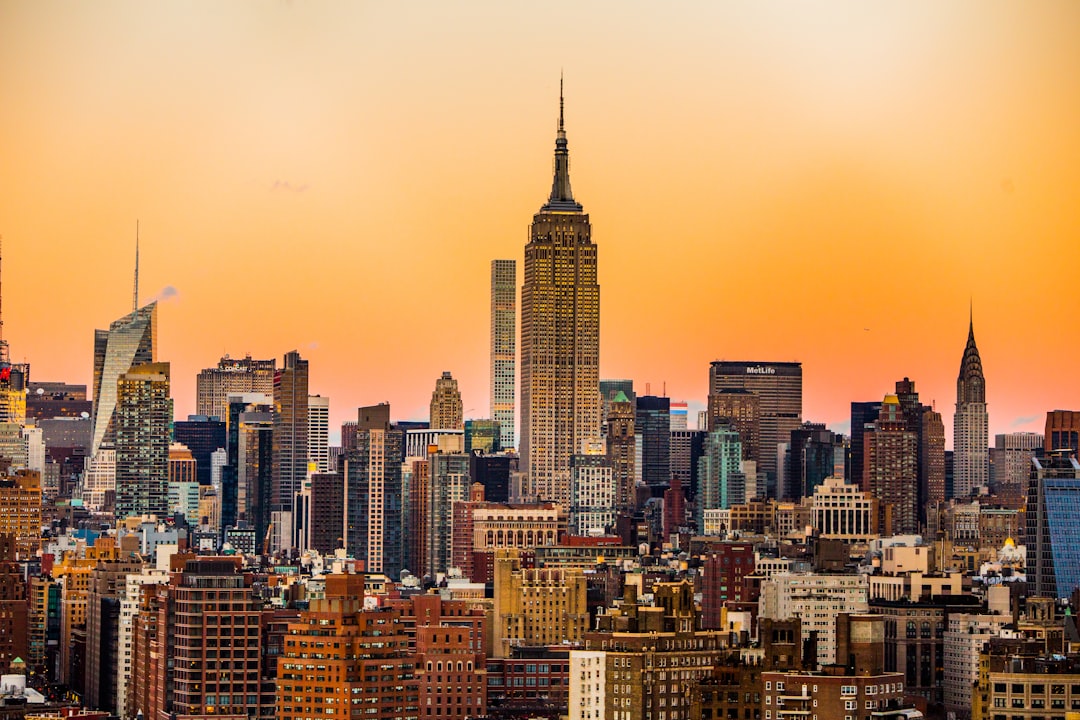
Do you miss seeing the iconic Twin Towers in your virtual flights across New York City? You’re not alone! Microsoft Flight Simulator is a stunning piece of software, but it doesn’t include the Twin Towers by default. Don’t worry — there’s a fun and easy way to bring them back into your skies.
TL;DR: You can add the Twin Towers to Microsoft Flight Simulator using fan-made scenery or mods. It’s safe, simple, and brings a nostalgic view to your NYC flyovers. You’ll need to download a mod, install it in the Community folder, and then start flying. We’ll walk you through it, step-by-step!
Why aren’t the Twin Towers in the game?
Microsoft Flight Simulator (MSFS) uses real-world data to create its cities and landscapes. Since the towers no longer exist in the real world, the game doesn’t include them. But thanks to passionate fans and modders, you can still add the towers to your game and turn your simulation into a tribute or a trip down memory lane.
What you need to bring them back
Before you begin, let’s collect the necessary tools. Here’s what you’ll need:
- A copy of Microsoft Flight Simulator 2020
- An internet connection
- A mod that includes the Twin Towers
- Access to your MSFS “Community” folder
That’s it! No coding required. Just drag, drop, and fly!
Step 1: Find the right mod
There are several mods out there that re-add the Twin Towers. These are fan-made additions, often free, that place detailed 3D models of the buildings back into NYC.
Popular places to find mods include:
- Flightsim.to
- Facebook or Discord communities for MSFS
- Reddit: r/MicrosoftFlightSim
One well-recommended mod is called “World Trade Center – Twin Towers for MSFS.” Search for it on Flightsim.to.
Step 2: Download the Twin Towers mod
When you find the mod:
- Click the download button.
- You’ll get a ZIP file — save it somewhere easy to find, like your desktop.
- Unzip the contents (usually a folder named something like nyc-twin-towers).
Inside, you’ll find the folder that needs to go into your game.
Step 3: Install the mod
This part is easy. Just follow these simple steps:
- Open your Microsoft Flight Simulator installation directory.
- Find the folder named Community.
- Drag the unzipped Twin Towers folder into the Community folder.
Done! That’s it — no setup programs, no technical tricks. Just good old copy-paste magic.
Where is the Community folder located?
It depends on where you installed the game. Here are common paths:
- Steam: C:\Users\<YourName>\AppData\Roaming\Microsoft Flight Simulator\Packages\Community
- Microsoft Store/Xbox App: C:\Users\<YourName>\AppData\Local\Packages\Microsoft.FlightSimulator_8wekyb3d8bbwe\LocalCache\Packages\Community
If you customized your install location, the folder will be inside that path under “Community.” Still no luck finding it? Search your computer for a folder named “Community.”
Step 4: Fire up the game and go to New York!
Now comes the fun part. Launch MSFS and start a free flight. Choose an airport near New York City — like KJFK (John F. Kennedy International) or KLGA (LaGuardia).
Take off and head for Lower Manhattan. From the sky, you’ll soon spot two tall, familiar buildings rising from the skyline. Congratulations! The Twin Towers are back in your simulator.
Tips for the best experience
- Use clear weather: Pick a sunny day preset to see the towers in amazing detail.
- Adjust time of day: Try flying at sunrise or sunset for golden light hitting the towers. Stunning!
- Use drone cam: Press “Insert” on your keyboard and fly the drone camera around the buildings for a closer look.
Troubleshooting
If you don’t see the towers after installing, don’t panic. Here are quick fixes:
- Make sure the mod folder is directly in the Community folder, not inside another folder.
- Restart the game if it was already open.
- Double-check that you downloaded the correct file for MSFS 2020.
Still no luck? Visit the mod page and check the comments — other pilots might have shared solutions.
Is it safe?
Yes! Installing scenery mods like this one is safe, especially from trusted mod sites like Flightsim.to. If you’re ever unsure, look for mods with good ratings and lots of downloads.
Can I uninstall it?
Of course! Just go back to your Community folder and delete the Twin Towers mod folder. That’s all it takes. Nothing is permanent, and your original game remains untouched.
Why would someone want to add the Twin Towers?
People have different reasons. Some want to recreate flights from the past. Others enjoy the historical look of the NYC skyline. For many, it’s a tribute — a way to remember what once stood tall in the heart of the city.
Other nostalgic mods you might enjoy
If you like flying through history, here are some other mods you might want to try:
- Old Hong Kong Kai Tak Airport – Fly the famous checkerboard approach again!
- Historic Berlin Wall scenery – See the city as it looked decades ago.
- Classic SST Concorde – Fly with style and supersonic speed.
Mods let you turn Flight Simulator into your own personal time machine!
Final thoughts
Adding the Twin Towers to Microsoft Flight Simulator is a simple and satisfying way to enhance your experience. Whether you’re returning to the skyline of the past or just flying over for a look, it adds emotion, perspective, and history to your sim adventures.
So download the mod, take off, and soar through a New York that remembers. We’ll see you in the virtual skies!