Few things are more alarming to a PC user than turning on a monitor and seeing bright green lines slicing across the screen. Whether they appear as thin vertical streaks, flickering horizontal bars, or random green artifacts scattered across your display, these visual glitches can be frustrating—and sometimes worrying. If you’re using an NVIDIA graphics card, you might immediately wonder whether your GPU is failing or if there’s a simpler explanation. The good news is that green lines on your screen do not automatically mean your graphics card is permanently damaged.
TLDR: Green lines on an NVIDIA-powered screen are usually caused by loose cables, driver issues, display settings, GPU overheating, or monitor panel faults. Start with simple fixes like checking cables, updating drivers, and testing another monitor or port. In more serious cases, overheating, GPU artifacting, or failing hardware may be involved. Systematic troubleshooting can help you pinpoint the exact cause before replacing expensive components.
What Do Green Lines on Screen Usually Mean?
Green lines are a type of display artifact. In technical terms, artifacts occur when something interrupts the proper rendering or transmission of image data from your graphics card to your monitor. These interruptions can be:
- Software-related (driver corruption, incorrect settings)
- Connection-related (loose or damaged cables)
- Hardware-related (failing GPU or monitor panel)
- Thermal-related (GPU overheating)
The key to solving the issue lies in understanding when the green lines appear. Do they show up only during gaming? Only on startup? Even in the BIOS? Or exclusively on one monitor? Each scenario points toward a different cause.
1. Loose or Damaged Display Cables
One of the most common—and easiest to fix—causes is a faulty cable connection. HDMI, DisplayPort, and DVI cables can degrade over time or become partially unplugged.
Symptoms of cable issues:
- Green lines appear and disappear when you move the cable
- Lines show only on one monitor
- Wiggling the cable changes the pattern
How to fix it:
- Unplug and firmly reconnect both ends of the cable
- Try a different cable (preferably certified and high quality)
- Switch to another port on your GPU
- Test the monitor with another device
If the lines disappear after swapping cables, you’ve solved the problem without spending a dollar on new hardware.
2. NVIDIA Driver Problems
Drivers act as translators between your operating system and graphics card. When drivers become corrupted, outdated, or incompatible after an update, visual artifacts like green lines can appear.
This is especially common after:
- Major Windows updates
- Installing beta NVIDIA drivers
- Upgrading your GPU
- Switching between studio and game-ready drivers
Fixing driver-related green lines:
- Use the NVIDIA Control Panel to check current driver version
- Download the latest official driver from NVIDIA’s website
- Perform a clean installation during setup
- Use Display Driver Uninstaller (DDU) for complete driver removal if necessary
In some cases, the latest driver may introduce bugs. If the problem started immediately after updating, consider rolling back to a previous stable version.
3. GPU Overheating
Heat can wreak havoc on graphical performance. When your NVIDIA GPU overheats, it may begin rendering errors, including green lines, flickering textures, or colored artifacts.
Signs of overheating:
- Green lines appear during gaming or heavy workloads
- Fans spin loudly
- Performance drops or system shuts down unexpectedly
Check your GPU temperature using software like:
- MSI Afterburner
- HWMonitor
- NVIDIA GeForce Experience performance overlay
Ideally, GPU temperatures under load should stay below 85°C. If temperatures exceed this regularly:
- Clean dust from fans and heatsinks
- Improve case airflow
- Reapply thermal paste (advanced users)
- Ensure all GPU fans are functioning
Persistent overheating can eventually damage the GPU permanently, so addressing thermal issues early is critical.
4. Monitor Panel Failure
Sometimes the GPU is completely fine—the monitor isn’t. LCD panels contain rows and columns of pixels controlled by thin-film transistors. If one column fails, it may produce a persistent green line.
Indications of panel failure:
- The green line is perfectly straight and static
- It appears even when using a different PC or device
- It shows in the monitor’s built-in menu
If the line is visible in the monitor’s internal settings menu, your GPU is not the culprit.
Unfortunately, monitor panel repairs are rarely cost-effective unless the display is under warranty. Replacement is often the most practical solution.
5. GPU Artifacting and Failing Hardware
In more serious cases, green lines can signal GPU artifacting. Artifacting happens when a graphics card’s memory (VRAM) or processing cores begin to fail.
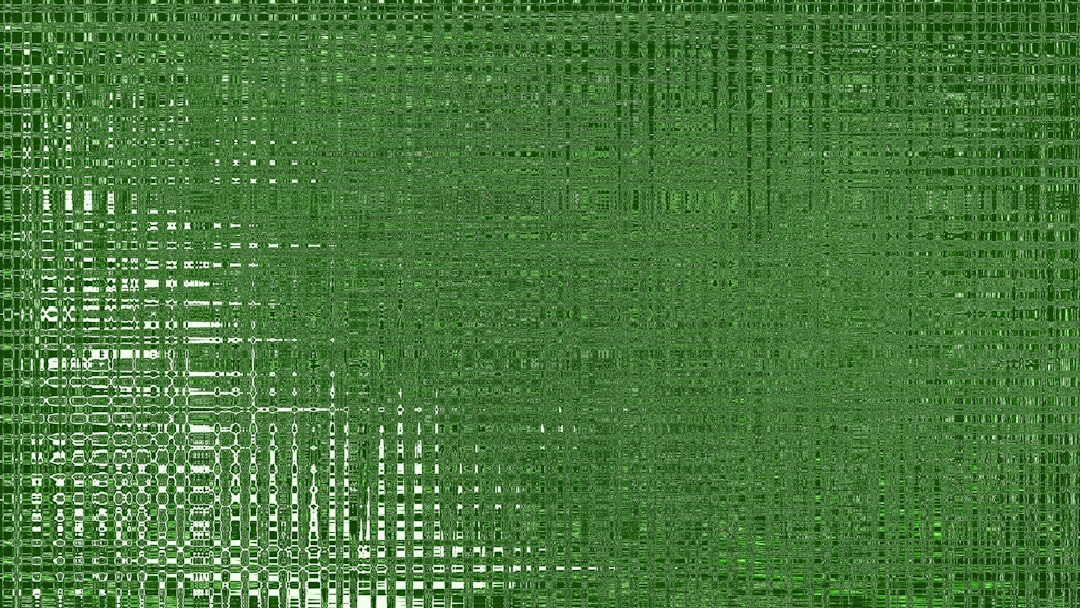
Common artifacting patterns:
- Multicolored lines or shapes
- Random green dots
- Distorted textures in games
- Crashes during rendering
Artifacting typically worsens over time. It may start subtly—only during intense 3D gaming—but eventually appear even on the desktop.
Possible fixes to try before replacing the GPU:
- Reset GPU overclock settings to default
- Lower clock speeds slightly
- Update or reinstall drivers
- Ensure adequate PSU power delivery
If your GPU has been overclocked, instability could be causing rendering errors. Returning to stock settings often resolves the issue.
6. Incorrect Display Settings
Strange color lines can sometimes appear due to mismatched refresh rates, color formats, or resolutions.
Check the following:
- Resolution matches your monitor’s native setting
- Refresh rate is correct
- Color format (RGB vs YCbCr) is properly configured
- HDR settings are correctly enabled or disabled
You can adjust these in the NVIDIA Control Panel under “Change Resolution.” A quick reset to default settings can eliminate configuration-related artifacts.
7. BIOS or Hardware Slot Issues
If green lines appear even before Windows loads, the issue may exist at a lower hardware level.
Try these steps:
- Reseat the GPU in the PCIe slot
- Clean the PCIe contacts carefully
- Test the GPU in another system
- Try a different PCIe slot if available
A poorly seated GPU can interrupt data transfer between the motherboard and graphics card, producing display anomalies.
How to Systematically Diagnose the Problem
Instead of guessing, follow a logical elimination process:
- Check cables and ports
- Swap monitors
- Update or reinstall drivers
- Monitor GPU temperatures
- Test another GPU (if possible)
- Check BIOS appearance
If the issue persists across multiple monitors and appears in BIOS, the GPU is the likely culprit. If it appears only on one display, suspect the monitor or cable.
When Should You Replace Your NVIDIA GPU?
Replacement becomes necessary if:
- Artifacting worsens over time
- Crashes become frequent
- Lines appear regardless of software fixes
- You’ve confirmed the monitor and cables are fine
However, remember that GPUs are resilient. Many green line problems turn out to be quick fixes rather than hardware death sentences.
Preventing Green Lines in the Future
Proactive care can reduce the risk of display issues:
- Keep drivers updated (but avoid unstable beta releases)
- Maintain good airflow in your case
- Clean dust regularly
- Use high-quality display cables
- Avoid excessive overclocking
Also, consider using a reliable power supply. Insufficient or unstable power delivery can cause subtle GPU problems that manifest as graphics artifacts.
Final Thoughts
Seeing green lines on your screen can be unnerving, especially if you’ve invested in a high-end NVIDIA graphics card. But in many cases, the solution is far simpler than replacing your GPU. Loose cables, faulty drivers, overheating, or monitor defects are all common—and fixable—issues.
The key is calm, systematic troubleshooting. Start with the simplest explanations and work your way toward more complex hardware diagnostics. In doing so, you’ll either fix the issue quickly or confidently identify the real cause.
And remember: not every green line signals the end of your graphics card. Sometimes, it’s just a cable asking for attention.