Minecraft is best when you are mining, crafting, and being chased by a baby zombie with no sense of personal space. But sometimes, instead of joining a world, you get the scary message: Connection timed out. Do not panic. Your diamonds are probably safe.
TLDR: A Minecraft connection timeout usually means your game cannot reach the server fast enough. First, restart Minecraft, your device, and your router. Then check your internet, server address, game version, firewall, and DNS settings. If you run the server, also check ports, server status, and player limits.
What does “Connection timed out” mean?
A timeout is like knocking on a door and nobody answering. Your Minecraft client asks the server, “Hey, can I come in?” The server does not reply in time. So Minecraft gives up.
This can happen for many reasons. Your internet may be slow. The server may be down. A firewall may block the game. Or the server address may be wrong by one tiny character. Minecraft is fun, but it is also picky.

1. Check if the server is actually online
Before you wrestle your router like an ender dragon, check the simple thing first. Is the server online?
- Ask a friend if they can join.
- Check the server website or Discord.
- Look for maintenance messages.
- Try another server to compare.
If every server works except one, the problem is likely that server. If no servers work, the problem is probably on your side.
2. Restart Minecraft, then restart everything else
Yes, the classic fix. It works more often than it should.
- Close Minecraft fully.
- Open it again.
- If that fails, restart your computer, console, or phone.
- If it still fails, restart your router.
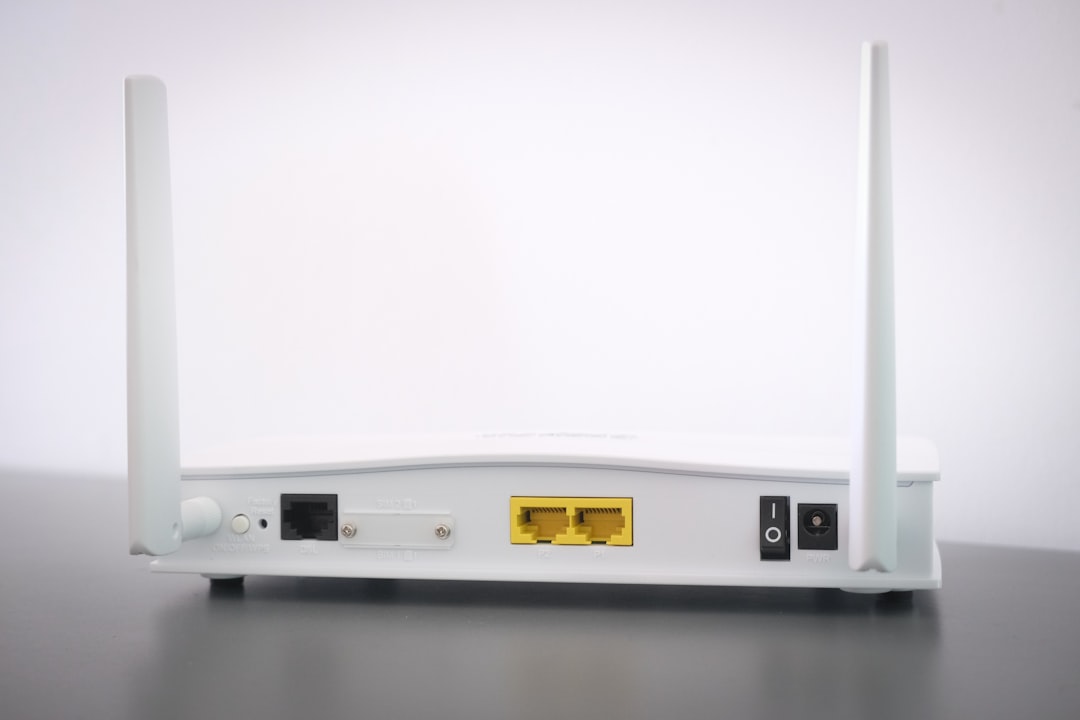
To restart your router, unplug it. Wait about 30 seconds. Plug it back in. Give it a few minutes. Routers are small plastic boxes, but they need emotional recovery time.
3. Check your internet connection
Minecraft does not need super speed. But it does need a stable connection. If your Wi Fi is wobbling like a jelly slime, timeouts can happen.
Try this:
- Move closer to the router.
- Use Ethernet if you can.
- Pause big downloads.
- Stop streaming on other devices for a test.
- Run a speed test.
Look at ping, not just speed. Low ping is good. High ping means delays. If your ping is huge, Minecraft may time out before the server can answer.
4. Make sure the server address is correct
This sounds boring. It is also one of the most common causes.
Check the address carefully. Look for:
- Extra spaces.
- Wrong numbers.
- Missing dots.
- Wrong port.
- Old server address.
For example, Java servers often use an address like play.example.com. Sometimes they also use a port, like play.example.com:25565. Bedrock servers often need a separate port too.
If you copied the address from a website, paste it into a plain text app first. This can remove sneaky formatting.
5. Match the Minecraft version
Minecraft versions matter. A lot. If the server runs 1.20.4 and you are using 1.21, you may not connect. Some servers support multiple versions, but many do not.
In Minecraft Java Edition, open the launcher. Choose the correct installation version. Then start the game.
In Bedrock Edition, updates are usually automatic. Still, check your app store, console update menu, or game settings.
Think of it like trying to enter a villager meeting while speaking dolphin. Close, but not quite.
6. Allow Minecraft through your firewall
Your firewall protects your computer. That is good. But sometimes it blocks Minecraft like an overprotective iron golem.
On Windows, try this:
- Open Windows Security.
- Go to Firewall and network protection.
- Click Allow an app through firewall.
- Find Minecraft Launcher and Java Platform SE Binary.
- Allow them on private networks.
If you use antivirus software, check its firewall settings too. Some security apps block Java or Minecraft connections.
On Mac, go to System Settings, then Network or Firewall. Make sure Minecraft and Java are not blocked.
7. Try changing your DNS
DNS is like the internet’s phone book. It turns names into numbers. If DNS is slow or broken, Minecraft may not find the server.
You can try a public DNS. Two common choices are:
- Google DNS: 8.8.8.8 and 8.8.4.4
- Cloudflare DNS: 1.1.1.1 and 1.0.0.1
Change DNS in your device network settings or router settings. If you are not sure, search for instructions for your device. It sounds fancy, but it is usually just typing numbers into boxes.
8. Flush DNS and reset network settings
If your computer has old network info stuck in its brain, clearing it can help.
On Windows:
- Open Command Prompt as administrator.
- Type
ipconfig /flushdnsand press Enter. - Type
netsh winsock resetand press Enter. - Restart your computer.
On Mac:
- Open Terminal.
- Run the DNS flush command for your macOS version.
- Restart your Mac.
This is like telling your network, “Please forget the cursed map and try again.”
9. If you run the server, check the server settings
If this is your server, you have extra knobs to turn.
- Make sure the server is running.
- Check that the server is not overloaded.
- Restart the server.
- Check the player limit.
- Check the whitelist.
- Make sure the port is open.
For Java Edition, the default port is usually 25565. For Bedrock Edition, it is often 19132. If players outside your home network cannot join, you may need port forwarding on your router.
Port forwarding tells your router where to send Minecraft traffic. Without it, the connection may wander around outside like a lost sheep.
10. Check mods, resource packs, and plugins
Mods are wonderful. Mods are also chaos in a cute hat.
If you use modded Minecraft, make sure you have the same mods as the server. Also check the same mod loader, like Forge or Fabric. Different versions can cause connection problems.
If you run a plugin server, try starting without recent plugins. A broken plugin can freeze logins or slow the server until players time out.
11. Try a VPN, or turn one off
A VPN can help if your internet provider has bad routing to the server. But a VPN can also make things worse. Very helpful. Very annoying.
If you are using a VPN, turn it off and try again. If you are not using one, try a trusted VPN as a test. If the server works only with a VPN, your normal route to the server may be the problem.
12. Wait a little
Sometimes the fix is boring. The server may be restarting. Your internet provider may be having issues. Minecraft authentication servers may be grumpy.
Wait 10 to 20 minutes. Then try again. Drink water. Stretch. Maybe organize your chests. Actually, do not organize your chests. That is a full weekend project.
Final checklist
Still stuck? Run through this quick list:
- Server online? Test another server.
- Internet stable? Try Ethernet or move closer to Wi Fi.
- Address correct? Check spelling and port.
- Version correct? Match the server.
- Firewall allowing Minecraft? Check Java too.
- DNS okay? Try public DNS.
- Hosting a server? Check ports and server load.
A Minecraft connection timeout feels annoying, but it is usually fixable. Start with the easy steps. Restart things. Check the address. Match the version. Then move to firewall, DNS, and server settings. Soon you will be back where you belong: punching trees, dodging creepers, and pretending you will build a small house this time.