Most iPhone alarms fail because the alert volume is too low, the alarm sound is set to None, Sleep settings are doing something different than expected, or iOS needs a quick restart. Start with the built-in Clock app before blaming the phone. It is still the most reliable alarm option on iPhone, but a few settings can make it behave like it has personally chosen to ruin your morning.
TLDR: Check Settings > Sounds & Haptics, raise the Ringtone and Alerts slider, make sure your alarm has a real sound, and restart your iPhone. For example, if your 7:00 AM alarm “missed” 3 times this week, there is a good chance the alert volume was accidentally lowered with the side buttons. Third-party alarm apps can add loud sounds, math puzzles, sleep tracking, and barcode scans, but Apple’s Clock app usually wins on reliability.
First, know this: Silent Mode is usually not the villain
Here is the part that confuses many people: Silent Mode does not normally silence Apple’s Clock alarms. If the switch on the side of your iPhone is orange, your calls and alerts may be quiet, but a properly configured Clock alarm should still ring.
So if your alarm did not go off, the issue is often something else. Annoyingly, the setting that matters most is not inside the alarm screen. It sits in Sounds & Haptics, where many people forget to look.
Check the iPhone alarm volume
Your alarm sound uses the Ringtone and Alerts volume. If that slider is near zero, your alarm may “go off” technically, but you will sleep through it like nothing happened.
To check it:
- Open Settings.
- Tap Sounds & Haptics.
- Find Ringtone and Alerts.
- Drag the slider to the right.
- Test an alarm for one minute from now.
If Change with Buttons is turned on, your side volume buttons can lower alarm volume by accident. That is useful for some people, but risky for heavy sleepers. Honestly, it feels ridiculous that one stray button press in your pocket can turn a loud alarm into a polite whisper.
Make sure the alarm sound is not set to None
This one is simple, but it catches people all the time. Each alarm can have its own sound. If the sound is set to None, the alarm may appear on screen but make no noise.
Fix it like this:
- Open the Clock app.
- Tap Alarm.
- Tap Edit.
- Select the alarm that failed.
- Tap Sound.
- Pick a loud tone such as Radar, Alarm, or another clear sound.
- Tap Back, then Save.
Do not rely on a soft song unless you know it wakes you. Some music starts quietly, and that first gentle intro can cost you 15 minutes.
Check Sleep Schedule and regular alarms
Apple has two alarm areas that can feel too similar: normal alarms in the Clock app and wake-up alarms tied to Sleep Schedule in the Health app. They do not always behave the same way.
If you use Sleep Focus or a bedtime schedule, check this:
- Open the Health app.
- Tap Browse.
- Tap Sleep.
- Check Your Schedule.
- Review the wake-up alarm time and sound.
You may think you set a normal 6:30 AM alarm, while your Sleep Schedule is set for 7:15 AM on weekdays only. Expect to waste time here if you have different schedules for workdays, weekends, travel, and naps.
Restart your iPhone and update iOS
If the settings look right but alarms still fail, restart the phone. That sounds basic because it is. It also works more often than people want to admit.
After the restart, set a test alarm for two minutes later. Stay near the phone and watch what happens. If the alert appears but no sound plays, go back to volume and sound settings. If nothing appears, update iOS.
To update:
- Open Settings.
- Tap General.
- Tap Software Update.
- Install any available update.
Apple occasionally fixes Clock, notification, and audio bugs through iOS updates. If your alarm problem started after a major update, a follow-up patch may help.
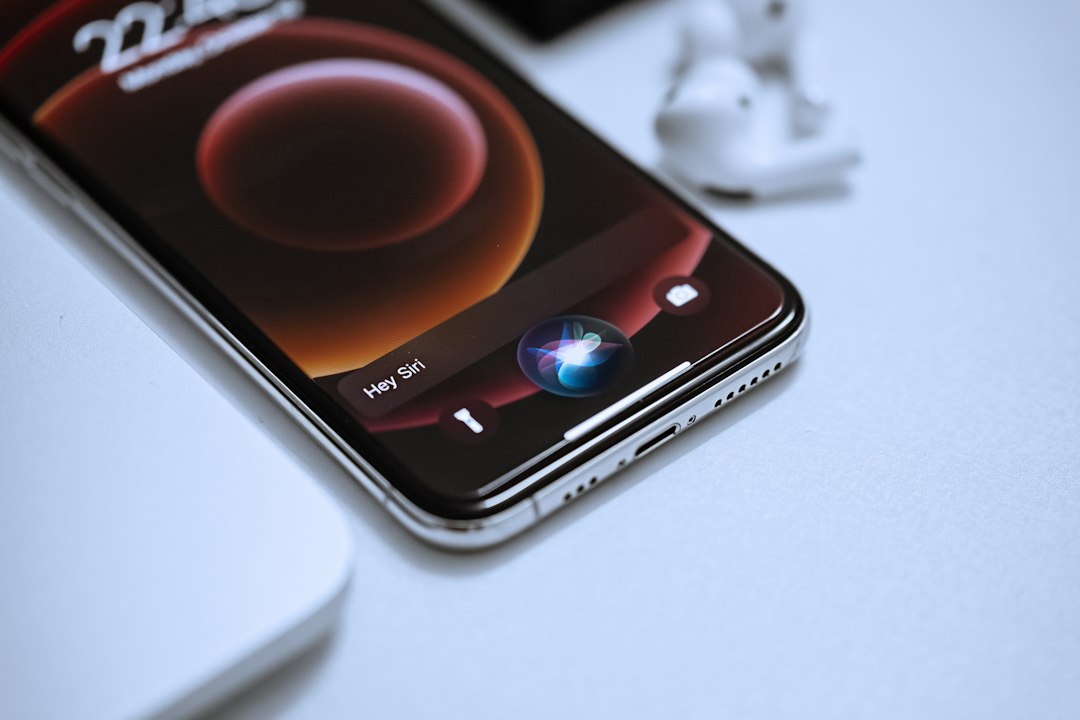
Turn off Attention Aware Features
On Face ID iPhones, Attention Aware Features can lower the volume of alerts when the phone thinks you are looking at it. That is smart in theory. In bed, half awake, with your face near the phone, it can feel less smart.
To test this setting:
- Open Settings.
- Tap Face ID & Passcode.
- Enter your passcode.
- Turn off Attention Aware Features.
This does not fix every alarm issue, but it is worth trying if your alarm starts loud and then drops quickly.
Check Bluetooth, speakers, and physical problems
Your iPhone alarm should still play from the built-in speaker even if headphones are connected. Still, audio routing can get weird, especially with Bluetooth speakers, cars, or earbuds that reconnect overnight.
Before bed, disconnect devices you do not need. Also check the speaker grille for dust or pocket lint. Play a song or ringtone at full volume. If the speaker crackles, sounds tiny, or does not play at all, the alarm is not the real problem. The hardware may need cleaning or repair.
Apple Clock app: when it is the better choice
The built-in Clock app has one huge advantage: it is part of iOS. It does not rely on extra subscriptions, odd permissions, or notification tricks. For most users, it is the safest daily alarm.
Choose Apple Clock if you want:
- Simple alarms for work, school, medication, or reminders.
- Offline reliability without an account.
- Siri support, such as “Set an alarm for 6 AM.”
- Multiple repeat alarms for different days.
- No ads or payment prompts.
The downside is that Clock is basic. There are no serious wake-up challenges. No QR code scan in the bathroom. No smart sleep analysis beyond Apple’s own sleep tools. If you are a deep sleeper, basic may not be enough.
Alarm app alternatives: when they make sense
Third-party alarm apps can be helpful if you silence alarms in your sleep or hit snooze without forming a single memory of it. These apps often add friction, which is exactly the point.
Common features include:
- Math problems before the alarm stops.
- Barcode or QR code scanning in another room.
- Step counting to force you out of bed.
- Very loud alarm tones and custom sounds.
- Sleep cycle tracking that tries to wake you during lighter sleep.
- Gradual wake-up sounds for a less harsh morning.
Popular options in this category include apps similar to Alarmy, Sleep Cycle, Loud Alarm, and puzzle-based alarm tools. The best one depends on your problem. If you wake up but snooze too much, use a challenge-based app. If you wake up groggy, try sleep tracking. If you simply cannot hear alarms, pick a loud alarm app with strong sound options.
The catch with third-party alarm apps
Alarm apps are not magic. iOS limits what third-party apps can do in the background. If you force quit the app, block notifications, enable certain Focus settings, or deny permissions, the alarm may fail or behave differently than expected.
Before trusting one, check:
- Notifications are allowed.
- Critical alerts are enabled if the app supports them.
- Background App Refresh is on.
- The app is not force closed before bed.
- Your chosen alarm sound downloads fully.
Test the app during the day. Set it for five minutes ahead. Lock the phone. Leave it alone. If it cannot pass that simple test, do not trust it before an early flight.
Best setup for reliable wake-ups
For most people, the best setup is not one alarm. It is a small system.
- Use Apple Clock as your main alarm.
- Set a second Clock alarm 5 to 10 minutes later.
- Keep the phone across the room.
- Use a loud, sharp tone.
- Add a third-party challenge alarm if you often snooze while half asleep.
- Keep a cheap physical alarm clock as backup for major events.
If your iPhone alarm is not going off, fix the basics first: volume, sound, Sleep Schedule, restart, update, and Attention Aware settings. After that, consider an alarm app for extra pressure. Apple Clock is usually the reliable foundation. Alarm apps are the backup coach yelling at you to get out of bed.