Use Chrome first if you want the fastest error clue, but use Firefox if you want cleaner testing. Chrome shows ERR_CONNECTION_TIMED_OUT right away. Firefox often says “The connection has timed out.” Same problem. Different outfit. Chrome also has about 65% of global browser market share, so many guides start there [source: StatCounter].
TLDR: A connection timeout means your browser waited for a website, got bored, and gave up. In a simple 12-minute test, you can often find the cause by trying the same site in Chrome, then Firefox, then turning off extensions and VPNs. For example, if Chrome fails but Firefox loads the page in 3 seconds, your Chrome cache, DNS, or extension setup is likely the culprit. If both fail, blame the network, router, DNS, firewall, or the website itself.
What does ERR_CONNECTION_TIMED_OUT mean?
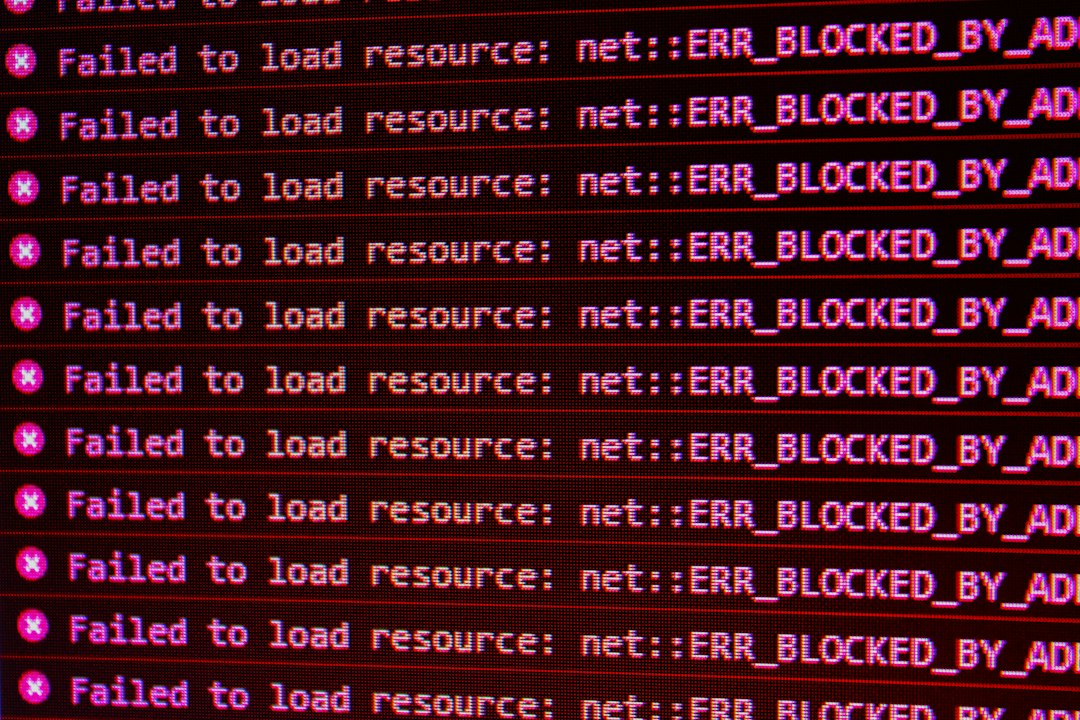
ERR_CONNECTION_TIMED_OUT means Chrome sent a request to a website, then waited too long for a reply. The server did not answer in time. Or your device never reached it.
Firefox says it in plain English. It may show:
- “The connection has timed out.”
- “The server is taking too long to respond.”
Same beast. Different label.
Honestly, it feels like browsers enjoy being vague at the worst time. You click a page. You wait. You stare. Then the browser shrugs.
Chrome vs Firefox: who helps more?
Chrome is better for quick detection. It gives a clear error code. That helps when searching for fixes. Type the code into Google, and you get thousands of answers.
Firefox is better for clean comparison. It often has fewer installed add-ons for many users. That makes it useful as a “fresh second opinion.” If Firefox opens the site, Chrome may be the problem.
Here is the simple split:
- Chrome wins for error codes. It names the issue fast.
- Firefox wins for testing. It is great as a backup browser.
- Both can fail. Then the problem is probably outside the browser.
First test: try the same site in both browsers
Start with the lazy test. It works more often than it should.
- Open the website in Chrome.
- If it times out, open it in Firefox.
- Try another website, like a news site or search page.
- Try the same site on your phone using mobile data.
If the site works in Firefox but not Chrome, focus on Chrome. If it fails in both, check your network. If it fails on every device, the website may be down.
You can also check a public outage tool. Mozilla explains that timeout errors can happen when a server takes too long to respond [source: Mozilla].
When Chrome is the problem
Chrome can get messy. It stores cache, cookies, DNS data, extensions, site settings, and plenty of tiny gremlins.
Try these fixes first:
- Open Incognito Mode. Press Ctrl + Shift + N on Windows or Command + Shift + N on Mac.
- Turn off extensions. Go to chrome://extensions.
- Clear cache. Go to Settings > Privacy and security > Clear browsing data.
- Clear Chrome DNS cache. Type chrome://net-internals/#dns and clear the host cache if shown.
- Reset Chrome settings. Go to Settings > Reset settings.
The annoying part? One bad extension can waste 20 minutes of your day. Ad blockers, coupon tools, privacy add-ons, and old antivirus extensions are common troublemakers.
When Firefox is the problem
Firefox is usually calm. But it can still trip over add-ons, DNS settings, proxy rules, or privacy tools.
Try this:
- Open a Private Window. Press Ctrl + Shift + P on Windows or Command + Shift + P on Mac.
- Disable add-ons. Go to about:addons.
- Clear cache. Go to Settings > Privacy & Security > Cookies and Site Data.
- Clear Firefox DNS cache. Type about:networking#dns, then use the DNS clear option if available.
- Check proxy settings. Go to Settings > Network Settings.
Firefox also has Troubleshoot Mode. It runs Firefox without extensions and custom themes. Go to Help > Troubleshoot Mode. This is a great sanity check.
If both Chrome and Firefox time out
Now the browser is probably innocent. Poor browser. It got blamed again.
Check these items:
- Restart your router. Yes, really. Wait 30 seconds before turning it back on.
- Turn off your VPN. Some VPN routes crawl like a sleepy turtle.
- Pause antivirus web protection. Test only for a minute, then turn it back on.
- Try a different DNS server. Common picks are Google DNS and Cloudflare DNS.
- Flush your system DNS. This clears old address records.
- Check the website from another network. Use phone data if possible.
On Windows, open Command Prompt and run:
ipconfig /flushdnsOn Mac, flush DNS through Terminal. The exact command depends on your macOS version, which is a tiny bit rude.
Chrome has better clues, Firefox has cleaner testing
Chrome gives you the famous code: ERR_CONNECTION_TIMED_OUT. That helps when asking for help. It also helps when checking logs or support threads.
Firefox speaks more like a human. It says the server took too long. Less code. Less drama.
So use both browsers as tools:
- Chrome as the alarm bell. It tells you the exact error type.
- Firefox as the lie detector. It tells you if Chrome is acting weird.
This two-browser method is simple. It also saves time. No need to reinstall everything after one failed page. Please do not go nuclear after one timeout.
Quick fix checklist
Use this order. It is boring. It works.
- Refresh the page. Wait 10 seconds. Try again.
- Open the site in the other browser.
- Try private browsing.
- Disable extensions.
- Clear cache and cookies.
- Turn off VPN or proxy.
- Restart the router.
- Flush DNS.
- Change DNS servers.
- Test another device or network.
So which browser is better for fixing timeouts?
Chrome is better if you want clear error codes and fast search help. It is the browser most people use, so fixes are easy to find.
Firefox is better if you want a clean second test. It helps you spot whether Chrome itself is the problem.
The best answer is not Chrome or Firefox. It is Chrome plus Firefox. Use them as a pair. If one fails and one works, you have a browser issue. If both fail, you have a network, DNS, firewall, VPN, or website issue.
That is the whole trick. Two browsers. Five minutes. Fewer headaches.