
Many ASUS laptop owners appreciate their device’s performance and portability, yet often feel that the audio quality does not match the screen and processing power. Whether the laptop is used for streaming movies, attending video calls, gaming, or producing music, sound clarity and volume play a critical role in the overall experience. Fortunately, there are several practical ways to improve sound quality on an ASUS laptop without replacing the device or investing in expensive hardware.
TLDR: Improving sound quality on an ASUS laptop starts with simple software adjustments such as updating audio drivers, configuring built-in sound settings, and enabling audio enhancements. Users can also improve clarity by adjusting equalizer settings, reducing background noise, and optimizing speaker placement. For more dramatic improvements, external speakers, headphones, or USB DACs can significantly enhance the listening experience. Regular maintenance and correct configuration make a noticeable difference.
Check and Update Audio Drivers
One of the most common causes of poor sound quality is outdated or incorrect audio drivers. ASUS laptops typically use Realtek audio drivers, which receive periodical updates for performance and compatibility improvements.
To improve sound quality, users should:
- Open Device Manager
- Expand Sound, video and game controllers
- Right-click the audio device (often Realtek Audio)
- Select Update driver
If Windows does not find an update, downloading the latest driver directly from the official ASUS support website for the specific laptop model often results in better optimization. Updated drivers fix distortions, balance errors, and low-volume output issues.
Adjust Windows Sound Settings
Windows includes built-in audio enhancements that can significantly improve sound clarity and depth when configured properly.

Users can access these options by:
- Right-clicking the speaker icon in the taskbar
- Selecting Sound settings
- Choosing Device properties
- Opening Additional device properties
Under the Enhancements tab, enabling features such as:
- Loudness Equalization – reduces volume fluctuations
- Virtual Surround – improves spatial audio effect
- Bass Boost – enhances low frequencies
Not every enhancement works perfectly on every ASUS laptop. It is best to test one setting at a time to avoid distortion.
Use the Built-in ASUS Audio Software
Many ASUS laptops include audio customization tools such as ASUS SonicMaster or DTS Audio Processing. These applications are specifically tuned for ASUS hardware and can significantly improve performance when properly configured.
Within these applications, users can often:
- Select different sound profiles (Music, Movie, Gaming, Voice)
- Adjust treble and bass levels
- Enable surround simulation
- Optimize dialogue clarity
For example, the Movie mode typically boosts dynamic range, while Music mode offers more balanced tonal reproduction. Choosing the correct preset often provides instant improvement with minimal effort.
Optimize Equalizer Settings
Fine-tuning the equalizer is one of the most effective ways to personalize sound quality. Equalizer adjustments allow the user to emphasize or reduce specific frequency ranges.
A basic guideline:
- Increase lower frequencies (60Hz–250Hz) for stronger bass
- Enhance mid frequencies (500Hz–2kHz) for clearer vocals
- Boost higher frequencies (4kHz–16kHz) for crisp detail
However, excessive boosting may cause distortion, especially on built-in laptop speakers. It is generally better to reduce certain frequencies slightly rather than dramatically increasing others.
Improve Physical Speaker Output
Sound quality does not depend only on software. Physical placement and speaker mechanics also matter.
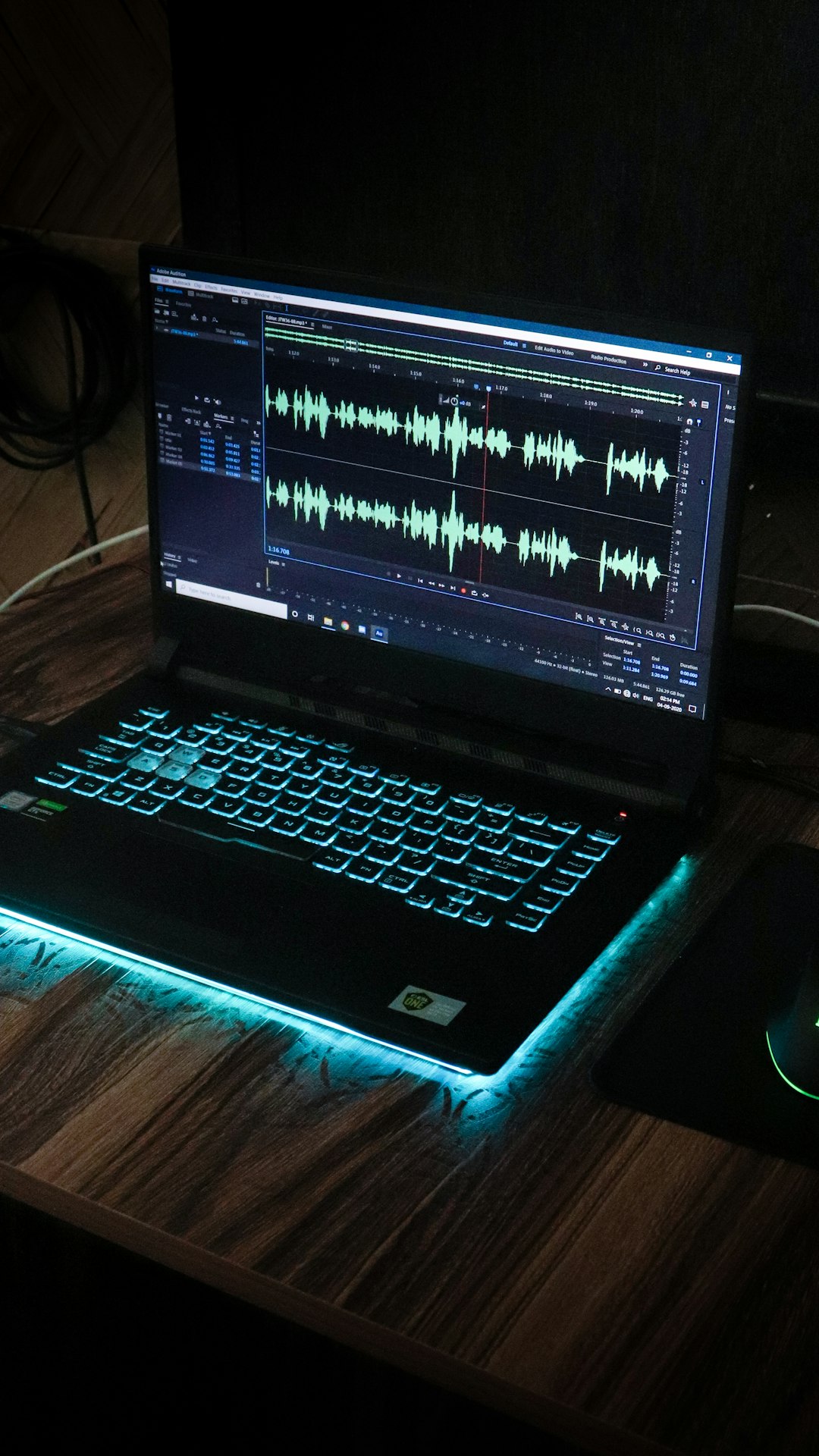
To improve built-in speaker performance:
- Place the laptop on a hard, flat surface to avoid muffling
- Avoid soft surfaces like beds or couches
- Keep speaker grills clean and free of dust
- Ensure nothing blocks the bottom or side speakers
Some ASUS models position speakers underneath the chassis, meaning audio reflects off the surface below. Using a solid desk rather than fabric can make the sound noticeably clearer and louder.
Reduce Background Noise and Interference
Poor sound clarity sometimes results from background noise or interference, especially during calls or recordings.
Users can improve microphone and speaker clarity by:
- Disabling unused audio devices in Sound settings
- Turning off exclusive mode in advanced device properties
- Turning down microphone boost to prevent static noise
- Keeping power cables away from audio cables
Additionally, enabling noise suppression in communication apps such as Zoom or Teams enhances voice clarity during meetings.
Upgrade to External Speakers or Headphones
Although built-in speakers are convenient, they are physically limited in size and power. For those who want significantly better sound quality, external devices offer the greatest improvement.
Options include:
- USB-powered desktop speakers
- Bluetooth speakers
- Wired or wireless headphones
- Gaming headsets with surround sound
High-quality headphones often deliver deeper bass and clearer high frequencies compared to laptop speakers. For music production or professional use, studio headphones provide accurate sound reproduction.
Consider Using a USB DAC
A Digital-to-Analog Converter (DAC) converts digital audio signals into sound. While ASUS laptops include internal DACs, they may not match the performance of dedicated external units.
An external USB DAC can:
- Provide cleaner audio signals
- Reduce electrical interference
- Improve dynamic range
- Enhance headphone amplification
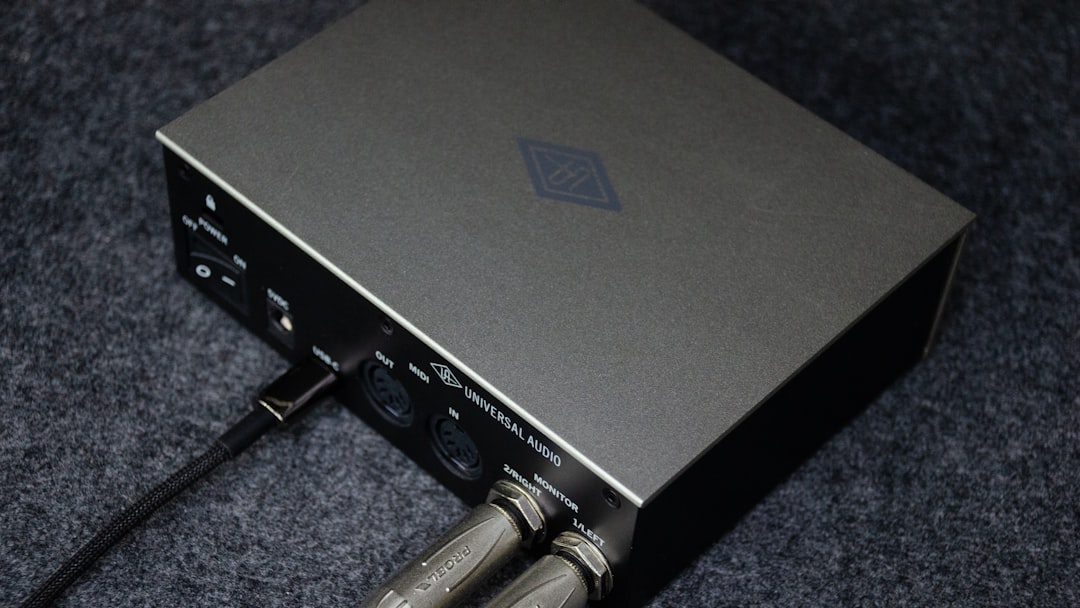
This upgrade is especially beneficial for users who listen to high-resolution audio files or use premium headphones.
Adjust Power and Performance Settings
Power-saving modes can sometimes reduce audio processing performance. Switching to Balanced or High Performance mode in Windows Power Options ensures that audio components receive sufficient processing resources.
Users should:
- Go to Control Panel
- Select Power Options
- Choose Balanced or High Performance
This step is particularly useful when experiencing audio lag during gaming or video playback.
Update the Operating System
System updates frequently contain audio-related improvements or bug fixes. Keeping Windows updated ensures better compatibility between software and hardware.
Users should regularly check:
- Settings > Windows Update
- Install available updates
- Restart the laptop after updates complete
Compatibility mismatches between system files and audio drivers often result in crackling sounds or sudden volume changes.
Use Third-Party Audio Enhancement Software
For those who want more customization, third-party audio enhancement programs offer advanced equalizers and sound-shaping tools. These programs allow more precise frequency adjustments and surround sound simulations than built-in Windows settings.
However, users should ensure that:
- The software is compatible with their ASUS model
- It does not conflict with existing audio drivers
- System resources remain sufficient for smooth playback
Overlapping sound enhancements from multiple programs can create distortion, so using only one enhancement tool at a time is advisable.
Maintain the Laptop for Long-Term Sound Quality
Dust accumulation and hardware wear can reduce speaker effectiveness over time. Routine maintenance supports consistent sound performance.
- Clean speaker grills gently with compressed air
- Keep the system ventilated to prevent overheating
- Avoid using maximum volume for extended periods
- Protect the laptop from moisture exposure
Consistent care preserves both internal speakers and connected audio devices.
FAQ
- Why does my ASUS laptop sound muffled?
Muffled sound often results from blocked speaker grills, soft surfaces absorbing audio, outdated drivers, or improperly configured sound enhancements. Checking physical placement and updating drivers typically resolves the issue. - How can volume be increased beyond the default limit?
Enabling Loudness Equalization, updating audio drivers, and adjusting equalizer settings can slightly increase perceived loudness. External speakers or headphones provide the most noticeable improvement. - Is it safe to use third-party audio enhancement software?
Yes, provided it is reputable and compatible with the laptop model. However, users should avoid running multiple audio enhancement tools simultaneously. - Do external speakers always improve sound quality?
Generally, yes. Even affordable external speakers outperform most built-in laptop speakers due to larger drivers and better acoustic design. - Why does audio crackle on my ASUS laptop?
Crackling may be caused by outdated drivers, CPU overload, incorrect power settings, or interference from background applications. Updating drivers and switching to High Performance mode often solves this. - Does a USB DAC make a noticeable difference?
For casual users, improvements may be moderate. For audiophiles or users with high-end headphones, a USB DAC can significantly enhance clarity and reduce noise. - Should audio enhancements always be enabled?
Not necessarily. Some enhancements may distort sound depending on content and speaker capability. Testing each feature individually provides the best results.
By combining software adjustments, hardware improvements, and routine maintenance, ASUS laptop users can greatly enhance their audio experience. Whether the goal is richer bass, clearer dialogue, or more immersive gaming sound, thoughtful configuration makes a significant difference without requiring a new device.