Windows 11 includes a redesigned Task Manager that gives users a clear view of what the computer is doing in real time. It can show which apps are using the most CPU power, how much memory is available, which programs launch at startup, and whether the system is under heavy performance pressure. For everyday users, technicians, gamers, and office workers, Task Manager is one of the most useful built-in tools for understanding and improving PC behavior.
TLDR: Windows 11 Task Manager helps users monitor CPU, RAM, startup apps, background processes, and overall system performance from one central location. The Processes and Performance sections are the most important areas for checking slowdowns, while the Startup apps section helps reduce boot time. By reviewing resource usage regularly, a user can identify problematic apps, close unnecessary tasks, and keep the computer running smoothly.
What Is Windows 11 Task Manager?
Task Manager is a built-in Windows utility that displays active apps, background processes, services, and performance statistics. In Windows 11, Microsoft updated the interface with a cleaner sidebar, improved navigation, and a more modern design. The tool is still familiar to experienced Windows users, but it is easier to read and more organized than older versions.
Task Manager is commonly used when a system becomes slow, an app stops responding, or a user wants to check how much hardware power is being consumed. It is also useful for managing startup programs, reviewing user sessions, and monitoring services that run behind the scenes.
There are several ways to open Task Manager in Windows 11:
- Press Ctrl + Shift + Esc to open it directly.
- Right-click the Start button and select Task Manager.
- Press Ctrl + Alt + Delete, then choose Task Manager.
- Search for “Task Manager” from the Start menu.
Once opened, Task Manager displays a sidebar with sections such as Processes, Performance, App history, Startup apps, Users, Details, and Services.
Monitoring CPU Usage
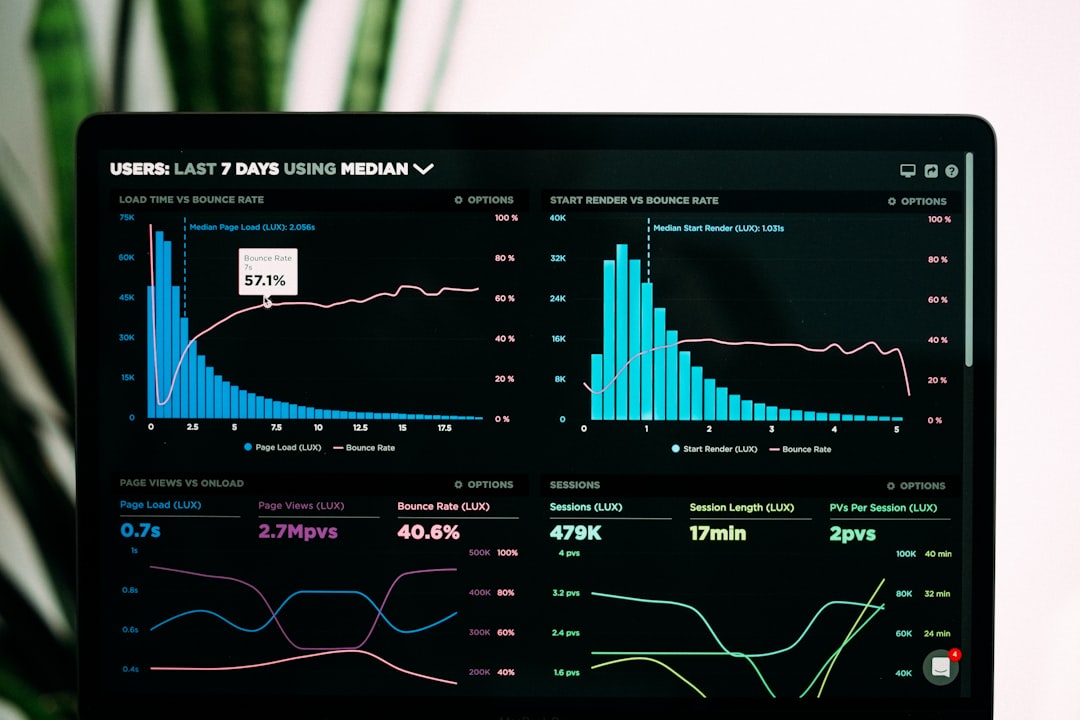
The CPU, or central processing unit, is the main processor of the computer. It handles calculations, app activity, background tasks, and system operations. When CPU usage is too high for too long, the computer may feel slow, fans may become louder, and apps may respond poorly.
In Task Manager, CPU activity can be checked in two main areas. The Processes tab shows how much CPU each app or background process is using. The Performance tab shows a live CPU graph, current utilization, speed, number of processes, threads, handles, uptime, and hardware details.
To identify high CPU usage, a user can open the Processes tab and click the CPU column. This sorts processes from highest to lowest usage. If an app is using a large amount of CPU while it is not actively doing anything, it may be stuck, updating, scanning files, or malfunctioning.
Common causes of high CPU usage include:
- Browser tabs with videos, ads, or web apps running in the background.
- Antivirus scans checking large numbers of files.
- Windows updates installing or preparing system changes.
- Games or editing software using heavy processing power.
- Frozen apps consuming CPU while failing to respond.
If a program is not responding, the user can select it and click End task. However, system processes should be handled carefully. Ending important Windows processes can cause instability, sign-outs, or restarts. When in doubt, it is safer to research the process name before closing it.
Monitoring RAM Usage
RAM, or random access memory, is temporary working memory used by open apps, browser tabs, system processes, and cached data. When Windows 11 has enough RAM available, switching between apps feels smooth. When memory is nearly full, the system may become slower because Windows begins using storage as virtual memory, which is much slower than physical RAM.
In the Processes tab, the Memory column shows how much RAM each app or process is using. Sorting by memory usage helps identify the largest consumers. Browsers, video editors, games, virtual machines, and collaboration apps are often among the top users of RAM.
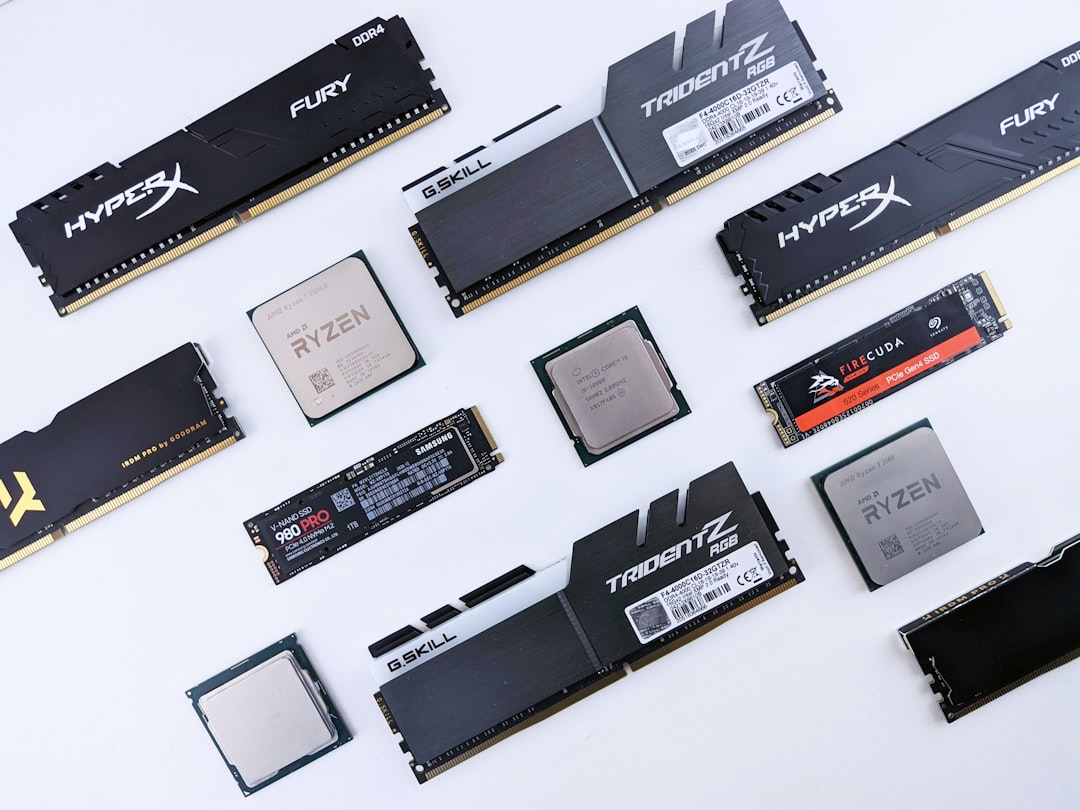
The Performance tab provides a deeper view of memory. It shows total installed RAM, memory in use, available memory, committed memory, cached memory, paged pool, non-paged pool, speed, slots used, form factor, and hardware reserved memory. This section is useful for determining whether the PC has enough memory for regular workloads.
Healthy RAM usage depends on the system and workload. A computer with 8 GB of RAM may commonly use 50% to 80% during normal multitasking. A system with 16 GB or 32 GB usually has more room for heavy applications. High memory use is not always bad, because Windows uses spare RAM for caching to improve performance. The concern begins when available memory is consistently low and the system slows down.
To reduce RAM usage, the user can:
- Close unused browser tabs and windows.
- Quit background apps that are not needed.
- Restart the PC to clear temporary memory buildup.
- Uninstall unnecessary programs that run background services.
- Consider adding more RAM if the hardware supports upgrades.
Understanding the Processes Tab
The Processes tab is usually the first place a user should check when something feels slow. It groups items into apps, background processes, and Windows processes. Each row shows resource usage across categories such as CPU, Memory, Disk, Network, and sometimes GPU.
This view helps reveal performance bottlenecks. For example, if the Disk column is constantly at 100%, the system may be struggling with storage activity. If the Network column is high, an app may be downloading, uploading, syncing, or streaming data. If the GPU column is high, a game, browser, video editor, or graphics-related task may be using the graphics processor.
Windows 11 also allows users to expand grouped apps. For example, a browser may show several child processes for tabs, extensions, and rendering tasks. Expanding the app can help identify whether one tab or extension is consuming excessive resources.
Using the Performance Tab
The Performance tab provides live charts for major hardware components. It is especially helpful for anyone who wants a clear snapshot of system health. The sidebar typically includes CPU, Memory, Disk, Wi-Fi or Ethernet, and GPU, depending on the computer’s hardware.
The CPU graph shows utilization over time and reports the current speed. The Memory graph shows how much RAM is being used. The Disk section displays active time, read speed, write speed, capacity, and drive type. The Network section shows send and receive activity. The GPU section reports graphics usage, dedicated GPU memory, shared GPU memory, driver information, and temperature on supported hardware.
This tab is useful when diagnosing patterns. If CPU spikes happen only when a specific app opens, that app is likely responsible. If disk activity remains high after startup, a background indexing service, update process, or sync tool may be active. If network traffic appears when no download is expected, cloud backup software or another background service may be transferring data.
Managing Startup Apps
The Startup apps section controls which programs launch automatically when Windows starts. Too many startup apps can delay boot time, increase background resource usage, and make the desktop feel slow immediately after sign-in.
Task Manager lists startup entries with information such as name, publisher, status, and startup impact. The Startup impact rating helps users decide which apps may be slowing down the boot process. Items marked High impact are often good candidates for review.
To disable a startup app, the user can select the app and click Disable. This does not uninstall the program. It only prevents the program from launching automatically at startup. The app can still be opened manually when needed.
Examples of startup apps that may be safe to disable include:
- Chat apps that do not need to run immediately.
- Game launchers that are only used occasionally.
- Music services that can be opened manually.
- Printer utilities that are rarely needed at startup.
- Updater helpers for nonessential applications.
Some startup items should usually remain enabled, especially security tools, touchpad utilities, audio software, cloud backup tools, and device-specific drivers. If the user is unsure, the safest approach is to disable one item at a time and observe whether anything important changes.

Checking App History, Users, Details, and Services
The App history tab shows resource usage over time for supported apps. It can help identify which apps have used CPU time or network data in the background. This is useful for battery-powered devices and systems with limited internet data.
The Users tab is helpful on shared computers. It shows resource usage by each signed-in user. If one account is running heavy apps in the background, an administrator can see that impact and decide whether to sign that user out or close specific processes.
The Details tab provides a more technical view of processes. It includes process IDs, status, CPU usage, memory, architecture, and user names. Advanced users may use this section to set priority, analyze process behavior, or identify exact executable names.
The Services tab lists Windows services and their status. Services are background components that support networking, printing, updates, security, and many other functions. This section is powerful but should be used carefully. Stopping the wrong service can affect system stability or disable important features.
Best Practices for Using Task Manager
Task Manager is most effective when used as a diagnostic tool rather than a place to randomly close processes. A user should look for patterns, compare usage over time, and understand what an app is doing before ending it.
Useful habits include:
- Sort columns in the Processes tab to find top resource users.
- Check Performance graphs during slowdowns to locate bottlenecks.
- Review Startup apps every few months to reduce boot delays.
- Restart the computer before assuming a problem is permanent.
- Avoid ending unknown system processes unless their purpose is clear.
For long-term performance, Task Manager should be combined with good maintenance habits. Keeping Windows updated, removing unused software, scanning for malware, managing browser extensions, and maintaining enough free storage can all improve system responsiveness.
When Task Manager Shows a Serious Problem
Some Task Manager readings may indicate a deeper issue. Constant 100% CPU usage, persistent 100% disk activity, very low available memory, or unknown processes using high network bandwidth should be investigated. The cause may be a software bug, malware, failing storage drive, insufficient RAM, or a misconfigured background service.
If a process name looks suspicious, the user can right-click it and choose Open file location or Search online. Legitimate Windows files are often located in system folders, while suspicious files may appear in unusual locations. Security software should be used if malware is suspected.
Task Manager does not solve every performance issue, but it gives a strong starting point. It helps users move from guessing to observing, which is the first step in effective troubleshooting.
FAQ
What is the fastest way to open Task Manager in Windows 11?
The fastest method is pressing Ctrl + Shift + Esc. This opens Task Manager directly without needing the Start menu or security screen.
Why is CPU usage high in Task Manager?
High CPU usage can be caused by updates, antivirus scans, browser tabs, games, editing software, or frozen apps. If one process remains unusually high for a long time, it may need to be closed, updated, or investigated.
Is high RAM usage always bad?
No. Windows 11 uses available RAM for caching to improve performance. High RAM usage becomes a problem when available memory is very low and the system begins slowing down.
Can startup apps be disabled safely?
Many startup apps can be disabled safely, especially nonessential chat apps, game launchers, and media tools. Security software, driver utilities, and important sync tools should be reviewed carefully before being disabled.
What does 100% disk usage mean?
It means the storage drive is fully occupied with read or write activity. This can happen during updates, indexing, file syncing, malware scans, or when a slow drive is overloaded.
Should system processes be ended in Task Manager?
System processes should not be ended unless their purpose is understood. Closing critical Windows processes may cause errors, instability, or a forced restart.
How often should Startup apps be reviewed?
Startup apps should be reviewed every few months or whenever the computer begins taking longer to boot. Newly installed programs often add startup entries automatically.