An iPhone that refuses to charge properly can disrupt work, travel, communication, and daily routines. Sometimes the battery percentage stays stuck, charging starts and stops, or the device only charges at a specific cable angle. In many cases, the cause is not a failed battery, but a damaged cable, a dirty charging port, an incompatible accessory, or a temporary software bug.
TLDR: When an iPhone is not charging properly, the most common causes are cable damage, charging port debris, faulty power adapters, and software glitches. The safest first steps are to inspect the cable, clean the port carefully, restart the device, and try a different certified charger. If the phone still does not charge, battery health, iOS updates, or professional repair may be needed.
Common Signs That an iPhone Is Not Charging Correctly
Charging problems do not always look the same. One iPhone may show the charging icon but gain no battery percentage, while another may not react at all when connected. Some devices charge only when powered off, while others display warnings such as “Accessory Not Supported” or “Liquid Detected in Lightning Connector.”
The most common symptoms include:
- No charging icon after the cable is connected
- Charging starts and stops repeatedly
- Slow charging, even with a high-quality adapter
- The iPhone charges only at a certain cable angle
- Battery percentage decreases while plugged in
- Overheating during charging
- Wireless charging failure on supported models
Identifying the exact symptom helps narrow down whether the problem is physical, electrical, or software-related.
Check the Charging Cable for Damage
A damaged cable is one of the most frequent reasons an iPhone does not charge properly. Cables bend, twist, fray, and weaken over time, especially near the connector ends. Even when a cable looks mostly intact, internal wires may be broken.
An iPhone owner should carefully inspect the entire cable from end to end. Signs of cable damage include exposed wires, bent connectors, discoloration, loose ends, cracked insulation, or charging that works only when the cable is held in a certain position.
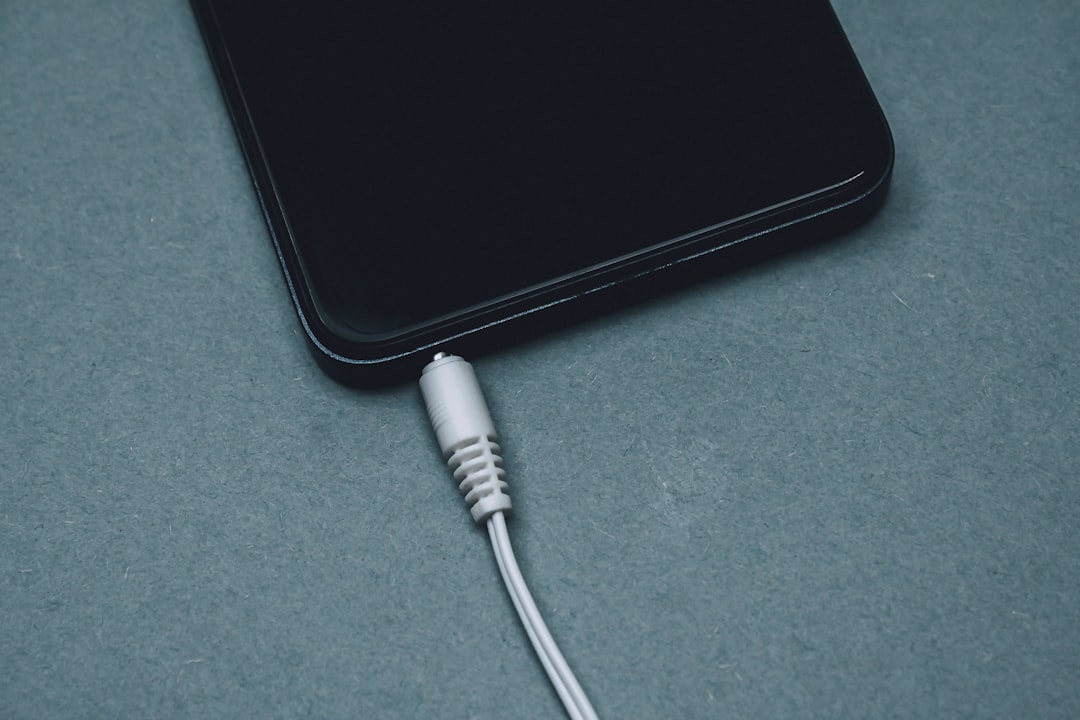
Using a damaged cable can be risky. It may cause inconsistent charging, overheating, or port damage. If the cable shows visible wear, it should be replaced with a quality cable that is certified for iPhone charging. Apple-certified or MFi-certified cables are generally safer because they are designed to meet Apple’s charging standards.
Test the Power Adapter and Wall Outlet
The cable is not always the problem. A weak power adapter, faulty USB port, or damaged wall outlet can also prevent proper charging. If an iPhone does not charge from one power source, it should be tested with another.
A simple troubleshooting process includes:
- Trying a different wall outlet
- Testing another Apple-compatible power adapter
- Plugging the cable into a computer USB port
- Testing a different charging cable with the same adapter
- Testing the same cable and adapter with another iPhone, if available
If the iPhone charges normally with a different adapter, the original adapter may be faulty. If it charges with a different cable, the cable is likely the issue. If neither works, attention should shift to the charging port, battery, or software.
Inspect the Charging Port for Dust and Debris
The iPhone charging port often collects lint, dust, pocket fibers, and small debris. Over time, this buildup can block the connector from seating properly. The cable may feel loose, fail to click into place, or disconnect with slight movement.
Before cleaning the port, the iPhone should be powered off. The port can be inspected under a bright light. If debris is visible, it should be removed gently. A wooden or plastic toothpick can help loosen lint, but metal tools should be avoided because they may damage the contacts.
Safe charging port cleaning tips:
- Turn the iPhone off before cleaning
- Use a flashlight to inspect the port
- Use a soft, non-metal tool if debris is visible
- Avoid water, cleaning sprays, and sharp metal objects
- Do not force the cable into the port
If the connector fits more securely after cleaning, the issue was likely port debris. If the port still feels loose or the iPhone charges intermittently, the port itself may be damaged and may require service.
Look for Moisture or Liquid Detection Warnings
Modern iPhones can detect liquid in the charging connector. If moisture is present, the device may prevent cable charging to protect internal components. A message may appear warning that liquid has been detected.
If this occurs, the iPhone should be unplugged immediately. The device should be left in a dry, well-ventilated area with the charging port facing downward. It should not be dried with a hair dryer, heater, compressed air, or rice. Heat and pressure can push moisture deeper into the device or damage sensitive components.
Wireless charging may still work on compatible models, but only if the back of the phone is completely dry. If liquid exposure was significant, professional inspection is the safest option.
Restart the iPhone to Clear Temporary Software Bugs
Software glitches can sometimes interfere with charging detection. The iPhone may fail to recognize a charger, display the wrong battery percentage, or stop charging due to a background process error. A restart often clears temporary bugs.
For most modern iPhone models, restarting involves pressing and holding the side button and a volume button until the power slider appears. After the iPhone shuts down, it can be turned on again by holding the side button. Older models may use a slightly different button combination.
If the screen is frozen or the device does not respond, a force restart may help. This does not erase data, but it restarts the system more deeply than a normal power cycle.
Update iOS to Fix Charging and Battery Issues
Apple regularly releases iOS updates that fix bugs, improve charging behavior, and refine battery management. If an iPhone has not been updated in a long time, outdated software may contribute to charging problems.
The device owner can check for updates through Settings > General > Software Update. Before updating, the iPhone should have enough battery power or be connected to a reliable charger. If charging is too unstable, the update may need to be performed through a computer.
Software updates are especially important if the charging issue began after installing a new app, restoring a backup, or upgrading from an older iOS version.
Check Battery Health and Charging Settings
Battery condition plays a major role in charging performance. As an iPhone battery ages, it loses capacity and may behave unpredictably. It may drain faster, charge more slowly, or shut down even when the battery indicator shows remaining power.
Battery information can be found under Settings > Battery > Battery Health & Charging. If the maximum capacity is significantly reduced or a service message appears, battery replacement may be necessary.
Some charging behavior is also controlled by Apple’s battery protection features. Optimized Battery Charging may pause charging around 80% to reduce battery aging. This is normal and not usually a fault. However, if the user expects the iPhone to charge fully at a specific time, this setting may make charging appear slower than expected.
Understand Slow Charging Versus No Charging
Slow charging and no charging are different problems. Slow charging may occur when the iPhone is connected to a low-power USB port, an old adapter, or a non-certified cable. It can also happen when the phone is being used heavily while plugged in, especially during gaming, video calls, navigation, or hotspot use.
No charging usually points to a more direct issue, such as a broken cable, blocked port, dead adapter, damaged connector, or serious software failure. If the battery icon does not appear at all, hardware should be checked first.
Heat can also slow or pause charging. If an iPhone becomes too warm, the system may limit charging to protect the battery. Removing a thick case, moving the phone away from sunlight, and letting it cool may restore normal charging.
Try Wireless Charging on Compatible iPhones
If an iPhone supports wireless charging, a wireless charger can help determine whether the charging port is the problem. If the device charges wirelessly but not with a cable, the issue may involve the cable, adapter, or charging port.
For best results, the iPhone should be placed in the center of a compatible charging pad. Thick cases, magnetic accessories, metal plates, and wallet attachments can interfere with wireless charging.
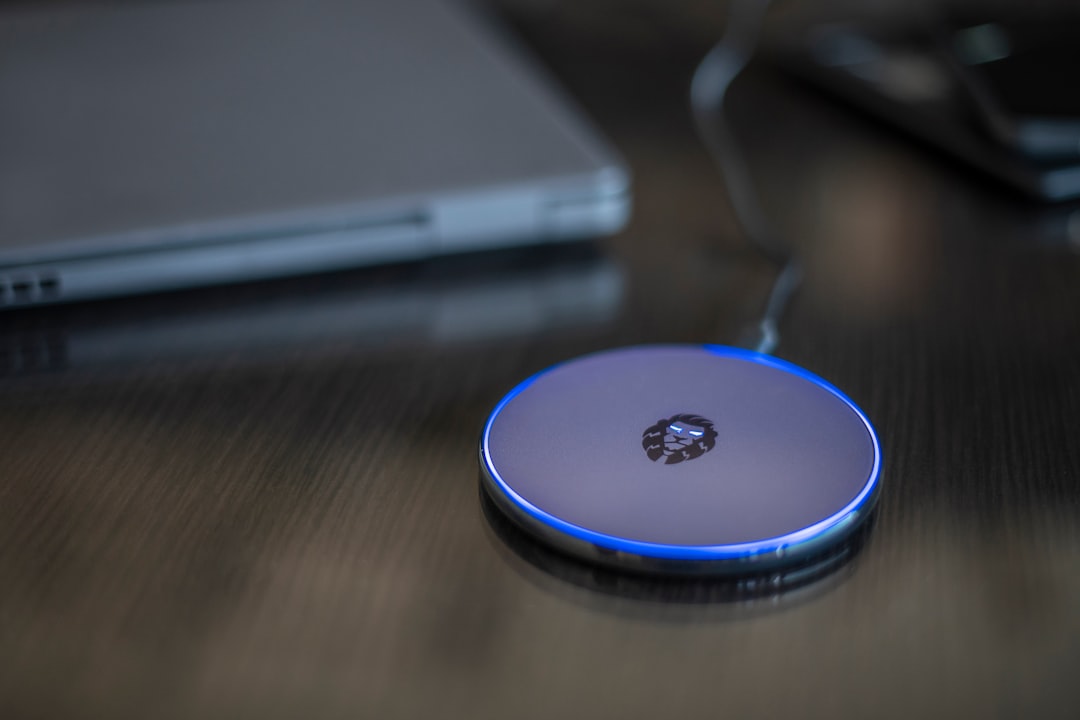
If both wired and wireless charging fail, the issue may involve the battery, internal charging circuit, iOS, or a deeper hardware fault.
Reset Settings if Software Problems Continue
If restarting and updating iOS do not help, resetting system settings may fix deeper configuration issues. This option does not erase personal photos, messages, or apps, but it does reset Wi-Fi passwords, Bluetooth connections, display settings, and other preferences.
The setting can be found under Settings > General > Transfer or Reset iPhone > Reset > Reset All Settings. This step is usually worth trying before assuming the device needs repair.
If the charging problem appeared after a specific app was installed, the app may also be removed temporarily. While apps rarely prevent charging directly, poorly functioning apps can drain power quickly enough to make charging seem ineffective.
When Professional Repair Is Needed
If the iPhone still does not charge after cable testing, port cleaning, restarting, updating, and checking battery health, professional repair may be required. Internal components can fail after drops, water exposure, overheating, or long-term wear.
Repair may be needed if:
- The charging port is visibly damaged or loose
- The iPhone does not charge with multiple certified cables
- The device overheats while charging
- Battery health shows a service warning
- The iPhone only charges wirelessly
- The phone was recently exposed to liquid
- The device shuts off unexpectedly even after charging
A qualified technician can test the battery, charging port, logic board, and power management components. Attempting complex internal repairs without proper tools can cause further damage.
Preventing Future iPhone Charging Problems
Good charging habits can reduce the risk of future issues. Cables should be unplugged by holding the connector, not by pulling the cord. The charging port should be kept away from dust, moisture, and pocket lint. Cases should not force the cable to bend sharply while charging.
Helpful prevention habits include:
- Using certified charging accessories
- Avoiding cheap, unverified cables and adapters
- Keeping the charging port clean and dry
- Removing the case if the iPhone overheats
- Updating iOS regularly
- Avoiding charging in direct sunlight
- Replacing frayed cables immediately
A charging problem can be frustrating, but many cases are easy to solve with careful troubleshooting. By checking the cable, adapter, charging port, battery condition, and software, an iPhone owner can often identify the cause without unnecessary repair costs.
FAQ
Why does an iPhone charge only when the cable is held at an angle?
This usually indicates a damaged cable, a loose connector, or debris inside the charging port. The cable and port should be inspected carefully, and another certified cable should be tested.
Can a dirty charging port stop an iPhone from charging?
Yes. Lint and dust can prevent the cable from making full contact with the port. Gentle cleaning with a non-metal tool may restore normal charging.
Why does an iPhone say “Accessory Not Supported”?
This message may appear when the cable or adapter is damaged, uncertified, dirty, or incompatible. It can also appear if the charging port has debris or corrosion.
Does Optimized Battery Charging mean the iPhone is broken?
No. Optimized Battery Charging is a normal feature that may pause charging near 80% to protect battery health. It can make charging appear slower, especially overnight.
Should an iPhone be repaired if it charges wirelessly but not with a cable?
If multiple working cables and adapters fail, but wireless charging works, the charging port may be dirty, damaged, or worn. Cleaning may help, but professional service may be needed.
Can software bugs cause charging problems?
Yes. Temporary iOS glitches can affect charging detection or battery reporting. Restarting, updating iOS, or resetting settings may resolve the issue.
When should the battery be replaced?
Battery replacement may be needed when Battery Health shows a service warning, maximum capacity is very low, or the iPhone shuts down unexpectedly despite showing battery charge.