A Google Home or Google Nest speaker is often trusted as a bedside alarm, kitchen timer, or daily reminder hub. When the alarm fails to ring, rings silently, or refuses to set, the issue is usually caused by volume settings, connection problems, outdated software, or a misheard voice command rather than a broken device.
TLDR: If a Google Home alarm is not working, the fastest fixes are to check alarm volume, restart the speaker, confirm Wi Fi stability, and review Google Home app settings. For example, a household that sets a 6:30 a.m. weekday alarm may find it “missing” simply because alarm volume was lowered to 5% during nighttime listening. In many common cases, the problem can be solved in under 10 minutes without replacing the device.
Why a Google Home Alarm May Stop Working
Google Home alarms depend on several connected systems: the speaker hardware, the Google Assistant service, the home Wi Fi network, the Google Home app, and account settings. If one part fails, the alarm may not sound as expected. The issue can appear in several ways, including:
- The alarm does not ring at all.
- The alarm rings at the wrong time.
- The alarm is too quiet to hear.
- Google Assistant says an alarm is set, but it never triggers.
- A music alarm switches to a default tone or fails completely.
Before assuming the speaker is defective, the user should check the most common causes below.
1. Check the Alarm Volume
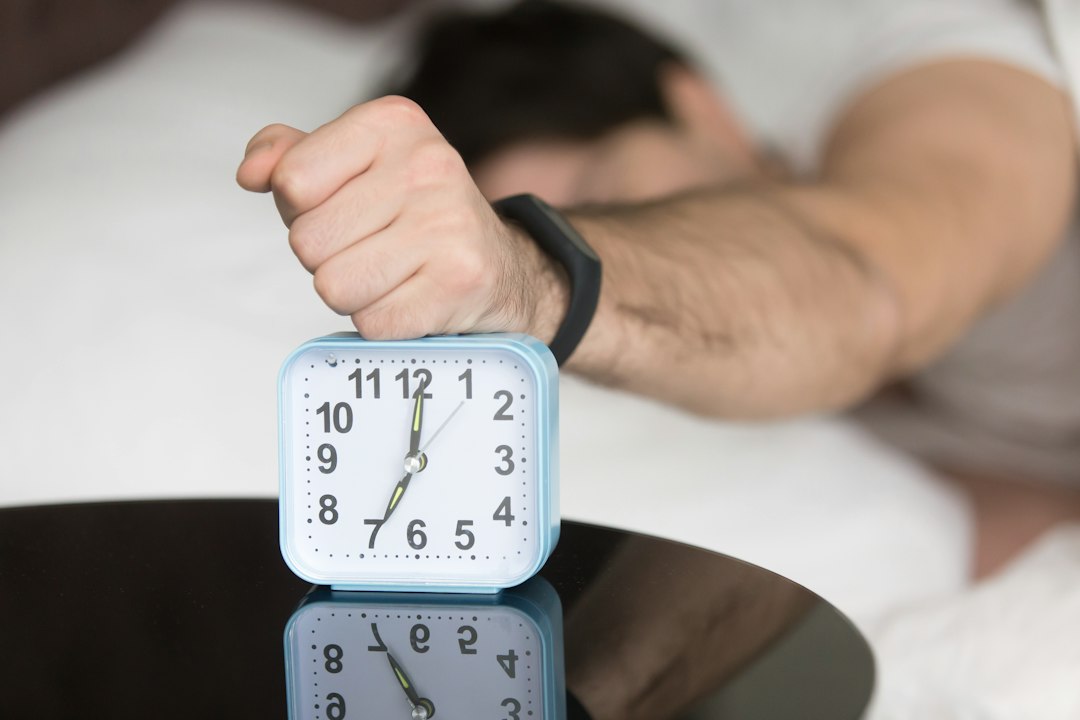
One of the most common reasons a Google Home alarm seems broken is that the alarm volume is too low. On some Google Nest devices, media volume and alarm volume may behave differently. A person may hear music clearly but still miss an alarm if the alarm level has been reduced.
To check this, the user can open the Google Home app, select the speaker, tap its settings, and look for audio or alarm volume controls. If available, the alarm volume should be raised to a clear level, such as 60% or higher. A quick test alarm can then confirm whether the volume is acceptable.
Tip: If the device is used in a bedroom, a volume around 50% to 70% is often loud enough without being startling.
2. Restart the Google Home Device
A simple restart can clear temporary glitches that affect alarms, timers, and Assistant responses. The user can unplug the speaker from power, wait about 30 seconds, and plug it back in. After the device reconnects to Wi Fi, a test alarm should be set for one or two minutes later.
This fix is especially useful after power cuts, router restarts, or periods when the device has been slow to respond. If the alarm works after restarting, the issue was likely a temporary software or connection problem.
3. Confirm the Alarm Was Set Correctly
Google Assistant may misunderstand commands, especially in noisy rooms or when several people are speaking. A command such as “Set an alarm for seven” may be interpreted as 7:00 a.m., 7:00 p.m., or even a timer depending on context.
Clearer commands reduce mistakes. Examples include:
- “Set an alarm for 6:30 a.m. tomorrow.”
- “Set a weekday alarm for 7:00 a.m.”
- “Set an alarm called school pickup for 2:45 p.m.”
The user can ask, “What alarms are set?” to verify that the correct alarm exists. If the device cannot list the alarm, it may not have been saved properly.
4. Check the Wi Fi Connection
Google Home devices rely heavily on a stable internet connection. While some alarm functions may continue locally, setup, syncing, music alarms, and Assistant confirmations can fail when Wi Fi is weak or unstable.
Common signs of a network issue include delayed responses, frequent “Something went wrong” messages, or alarms that fail after the router has been changed. The user should make sure the speaker is connected to the correct Wi Fi network and is not too far from the router.
If multiple smart devices are disconnecting, the problem may be with the router rather than the speaker. Restarting the router and the Google Home device can often restore normal performance.
5. Verify Time Zone and Location Settings
An incorrect time zone can cause alarms to ring at the wrong hour. This may happen after moving homes, changing regions, or using a Google account with outdated address information.
The user should check the speaker’s home address and location in the Google Home app. The phone’s time zone and the Google account location should also be accurate. If a device thinks it is in another region, a 7:00 a.m. alarm may not match the household’s actual local time.
6. Review Do Not Disturb, Night Mode, and Digital Wellbeing
Google Home settings such as Night Mode, Do Not Disturb, and Digital Wellbeing can affect sound, responses, and restrictions. Alarms are usually designed to remain functional, but volume limits, downtime rules, or household filters may still create confusion.
The user should open the device settings in the Google Home app and review:
- Night Mode: May reduce volume during certain hours.
- Do Not Disturb: May silence some notifications and responses.
- Digital Wellbeing: May restrict Assistant features for certain users or schedules.
If the alarm works after these features are disabled or adjusted, the issue was likely caused by a restriction rather than a device failure.
7. Update the Google Home App and Device Firmware
Outdated apps can cause settings to display incorrectly or fail to sync. The Google Home app should be updated from the device’s app store. Google Nest speakers typically update firmware automatically, but they must be connected to Wi Fi and powered on to receive updates.
If the speaker has been offline for a long time, it may need extra time after reconnecting. A restart after updates can help the device apply changes properly.
8. Check Music Alarm Settings
Music alarms can fail if the linked music service is unavailable, the subscription has expired, or the requested song cannot be played. In that situation, the device may switch to a standard alarm tone or fail to behave as expected.
The user should verify the default music provider in the Google Home app and test a normal voice request, such as asking the speaker to play a specific song or playlist. If music playback fails outside the alarm feature, the problem is likely with the music service connection.
9. Remove and Recreate the Alarm
Sometimes an alarm entry becomes unreliable. The user can ask Google Assistant to cancel all alarms, then recreate them from scratch. This is especially helpful for recurring alarms that have been edited several times.
Commands such as “Cancel all alarms” and “Set a weekday alarm for 6:45 a.m.” can reset the schedule. Afterward, requesting a list of current alarms confirms that the new alarm was saved.
10. Factory Reset as a Last Resort
If the problem continues after all basic fixes, a factory reset may help. This removes device settings and requires the speaker to be set up again in the Google Home app. It should be treated as a last step because Wi Fi details, room assignment, and preferences may need to be reconfigured.
Before resetting, the user should test whether other speakers in the home can set alarms correctly. If every Google Home device has the same problem, the issue may be related to the Google account, internet service, or a temporary Google Assistant outage.
When Professional Help May Be Needed
If the speaker never plays sound, repeatedly disconnects, or fails immediately after setup, the hardware may be damaged. Warranty support or Google support may be appropriate if the device is still covered. However, in most cases, alarm problems are solved through settings, restart steps, or network fixes.
FAQ
Why is the Google Home alarm not making sound?
The most likely cause is low alarm volume, Night Mode volume limits, or a temporary speaker glitch. Raising the alarm volume and restarting the device usually solves the issue.
Can a Google Home alarm work without Wi Fi?
Some basic alarm behavior may continue temporarily, but Google Home works best with a stable Wi Fi connection. Setting new alarms, syncing changes, and using music alarms generally require internet access.
Why did the Google Home alarm ring at the wrong time?
The device may have an incorrect time zone, outdated location settings, or a misunderstood voice command. Checking location settings and asking Google Assistant to list active alarms can help confirm the problem.
Why does a music alarm not play the selected song?
The linked music service may be disconnected, unavailable, or unable to access the requested track. The user should test normal music playback and confirm the default music provider in the Google Home app.
Is a factory reset necessary for alarm problems?
Usually, no. A factory reset should only be used after checking volume, Wi Fi, app updates, time zone settings, and alarm recreation. Most alarm issues are fixed before that step is needed.