A flashing iPhone screen should be treated as a software problem first, unless it started after a drop, pressure damage, liquid exposure, or visible screen cracking. A flickering display can come from iOS glitches, app conflicts, overheating, battery strain, display cable faults, or a failing OLED/LCD panel. The smartest path is simple: run safe iOS checks first, then move to repair options if the flashing stays.
TLDR: Most iPhone flashing screen cases should begin with iOS troubleshooting because it is faster, cheaper, and risk-free. For example, a user who sees flickering only inside Instagram or Safari may fix it by updating iOS, clearing app issues, or restarting the device. In one common repair-shop pattern, roughly 60% to 70% of random flicker complaints are software-related when there is no impact damage. If the screen flashes on the Apple logo, shows green lines, or flickers even in Recovery Mode, display repair becomes much more likely.
What a Flashing iPhone Screen Usually Means
An iPhone screen may flash in several ways. It may pulse brighter and darker. It may show quick white flashes. It may blink black for one second. It may also show green tint, vertical lines, or a jumpy image. Each symptom points to a different cause.
The annoying part is that software and hardware faults can look almost identical at first. A bad app can cause flicker during scrolling. A loose display connector can do the same. A weak battery may make the screen blink under load. A damaged OLED panel may flash more when brightness is low.
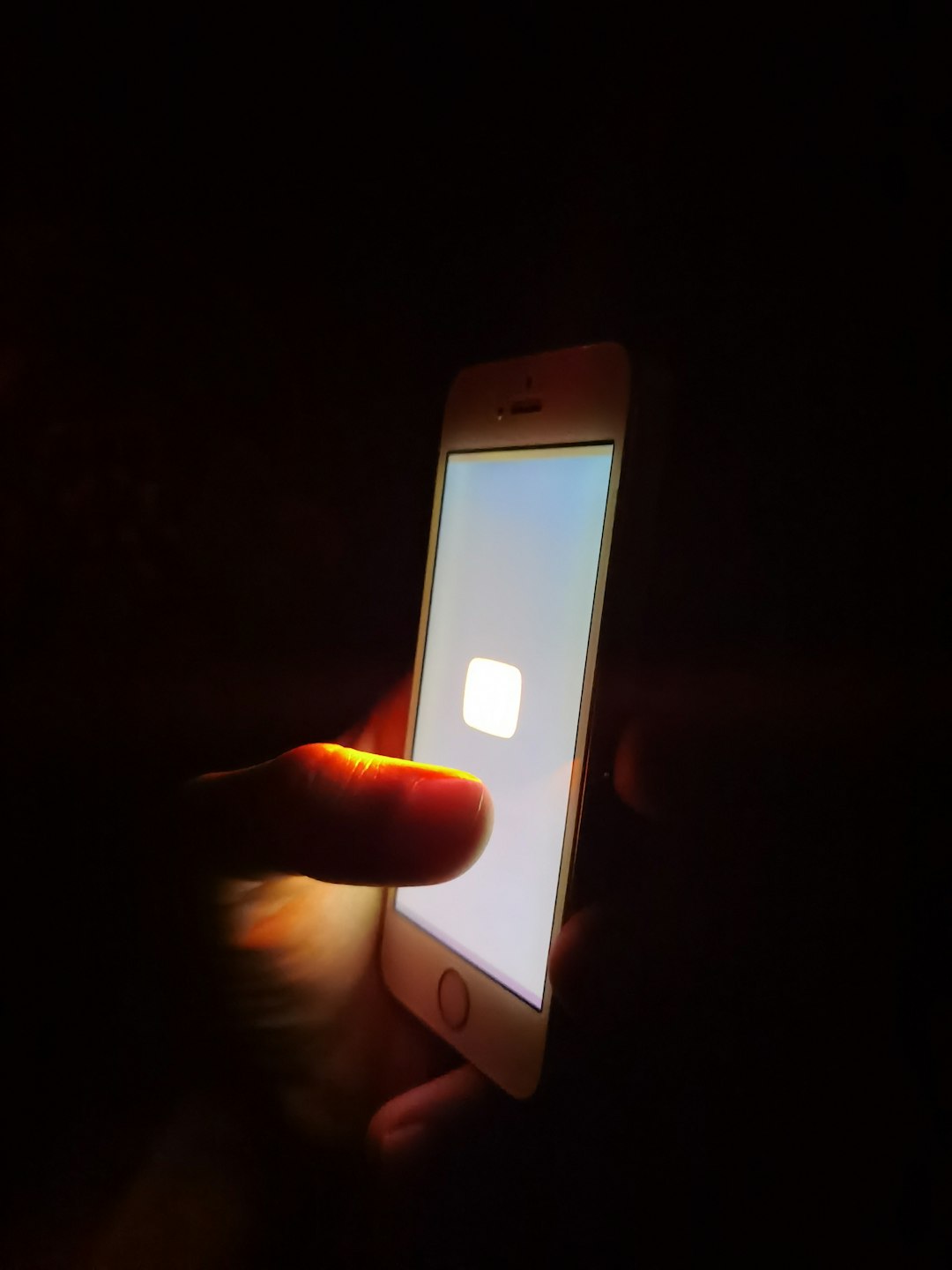
When iOS Troubleshooting Makes Sense
Software checks should come first when the iPhone has no cracks, no water damage, and no recent hard fall. iOS problems often appear after an update, app install, storage shortage, or long period without a restart. The phone may also flicker only in one app or only while charging.
- App-related flicker: The flashing appears in one app but not on the Home Screen.
- Update-related flicker: The issue begins soon after an iOS update.
- Brightness-related flicker: The screen flashes when Auto-Brightness or True Tone changes the display.
- Heat-related flicker: The screen blinks while gaming, recording video, or charging.
- Storage-related flicker: The phone is nearly full and feels slow.
First iOS Fixes to Try
The first step is a normal restart. It sounds basic, but temporary display glitches often clear after iOS reloads. If the screen keeps flashing, the owner should check for an iOS update under Settings > General > Software Update. Apple often fixes graphics bugs through minor updates.
Next, the owner should update apps. A single outdated app can cause screen flashing during video playback, scrolling, or camera use. Honestly, it feels like some apps take 10 extra seconds to redraw the screen after an update, which can look like a display failure when it is not.
Useful checks include:
- Turn off Auto-Brightness under Accessibility display settings.
- Disable True Tone and test the screen again.
- Lower the brightness, then raise it slowly.
- Remove suspicious apps installed before the flicker began.
- Free at least 5GB to 10GB of storage.
- Let the iPhone cool down before retesting.
If the screen still flashes, a forced restart is worth trying. This does not erase data. On modern Face ID iPhones, the owner presses Volume Up, then Volume Down, then holds the Side button until the Apple logo appears.
When Resetting Settings Helps
If simple fixes fail, the next safe move is Reset All Settings. This keeps photos, messages, and apps, but resets Wi-Fi, display, privacy, and system preferences. It can fix corrupted settings linked to brightness, motion, or accessibility features.
The path is Settings > General > Transfer or Reset iPhone > Reset > Reset All Settings. The phone restarts afterward. If the flashing stops, the problem was likely tied to iOS settings, not the display.
A full backup should come before any stronger step. Finder, iTunes, or iCloud can be used. A full restore may fix deeper iOS corruption, but it takes time. Expect to waste time on sign-ins, app downloads, and two-factor prompts afterward. That is still better than paying for a screen that was never broken.
Signs the Display Needs Repair
Hardware repair becomes more likely when the flashing appears across every screen, including the lock screen, Home Screen, Settings, and Apple logo. It is also likely when the device has physical damage.

Common signs of display failure include:
- Green or pink vertical lines that stay in the same place.
- Black spots that grow over time.
- Touch problems along with flickering.
- Flashing after a drop, even if the glass looks fine.
- Screen blinking during startup before iOS fully loads.
- Flicker that changes when the frame is pressed.
OLED iPhones can show bright green flashes when the panel or display circuit is damaged. LCD models may show white blinking, washed colors, or backlight failure. A loose display connector can also cause intermittent flashes, especially after a previous repair.
Repair Alternatives: Apple, Independent Shops, or DIY
There are three main repair routes. Each has trade-offs.
- Apple or an authorized provider: This is the safest option for warranty status, calibration, and genuine parts. It may cost more, especially without AppleCare+.
- Independent repair shop: This can be cheaper and faster. Quality depends on parts, tools, and technician skill.
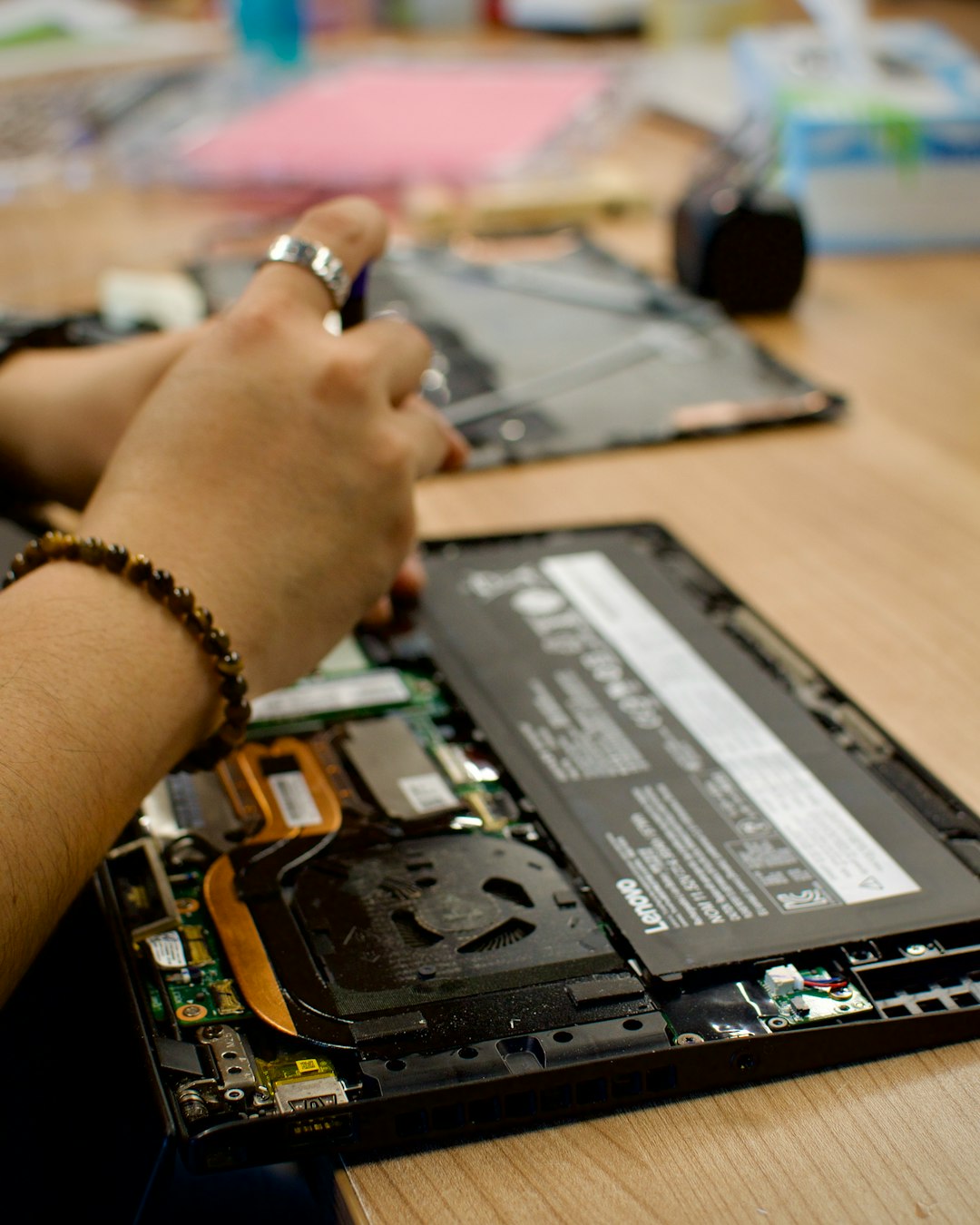
- DIY repair: This is risky. Modern iPhones use adhesive, fragile cables, and paired components. A small mistake can damage Face ID, the battery, or the logic board.
For newer iPhones, display replacement is not just glass swapping. The screen may need calibration. Some features, such as True Tone, may be affected by poor parts or careless repair. The owner should ask whether the shop uses original, refurbished original, or aftermarket screens.
Cost and Decision Guide
The right choice depends on the phone’s value and the symptom pattern. If an older iPhone needs a costly OLED replacement, trade-in or upgrade may make more sense. If the phone is newer and otherwise healthy, repair is often worth it.
A simple decision path works well:
- No damage and flicker is random: Try iOS fixes first.
- Flicker appears in one app: Update or remove that app.
- Flicker began after iOS update: Install the next patch or reset settings.
- Flicker began after a drop: Book a display inspection.
- Lines, black patches, or touch failure: Plan for screen repair.
Final Practical Advice
An iPhone owner should not rush into screen replacement without testing iOS first. A restart, update, settings reset, and backup-based restore can save money. Still, visible damage changes the picture fast. If the display flashes during startup or shows fixed colored lines, the screen or its connection is probably the problem.
The best result comes from separating symptoms. Software flicker is usually inconsistent. Hardware flicker is often repeatable, visible everywhere, and tied to pressure, heat, impact, or screen defects.
FAQ
-
Can an iOS update cause an iPhone screen to flash?
Yes. Display bugs can appear after an update, especially with brightness, motion, or app rendering. A later patch or settings reset may fix it. -
Does a flashing screen always mean the display is broken?
No. Many cases come from apps, low storage, overheating, or iOS glitches. Damage history matters a lot. -
Should the owner back up the iPhone before repair?
Yes. A backup should be made before any repair or full restore. Data loss is rare but possible. -
Why does the iPhone screen flash green?
Green flashing often points to OLED panel trouble, graphics issues, or display connection faults. If it appears everywhere, repair is likely. -
Is DIY screen repair a good idea?
Usually not for newer iPhones. The repair is delicate, and poor parts can cause more flicker, touch issues, or lost display features.