Motion smoothing is a feature found on most modern televisions that artificially increases the frame rate of content to make movement appear smoother. While some viewers may appreciate the fluid effect for sports or live TV, many people, especially film enthusiasts, find that motion smoothing—or the “soap opera effect”—makes movies and shows look unnatural. Fortunately, turning off this feature is usually straightforward once you know where to look in your TV settings. Here’s how to disable motion smoothing on some of the most popular TV brands.
Samsung TVs
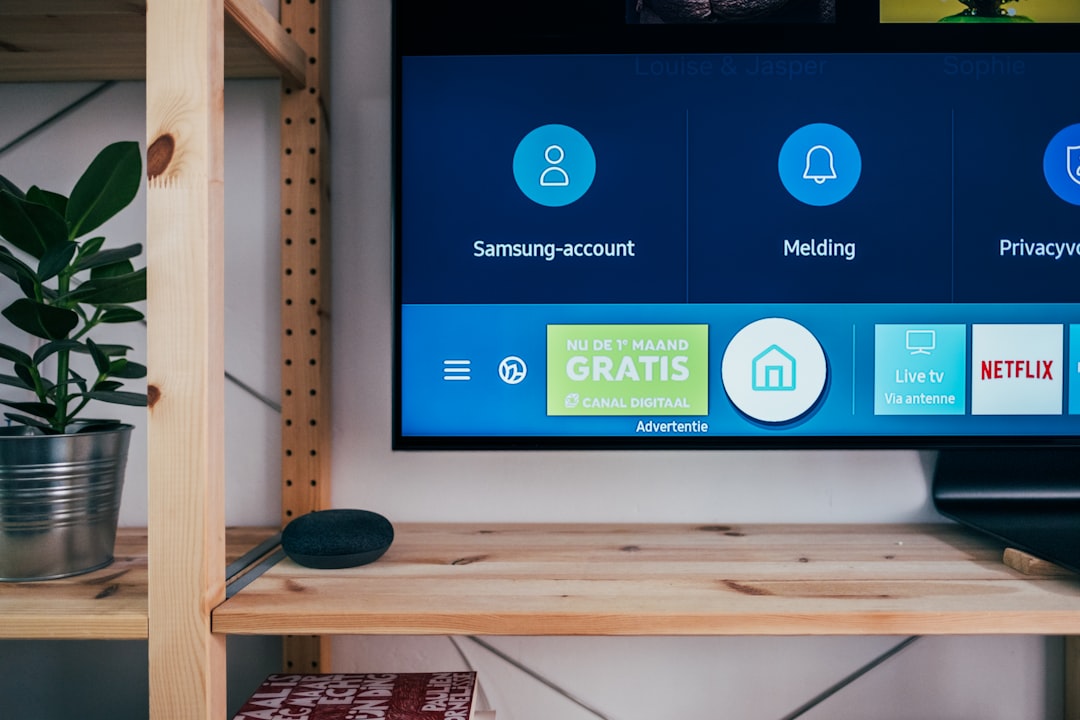
Samsung refers to their motion smoothing technology as Auto Motion Plus.
- Press the Menu or Home button on your remote control.
- Navigate to Settings and select Picture.
- Scroll down and choose Picture Clarity Settings.
- Select Auto Motion Plus.
- Set it to Off. Alternatively, you can choose Custom and adjust the Blur Reduction and Judder Reduction sliders to your preference.
Disabling this feature will give you a more authentic viewing experience, especially when watching films originally shot at 24 frames per second.
LG TVs
On LG TVs, motion smoothing goes by the name TruMotion. Here’s how to turn it off:
- Press the Settings button (gear icon) on your remote.
- Scroll to and select All Settings.
- Navigate to Picture > Picture Mode Settings > Picture Options.
- Choose TruMotion.
- Select Off, or choose User and set De-blur and De-judder to zero.
Disabling TruMotion allows movies and TV shows to appear with the motion and grain intended by the filmmakers.
Sony TVs
Sony typically labels its motion processing as MotionFlow.
- Press the Home button on the remote control.
- Go to Settings > Picture.
- Select Advanced Settings or Clarity depending on your model.
- Choose MotionFlow.
- Set it to Off or select Custom and adjust the Smoothness and Clearness levels.
Turning off MotionFlow is often preferred for viewing cinematic content the way it was filmed, especially in dark or theater-style settings.
TCL TVs (Roku TV)
Most TCL TVs running Roku OS have a simpler interface, but disabling motion smoothing still takes a few steps:
- Press the Home button on the Roku remote.
- Navigate to Settings > TV Picture Settings.
- Choose a picture mode such as Movie or Custom.
- Within Picture Settings, look for options like Action Smoothing.
- Set Action Smoothing to Off.
If this option is greyed out, it may only appear when viewing specific types of content like movies in 24p format.
Vizio TVs
Vizio uses the term Motion Enhancement or Smooth Motion Effect on its models. Here’s how to disable it:
- Press the Menu button on the remote.
- Navigate to Picture menu.
- Scroll to Advanced Picture.
- Look for Motion Enhancement or Smooth Motion Effect.
- Set the feature to Off.
This change ensures your content displays in its original frame rate without additional processing that may degrade image quality.
Hisense TVs
Hisense typically labels its motion smoothing feature as Motion Enhancement.
- Press the Menu or Settings button.
- Navigate to Picture > Advanced Settings.
- Select Motion Enhancement.
- Turn the feature Off.
On newer models, you may also see MEMC (Motion Estimation, Motion Compensation) which can be disabled the same way.
Panasonic TVs
Panasonic includes its motion smoothing under Intelligent Frame Creation.
- Press the Menu button.
- Go to Picture.
- Choose Advanced Settings.
- Locate Intelligent Frame Creation and set it to Off.
Disabling this helps preserve the aesthetic quality of visually-rich, cinematic productions.
Philips TVs
Philips often names its smoothing feature Perfect Natural Motion.
- Press the Settings button on the remote.
- Select All Settings.
- Go to Picture > Advanced > Motion.
- Find Perfect Natural Motion and turn it Off.
This setting is especially useful to disable when watching films, gaming, or using external media players that handle motion internally.
FAQs
- What is motion smoothing?
Motion smoothing is a TV feature that artificially increases the frame rate by interpolating additional frames to reduce motion blur. While helpful in sports, it makes movies appear overly smooth and unrealistic. - Why do filmmakers recommend turning off motion smoothing?
Filmmakers often shoot at 24 fps to achieve a cinematic look. Motion smoothing disrupts this aesthetic by making films appear more like high-frame-rate soap operas, hence the nickname “soap opera effect.” - Does turning off motion smoothing affect all picture modes?
No. Many TVs apply motion smoothing settings per picture mode. If you switch from “Movie” to “Standard,” you may need to disable it again for that mode. - Can motion smoothing cause input lag in gaming?
Yes. Motion smoothing adds processing time, which can create input lag. Turning it off improves response time, especially in Game Mode. - Is there a universal way to disable motion smoothing?
Unfortunately, no. Each TV manufacturer uses different names and menu structures. It’s essential to check your specific model for accurate instructions.
By turning off motion smoothing, viewers can enjoy content as filmmakers intended, ensuring a more authentic and immersive experience. Whether you’re a movie buff, a gamer, or just someone who prefers clarity over artificial enhancement, knowing how to disable this feature is a must.