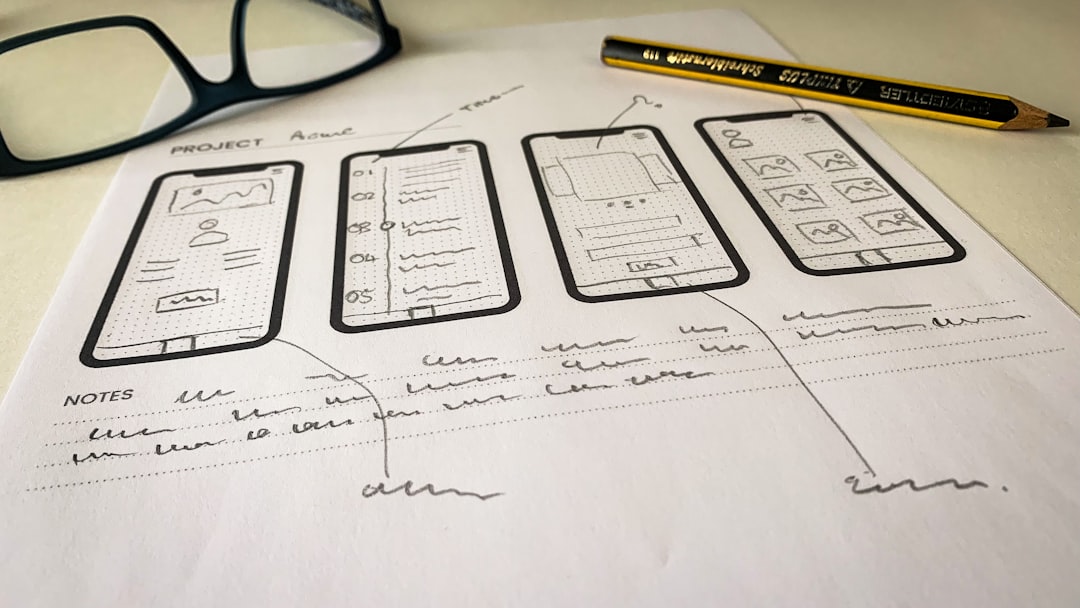
Modern web design often starts in design tools like Figma, but to turn these beautifully crafted interfaces into functional websites, developers and designers need to bridge the gap between static design and dynamic web platforms like WordPress. Embedding a Figma design into a WordPress page can greatly enhance development workflows, enable client previews, and visually communicate design intent. While WordPress does not natively support Figma embeds out of the box, there are several effective methods to incorporate Figma frames into WordPress pages with ease and clarity.
Why Embed Figma Designs in WordPress?
Embedding Figma designs in WordPress offers a number of benefits:
- Client Approval: Stakeholders can view and approve designs directly on the website platform they’re familiar with.
- Developer Reference: Developers working on WordPress can refer to the embedded design as a live style guide or layout reference.
- Real-Time Updates: Embedded Figma frames reflect changes as they occur in Figma, eliminating the need for constant re-uploading.
Whether you’re showcasing a new homepage layout, presenting a style system, or embedding an entire prototype, Figma makes it easy to share your creations. With the right tools and WordPress configurations, embedding can be done in just a few steps.
Step-by-Step Guide to Embedding Figma in WordPress
1. Prepare Your Figma Design for Embedding
Before embedding, you need to make sure your Figma file is properly prepared for sharing.
- Open your design in Figma.
- Select the specific frame (or prototype) you’d like to embed.
- Click the Share button in the top-right corner.
- Ensure sharing permissions are set to Anyone with the link can View.
- Click Get Embed Code from the dropdown menu or via the overflow menu (three dots).
The embed code will look something like this:
<iframe style="border: 1px solid rgba(0, 0, 0, 0.1);" width="800" height="450"
src="https://www.figma.com/embed?embed_host=share&url=https%3A%2F%2Fwww.figma.com%2Ffile%2FXXXXXX"
allowfullscreen></iframe>
2. Choosing the Right Place in WordPress
WordPress offers various methods to insert content depending on the editor and tools you’re using. The most common ways include:
- Gutenberg (Block Editor)
- Classic Editor
- Page Builders (Elementor, Divi, WPBakery)
3. Embedding via Gutenberg (Block Editor)
For those using the modern Gutenberg editor:
- Open the page or post you want to edit.
- Click the + button to add a new block.
- Select the Custom HTML block.
- Paste your Figma iframe embed code into the block.
- Click Preview to view the embedded design.
This is a quick and effective method that works for any user comfortable with working in HTML blocks.
4. Embedding via Classic Editor
For those using the Classic Editor plugin or on older versions of WordPress:
- Go to the page you want to edit.
- Switch to the Text tab (not the Visual tab).
- Paste the Figma iframe embed code where you want the design to appear.
- Switch back to the Visual tab to verify placement.
Note: Make sure your theme or plugin doesn’t strip iframe tags. Some older WordPress configurations may require additional settings or allowlists.
5. Embedding within Page Builders
If you’re using a visual page builder like Elementor or Divi, the process remains essentially the same.
- Elementor: Drag in an HTML widget and paste your iframe code.
- Divi: Use the Code Module to embed the iframe.
- WPBakery: Use a Raw HTML element in your layout.
Most premium page builders are quite iframe-friendly and allow real-time previews inside their visual interfaces.
Best Practices When Embedding Figma
To ensure the best visual experience and usability, follow these tips:
- Use appropriate sizing: Set an iframe width and height that ensures comfortable viewing without excessive scrolling.
- Make designs responsive: While Figma frames themselves aren’t dynamically responsive, you can wrap the iframe in responsive containers or use CSS media queries in advanced scenarios.
- Limit the number of embedded designs: Embedding too many iframes on a single page can slow down load times.

Alternatives to Embedding
There are times when a full embed may not be necessary or ideal. Here are alternative ways to present Figma designs in WordPress:
- Link to Public Figma File: Share a view-only URL and link it as a button or image thumbnail.
- Export Static Image: Save design as PNG or JPG and upload into WordPress’s media library.
- Use Plugins: Some third-party plugins support richer embeds or integration workflows between Figma and WordPress.
These alternate methods can be useful in situations where iframe embeds are restricted or when simpler previews are needed.
Use Case Scenarios
Still deciding if Figma embeds are right for you? Consider the following instances where it adds significant value:
- Client Presentation: Showcasing interactive flows for client walkthroughs within a WordPress-hosted prototype site.
- Design Handoff: Providing developers with a living reference that updates whenever the design does.
- Portfolio Showcases: Highlighting your Figma design work directly in your personal or agency website.

Security and Privacy Considerations
Since embedded Figma frames rely on a public view URL, always be mindful of sensitive content. If your design contains proprietary material:
- Ensure you have proper consent before sharing publicly.
- Use team or restricted access in Figma when needed.
- Consider static screenshots instead of live embeds for sensitive content.
Conclusion
Embedding Figma designs into WordPress brings design and development closer together. It improves collaboration, performance, and understanding—especially when used wisely within client workflows and development pipelines. With a few simple steps, you can showcase, test, and deploy design concepts directly in WordPress, bridging the visual and functional gap like never before.
FAQ
-
Can I embed multiple Figma files on one WordPress page?
Yes, you can embed multiple Figma iframes, but be cautious about load times, especially for graphics-heavy designs. -
Is it safe to embed a public Figma file?
As long as the content is not sensitive and you control the sharing link, it’s generally safe. Avoid embedding confidential content. -
What if my theme strips iframe tags?
Some WordPress themes and security plugins may filter iframe tags. Try using plugins like “Raw HTML” or switch to a page builder that allows iframe elements. -
Can users interact with the Figma embed?
Yes, viewers can scroll, zoom, and interact with prototypes depending on how the design was shared in Figma. -
Do I need a Figma account to view the embedded design?
No, as long as the Figma share settings allow “Anyone with the link” to view, no login is required.