You’re excited. You just downloaded Discord to chat, play, and stream. But then… disaster strikes. A popup appears: “Discord Installation has failed.” Ugh. Talk about a buzzkill.
Don’t worry! We’ve got your back. Fixing this issue is easier than you think. Let’s walk through it step by step and get you chatting in no time!
🚀 TLDR (Too Long, Didn’t Read)
If your Discord installation fails, don’t panic. First, delete old Discord files and end any running Discord processes from Task Manager. Then, download the latest installer and run it as Administrator. If that fails, try compatibility mode or install missing Windows components like .NET Framework.
Why Does This Happen?
Before we jump into the fixes, let’s understand why you’re getting this error in the first place.
- Your last install didn’t finish properly
- There are leftover files messing with the new install
- Your antivirus is being a little too protective
- Windows is having a moment
Now that we’ve pointed fingers, let’s start fixing!
Step 1: End Discord Processes
Sometimes Discord is already running in the background, even if it looks like it’s not. Here’s how to shut it down completely:
- Press Ctrl + Shift + Esc to open Task Manager.
- Click the “Processes” tab.
- Look for anything named “Discord”.
- Right-click it and select “End Task”.
Now the sneaky ghost of Discord past is gone. Let’s move on!
Step 2: Delete Old Discord Files
Even after closing Discord, bits of it may be stuck in your system. These leftovers can cause errors. So, let’s clean house.
- Open File Explorer (Windows Key + E).
- Paste this in the address bar:
%AppData% - Find the Discord folder and delete it.
- Now do the same with
%LocalAppData%and delete the Discord folder again.
Still with us? Great. You’ve just given Discord a fresh start space.
Step 3: Restart Your Computer
Ah yes, the classic fix. It’s simple—but powerful!
Rebooting will clear any lingering processes or locked files keeping Discord from installing correctly.
Step 4: Download the Latest Installer
Old installer giving you issues? Don’t trust it. Get a fresh version right from the source:
- Go to the official Discord site: https://discord.com/download
- Download the Windows version
- Right-click the installer and select “Run as administrator”
Why admin mode? Because sometimes your PC is like, “Hmm, who are you?” And admin mode says, “I AM THE BOSS.”
Step 5: Compatibility Mode (If Needed)
If it still fails to install, try using compatibility mode. Your PC might be confused about what decade it’s in.
- Right-click the installer
- Click Properties
- Go to the Compatibility tab
- Check “Run this program in compatibility mode for:”
- Select Windows 8 or 7
- Click Apply and then OK
- Run the installer again
Step 6: Disable Antivirus Temporarily
Sometimes your antivirus acts like an overprotective parent. It may block Discord’s installer by mistake.
Try pausing your antivirus for a few minutes. Then re-run the installer. Don’t forget to turn the antivirus back on afterwards!
Note: Only do this if you’re using the official Discord installer from their website. Stay safe!
Step 7: Check .NET Framework and Windows Updates
Discord uses some behind-the-scenes Windows tools to run. If they’re missing or outdated, you’ll hit roadblocks.
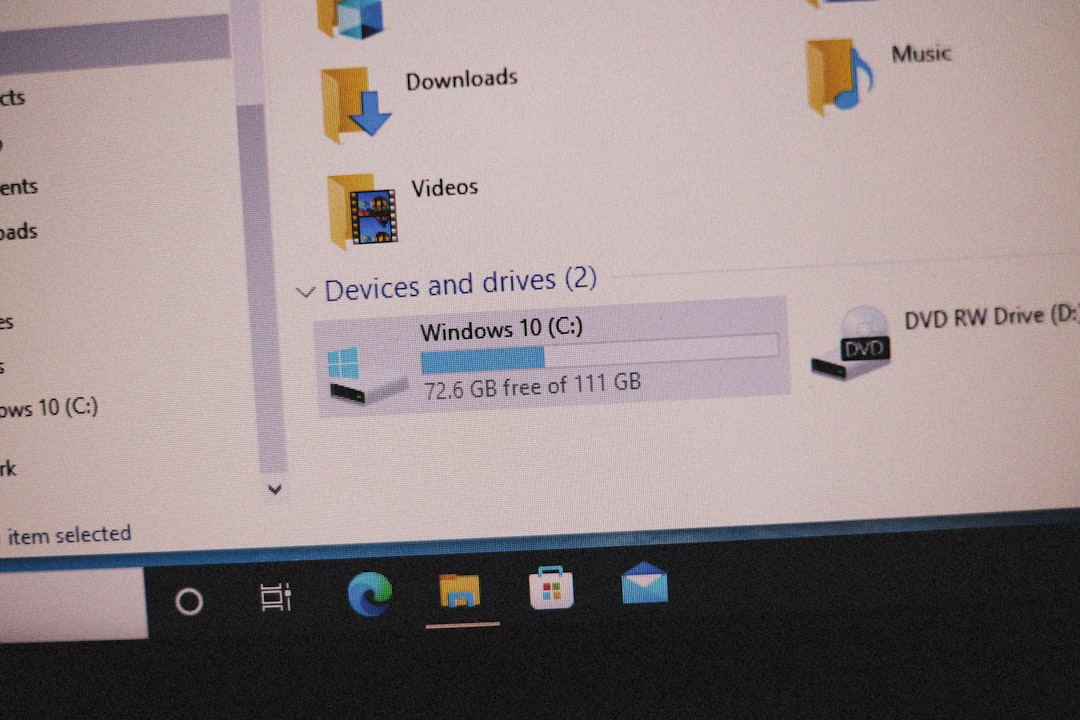
- Open your Start Menu and type “Windows Update”
- Check for updates and install them
- You may also need the latest .NET Framework, which you can find from Microsoft’s official website
After everything is updated, give that installer another go.
Still Not Working? Try Discord PTB or Canary
If the regular Discord version still won’t install, try one of the test builds:
- Discord PTB (Public Test Beta): https://discord.com/download (scroll down)
- Discord Canary: Best for testing, early features
These versions install separately, so they might sneak past whatever’s blocking the main one. Clever, right?
Bonus Tip: Use the Web Version in the Meantime
Still can’t install? Don’t let that stop you from hanging out with your crew. You can always use the web version!
- Visit https://discord.com/app
- Log in to your account
- Use Discord right from your browser
It’s not forever, but it’s perfect while you’re sorting out the installation chaos.
Recap: Quick Troubleshooting Checklist
- End all Discord processes via Task Manager
- Delete
%AppData%and%LocalAppData%Discord folders - Restart your PC
- Download the latest Discord installer
- Run it as Admin
- Try compatibility mode if needed
- Pause antivirus temporarily
- Install Windows updates and .NET Framework
- Consider PTB or Canary builds
You’re All Set!
Hopefully one of these solutions kicked the “Installation has failed” error to the curb. If you’re now up and running, grab your headset, hop in voice, and say thanks to your new favorite guide 😉
Still stuck? Don’t hesitate to reach out to Discord Support. Or share this guide with a friend who’s yelling at their screen too.
Happy chatting!