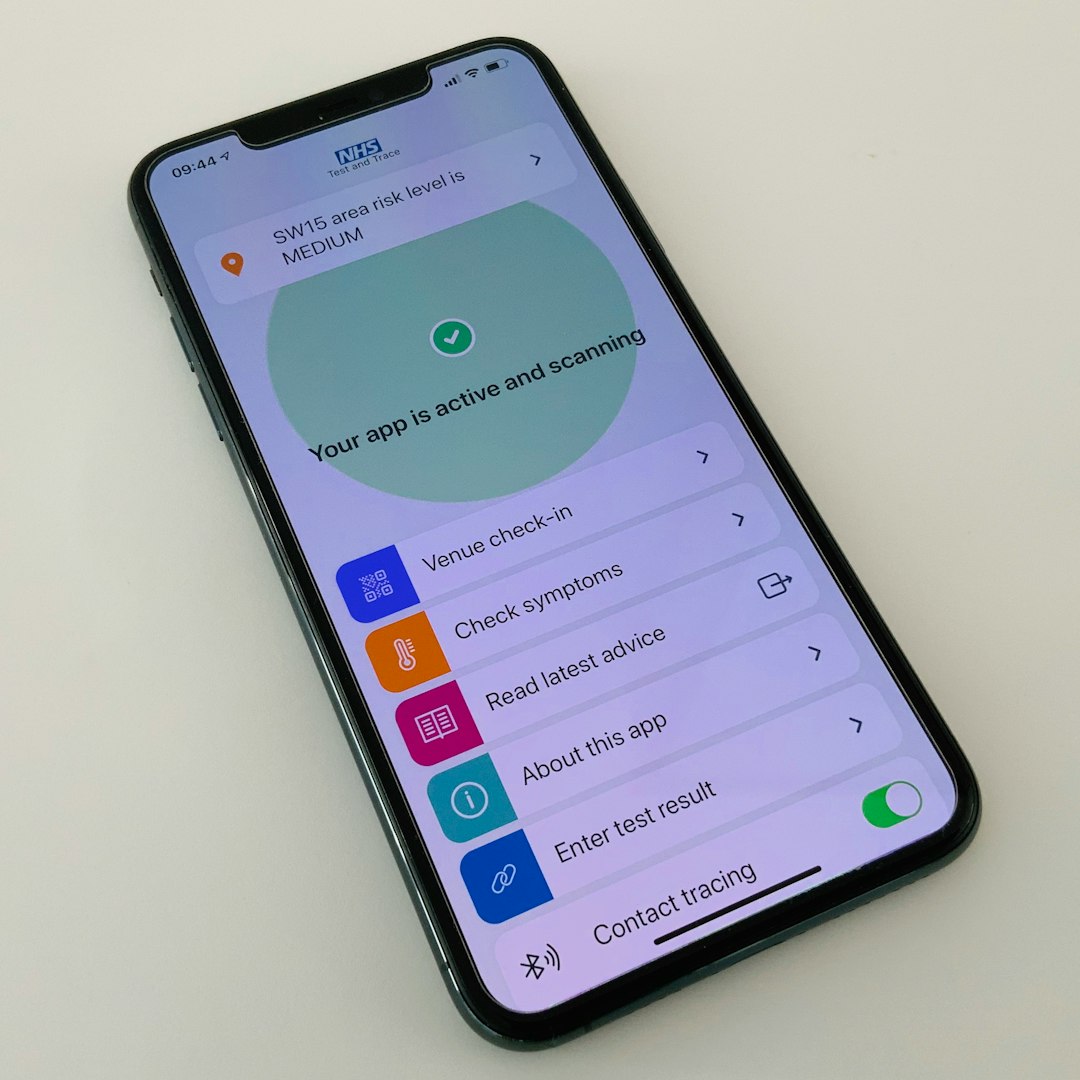
When Siri stops working on an iPhone, the problem usually falls into one of three categories: voice recognition, permissions, or network connectivity. Siri depends on the microphone, Apple’s servers, language settings, device restrictions, and several privacy permissions, so a small change can make the assistant appear unresponsive. An iPhone owner may notice that “Hey Siri” no longer wakes the device, Siri opens but does not answer, or voice commands fail even though typing works.
TLDR: Siri may stop working because the iPhone cannot hear the speaker clearly, Siri permissions are disabled, or the device has a weak internet connection. The quickest fixes are to check the microphone, enable Siri settings, restart the iPhone, and confirm that Wi Fi or cellular data is working. If the issue continues, updating iOS, resetting Siri setup, or checking Screen Time restrictions usually resolves the problem.
Common Reasons Siri Stops Working on iPhone
Siri is built deeply into iOS, but it still relies on several services working together. If one setting is turned off or one connection fails, Siri may stop responding. The issue can happen after an iOS update, a settings change, a Bluetooth accessory connection, or a temporary Apple server problem.
The most common causes include:
- “Listen for Hey Siri” is disabled in Siri settings.
- The microphone is blocked, dirty, or damaged.
- Siri permissions are restricted through Screen Time or privacy settings.
- The iPhone is offline or has an unstable network connection.
- Low Power Mode, Bluetooth devices, or headphones interfere with voice input.
- iOS software bugs prevent Siri from launching or listening properly.
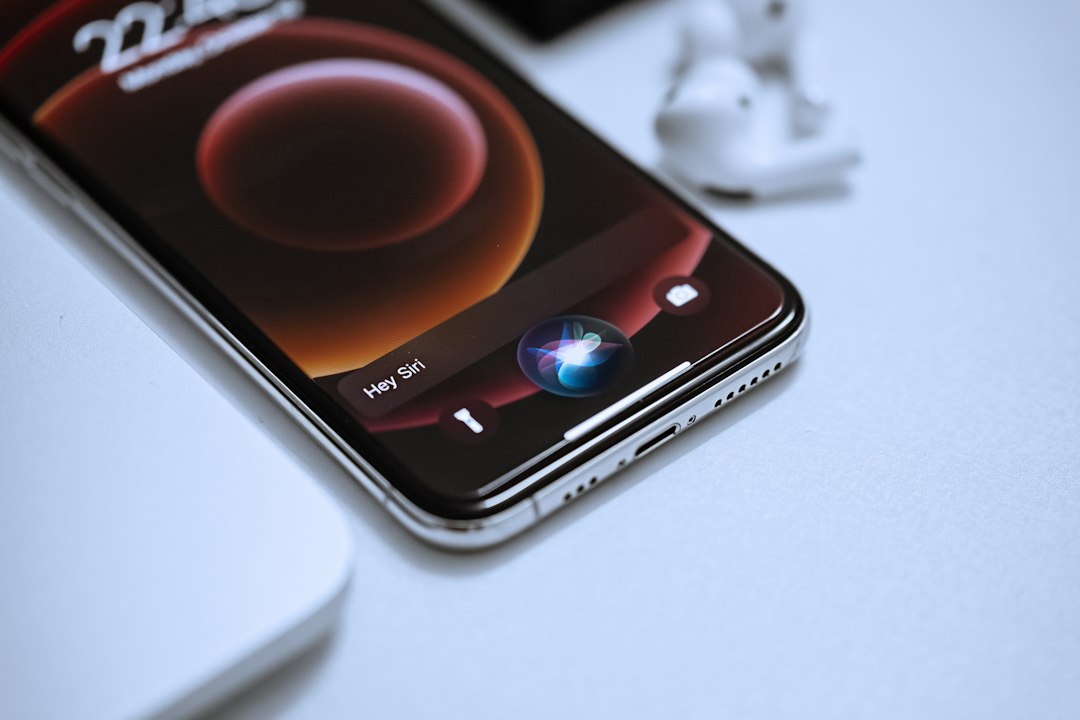
Check Whether Siri Is Enabled
Before troubleshooting deeper issues, the iPhone owner should confirm that Siri is actually turned on. Siri can be disabled accidentally, especially after restoring a device, changing privacy settings, or setting up a new iPhone.
The relevant settings are found under Settings > Siri & Search. The user should check that the following options are enabled:
- Listen for “Hey Siri”
- Press Side Button for Siri or Press Home for Siri, depending on the model
- Allow Siri When Locked, if voice access from the Lock Screen is desired
If “Hey Siri” does not work but the side button activates Siri, the issue is more likely related to voice recognition or microphone input. If neither option works, the cause may be permissions, restrictions, software glitches, or a disabled Siri service.
Fix Voice Recognition Problems
Voice recognition problems are among the most common reasons Siri fails. The iPhone may not recognize the wake phrase, may mishear commands, or may stop listening too quickly. This is especially common in noisy environments, when a case blocks a microphone, or when the original Siri voice training no longer matches the speaker’s current voice.
To reset voice recognition, the user can turn off Listen for “Hey Siri”, wait a few seconds, and turn it back on. iOS will usually ask the user to repeat several phrases so Siri can learn the voice again. This process refreshes Siri’s voice model and often fixes wake phrase problems.
It also helps to speak naturally and clearly during the setup process. If the surrounding environment is noisy, the iPhone may learn an unclear voice sample. Repeating the setup in a quiet room can improve recognition dramatically.
Test the iPhone Microphones
Siri cannot respond properly if the microphone does not capture sound. Modern iPhones have multiple microphones, usually near the bottom edge, the front camera area, and the rear camera area. Siri may use different microphones depending on the iPhone model, orientation, and accessory connection.
A simple microphone test can identify the issue. The user can open the Voice Memos app, record a short clip, and play it back. If the recording sounds muffled, distorted, or silent, Siri will likely have the same problem. The user can also test video recording with the front and rear cameras to check other microphones.
If the sound is poor, the iPhone case, screen protector, dust, or debris may be blocking a microphone opening. The speaker should gently clean the microphone areas with a soft, dry brush. Sharp objects, liquids, and compressed air should be avoided because they can damage internal components.
Check Bluetooth and Audio Accessories
Sometimes Siri is working, but it is listening through the wrong device. If AirPods, a car stereo, a Bluetooth speaker, or wired headphones are connected, Siri may use the accessory microphone instead of the iPhone microphone. A faulty accessory microphone can make Siri seem broken.
The user can open Control Center or Settings > Bluetooth to see whether an accessory is connected. Disconnecting Bluetooth temporarily is a quick way to test whether Siri works through the iPhone itself. If Siri works after Bluetooth is turned off, the connected accessory is likely the problem.
Review Siri Permissions and Restrictions
Permissions are another major cause of Siri failure. Although Siri is a system feature, it still depends on access to certain apps, services, and device functions. Restrictions can prevent Siri from working on the Lock Screen, interacting with apps, or appearing at all.
The first place to check is Settings > Screen Time > Content & Privacy Restrictions. If restrictions are enabled, Siri may be blocked under allowed apps or content settings. Parents, schools, workplaces, or device management profiles may also restrict Siri on supervised devices.
The user should also check Settings > Siri & Search and scroll through app-specific Siri settings. Some apps allow Siri suggestions, voice shortcuts, or search results. If Siri fails only with one app, that app may not have the correct permissions enabled.
Allow Siri on the Lock Screen
If Siri works after unlocking the iPhone but not while the device is locked, the likely cause is the Lock Screen setting. Under Settings > Siri & Search, Allow Siri When Locked must be enabled. Without this permission, Siri may ignore “Hey Siri” or provide limited responses until the phone is unlocked.
This setting is designed for privacy. If enabled, Siri can respond to certain requests without requiring Face ID, Touch ID, or a passcode. If privacy is a concern, the iPhone owner may choose to keep it disabled, but that will limit hands-free access.
Fix Network Errors That Affect Siri
Siri can perform some basic on-device tasks, but many requests require an internet connection. Weather updates, web searches, messages, maps, smart home commands, and general knowledge questions often depend on Apple servers. If the network is weak or unstable, Siri may say something went wrong, take too long to respond, or fail silently.
The user should confirm that Wi Fi or cellular data is working by opening a website or using another online app. If other apps are also slow, the problem is probably network related rather than Siri specific.
Helpful network fixes include:
- Turning Airplane Mode on for 10 seconds, then off again.
- Switching from Wi Fi to cellular data, or from cellular data to Wi Fi.
- Restarting the router if the iPhone is on a home Wi Fi network.
- Checking whether Cellular Data is enabled under Settings > Cellular.
- Disabling VPN temporarily, since some VPN connections can interfere with Siri requests.
If only Siri has connection problems while other apps work normally, Apple’s Siri servers could be experiencing a temporary outage. In that case, waiting and trying again later may be the only required fix.
Restart and Update the iPhone
A restart is simple but often effective. Siri may stop working because a background process is frozen or because iOS has encountered a temporary glitch. Restarting the iPhone reloads system services, microphone handling, and network connections.
If restarting does not help, the user should check for an iOS update under Settings > General > Software Update. Apple frequently fixes Siri, dictation, network, and Bluetooth issues through software updates. Keeping iOS current also improves compatibility with apps and accessories that use Siri features.
Check Language, Region, and Siri Voice Settings
Siri may fail or behave unexpectedly if the language and region settings are mismatched. For example, if Siri is set to one language while the user speaks another, voice recognition may perform poorly. Regional variations can also affect pronunciation and command understanding.
The user can review these options under Settings > Siri & Search > Language and Siri Voice. Selecting the correct language, accent, and region helps Siri interpret commands more accurately. After changing the language, Siri may need to be set up again for voice recognition.
Reset Siri and Dictation Settings
If Siri still does not work, resetting Siri setup can help. Turning off Listen for “Hey Siri” and turning it back on forces the iPhone to retrain the wake phrase. In some cases, disabling Siri completely and enabling it again refreshes the service.
For deeper speech-related problems, the user can also reset keyboard dictation by turning dictation off and back on under Settings > General > Keyboard. Siri and dictation are separate features, but both rely on speech processing, microphones, and language settings, so related issues can overlap.
Reset Network Settings or All Settings
If network errors continue, Reset Network Settings may help. This option is located under Settings > General > Transfer or Reset iPhone > Reset. It removes saved Wi Fi networks, VPN settings, and cellular network preferences, but it does not erase personal files.
If Siri remains broken after other fixes, Reset All Settings is a broader option. It restores system settings such as privacy preferences, network settings, keyboard settings, and Home Screen layout without deleting photos, apps, or messages. Because it changes many preferences, it should be used only after simpler solutions have failed.
When Hardware Repair May Be Needed
If Siri cannot hear the user and microphone tests fail, the issue may be hardware related. Water exposure, drops, dust buildup, or internal component failure can damage microphones. In that situation, software troubleshooting will not fully solve the problem.
The iPhone owner should consider professional service if recordings are consistently silent or distorted, if other callers cannot hear clearly, or if Siri works only with headphones. Apple Support or an authorized service provider can run diagnostics and confirm whether a microphone repair is needed.
Best Troubleshooting Order
For most users, the fastest path is to start with simple checks and move toward advanced resets only if needed:
- Confirm Siri is enabled in Siri & Search.
- Restart the iPhone.
- Test the microphone with Voice Memos.
- Retrain Hey Siri.
- Disconnect Bluetooth accessories.
- Check Lock Screen access and Screen Time restrictions.
- Test Wi Fi and cellular data.
- Update iOS.
- Reset network settings if network errors persist.
- Contact support if microphone hardware appears faulty.
Most Siri problems are not permanent. In many cases, the assistant stops working because of a disabled setting, a blocked microphone, a Bluetooth routing issue, or a temporary connection failure. By checking voice recognition, permissions, and network access in order, an iPhone owner can usually restore Siri without deleting data or replacing the device.
FAQ
Why does Siri not respond to “Hey Siri”?
Siri may not respond if Listen for “Hey Siri” is disabled, the microphone is blocked, the voice model needs retraining, or the iPhone is connected to a faulty Bluetooth microphone.
Why does Siri say something went wrong?
This usually points to a network error. Siri may be unable to reach Apple’s servers because Wi Fi, cellular data, VPN, or Apple services are temporarily unavailable.
Can Screen Time block Siri?
Yes. Screen Time restrictions can disable Siri or limit its functions. The user should check Content & Privacy Restrictions if Siri is missing or unavailable.
Why does Siri work only when the iPhone is unlocked?
The setting Allow Siri When Locked is probably turned off. Enabling it allows Siri to respond from the Lock Screen, though some requests may still require authentication.
Does Siri need the internet to work?
Many Siri features require internet access, especially web results, weather, maps, messaging, and smart home commands. Some simple on-device actions may work offline on newer iPhones.
Will resetting network settings delete iPhone data?
No. Reset Network Settings does not delete photos, apps, or messages. It removes saved Wi Fi passwords, VPN settings, and network preferences.
When should the iPhone be repaired?
Repair may be needed if microphone tests fail, voice recordings are silent or distorted, or Siri works only through external headphones. These signs can indicate microphone hardware damage.