
Turn on Ghost Mode in Snapchat if you want to pause your location quickly. Open the map, tap the gear icon, enable Ghost Mode, and choose how long you want it to last. If you want a stronger pause, use your phone’s location permissions and stop Snapchat from accessing GPS at all.
TLDR: Snapchat’s built-in location control is Ghost Mode, which hides you from Snap Map but may still let the app access location for features. For example, if Maya is going to a 2-hour doctor appointment, she can turn on Ghost Mode for 3 hours and keep using Snapchat without showing up on friends’ maps. If you want stricter privacy, change iPhone or Android permissions to Never, Ask Every Time, or turn off Precise Location. In many cases, the safest setup is Ghost Mode plus reduced phone-level location access.
What “pausing location” on Snapchat really means
Snapchat does not have a big button labeled “Pause Location.” Annoying, right? Instead, it gives you a few different controls that can feel similar but work in different ways.
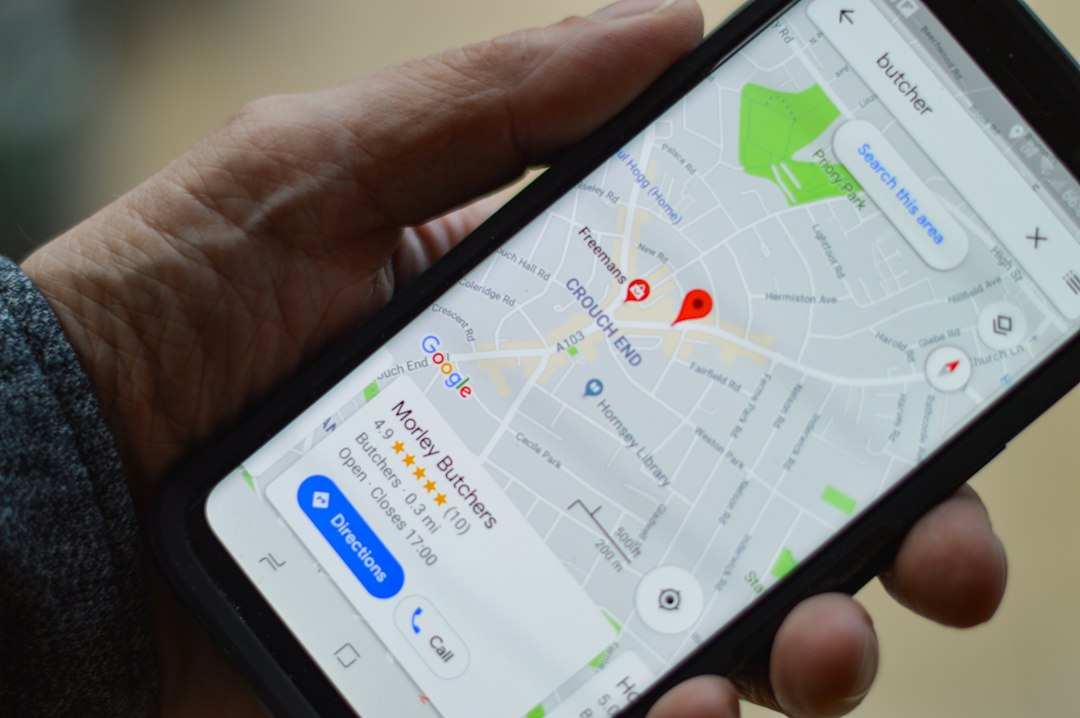
The main option is Ghost Mode. This hides your Bitmoji from the Snap Map, so friends cannot see where you are. It is the fastest fix if you want to stop sharing your position without deleting the app or signing out.
But there is a difference between hiding your location from friends and stopping Snapchat from collecting location data from your device. Ghost Mode handles the first problem. Phone privacy settings handle the second.
How to pause location using Ghost Mode
Use this if you want to disappear from Snap Map while still using Snapchat normally.
- Open Snapchat.
- Tap the Map icon in the bottom bar.
- Tap the gear icon in the top-right corner.
- Switch on Ghost Mode.
- Choose the time limit: 3 hours, 24 hours, or Until Turned Off.
For most people, Until Turned Off is the cleanest choice. It prevents the classic mistake where Ghost Mode expires, and suddenly your location is visible again while you are at work, school, or somewhere private.
Expect to waste a few extra seconds checking the timer if you use the 3-hour or 24-hour option. Snapchat does not always make that timer feel obvious once you leave the settings screen.
What Ghost Mode does and does not do
Ghost Mode hides you from friends on Snap Map. That is its main job. Your friends should not see your live position, Bitmoji, or movement on the map while it is active.
However, Ghost Mode does not automatically mean Snapchat has zero access to your location. The app may still use location for things like:
- Filters and lenses tied to places or events
- Search results based on nearby content
- Map features if you open them
- Ads and recommendations that may use general location signals
That does not mean every location feature is running all the time. It means Ghost Mode is a sharing control, not a full device privacy switch.
Snapchat location controls: your main choices
Snapchat offers several sharing levels inside Snap Map. They are useful, but they are not all equal.
- Ghost Mode: Best for hiding from everyone.
- My Friends: Shares your location with all Snapchat friends.
- My Friends, Except: Shares with friends, but blocks selected people.
- Only These Friends: Shares only with a small list you choose.
Only These Friends is a decent middle ground. Maybe you want a partner, sibling, or roommate to know where you are, but not 180 random contacts from high school. Still, be careful. If you keep adding people over time, that “small” list can slowly turn into a privacy headache.
How to stop Snapchat from using phone location
If you want stronger privacy, change your phone settings. This is the better route if your goal is not just “don’t show me on the map,” but “do not let Snapchat access my accurate GPS location.”
On iPhone
- Open Settings.
- Scroll to Snapchat.
- Tap Location.
- Choose Never, Ask Next Time Or When I Share, or While Using the App.
- Turn off Precise Location if you want Snapchat to see only a rough area.
Precise Location is a big deal. With it on, apps may get a much closer location. With it off, they usually receive a broader estimate. That can be enough for city-level features without pinpointing your exact building.
On Android
- Open Settings.
- Go to Apps.
- Select Snapchat.
- Tap Permissions.
- Tap Location.
- Choose Deny, Ask every time, or Allow only while using the app.
- Turn off Use precise location if your phone offers it.
Ghost Mode vs phone privacy settings
The simplest way to compare them is this: Snapchat controls who can see you. Your phone controls whether Snapchat can ask for your location.
| Option | Best for | Weak spot |
|---|---|---|
| Ghost Mode | Hiding from friends on Snap Map | Does not fully block app location access |
| Only These Friends | Sharing with trusted people only | Requires list maintenance |
| Phone permission: Never or Deny | Blocking Snapchat GPS access | Some location features may stop working |
| Approximate location | Keeping some features without exact tracking | Still shares a general area |
Honestly, it feels like Snapchat could explain this better inside the app. Many users think Ghost Mode means “Snapchat cannot locate me.” That is not always the same thing.
Can you freeze your Snapchat location in one place?
Not officially. Snapchat does not provide a “freeze my location here” feature. If you stop opening the app, your Snap Map location may stop updating and can disappear after a period of inactivity, often around 24 hours. But that is not the same as a reliable freeze.
Some third-party tools claim they can spoof your location. Be careful. They can break app rules, cause account problems, or expose your data. A fake-location app asking for broad permissions is not exactly a privacy win.
Other privacy settings worth checking
Location is only one part of Snapchat privacy. If you are cleaning things up, check these too:
- Contact Me: Limit who can send you Snaps, chats, and calls.
- View My Story: Set it to friends only or create a custom list.
- See Me in Quick Add: Turn it off if you do not want random suggestions.
- Blocked users: Review old blocks and add anyone who should not see you.
- Friend list: Remove people you no longer know or trust.
Best setup for most users
If you want a practical balance, use this setup:
- Turn on Ghost Mode Until Turned Off.
- Set Snapchat location permission to While Using the App or Ask Every Time.
- Turn off Precise Location when you do not need local filters.
- Use Only These Friends only if you truly need location sharing.
- Review your friend list every few months.
This gives you control without making Snapchat unusable. You can still chat, send Snaps, and watch Stories. You just stop broadcasting your movements to people who do not need that information.
The safest answer is simple: use Ghost Mode to hide from Snap Map, then use your phone’s privacy settings to limit what Snapchat can access. One protects your social visibility. The other protects your device data. Together, they make “pausing location” much less confusing.