
The fastest way to clear Instagram cache on an iPhone is to delete Instagram and reinstall it. iOS does not give Instagram a neat “clear cache” button, so the built-in fix is blunt but effective. Apple’s iPhone Storage screen lets you check app size, offload apps, or delete them when space gets tight [source: Apple].
TLDR: Use Settings > General > iPhone Storage > Instagram to see how much space the app is using. If Instagram shows 3.4 GB and the App Store download is only about 300 MB, most of that extra space is likely cached files, saved media, and app data. Deleting and reinstalling can often recover 1–3 GB on heavy-use accounts, especially if you watch a lot of Reels. Storage cleaner apps can help with photos and videos, but they usually cannot directly erase Instagram’s internal cache.
Why Instagram Cache Gets So Big
Instagram saves temporary data so it can load faster. That includes profile pictures, thumbnails, Reels, Stories, search data, and bits of media you have already viewed. This is normal. It saves time and mobile data.
Then it gets annoying.
After weeks of scrolling, Instagram can quietly grow from a modest app into a storage hog. You may notice your iPhone taking longer to open the camera, download updates, or save videos. Honestly, it feels like the app eats space faster than it gives it back.
Method 1: Clear Instagram Cache with Built-In iPhone Settings
This is the safest and most reliable method. It does not require any extra app.
- Open Settings on your iPhone.
- Tap General.
- Tap iPhone Storage.
- Scroll down and tap Instagram.
- Check the app size and data size.
- Tap Delete App.
- Go to the App Store and reinstall Instagram.
- Log back in.
Do not confuse “Offload App” with “Delete App.” Offloading removes the app itself but keeps its documents and data. That can be useful for apps with personal files. For Instagram cache, it may not free enough space. If your goal is a real cleanup, choose Delete App.
This method removes local Instagram data from the iPhone. Your account, followers, posts, messages, and saved posts stay online. Still, make sure you know your password or have access to your login method before deleting the app.
Method 2: Clear Search History Inside Instagram
Instagram has a few cleanup options inside the app, but they are limited. You can clear recent searches, remove suggested accounts, and manage saved login info. This may make the app feel cleaner, but it will not usually recover gigabytes of space.
To clear search history:
- Open Instagram.
- Go to your profile.
- Tap the menu icon.
- Open Accounts Center or search settings.
- Find Recent Searches.
- Tap Clear All.
This is useful for privacy. It is not a deep cache wipe.
Built-In Settings: Pros and Cons
Pros:
- Free and already on your iPhone.
- No third-party app needed.
- Actually removes Instagram’s local data when you delete the app.
- Easy to check storage before and after.
Cons:
- You must reinstall Instagram.
- You may need to log in again.
- There is no one-tap cache button.
- Offload App can be misleading if you expect a full cleanup.
Expect to waste a minute or two reinstalling and logging back in. Still, that is usually faster than poking through settings and hoping the cache shrinks by itself.
Method 3: Storage Management Apps
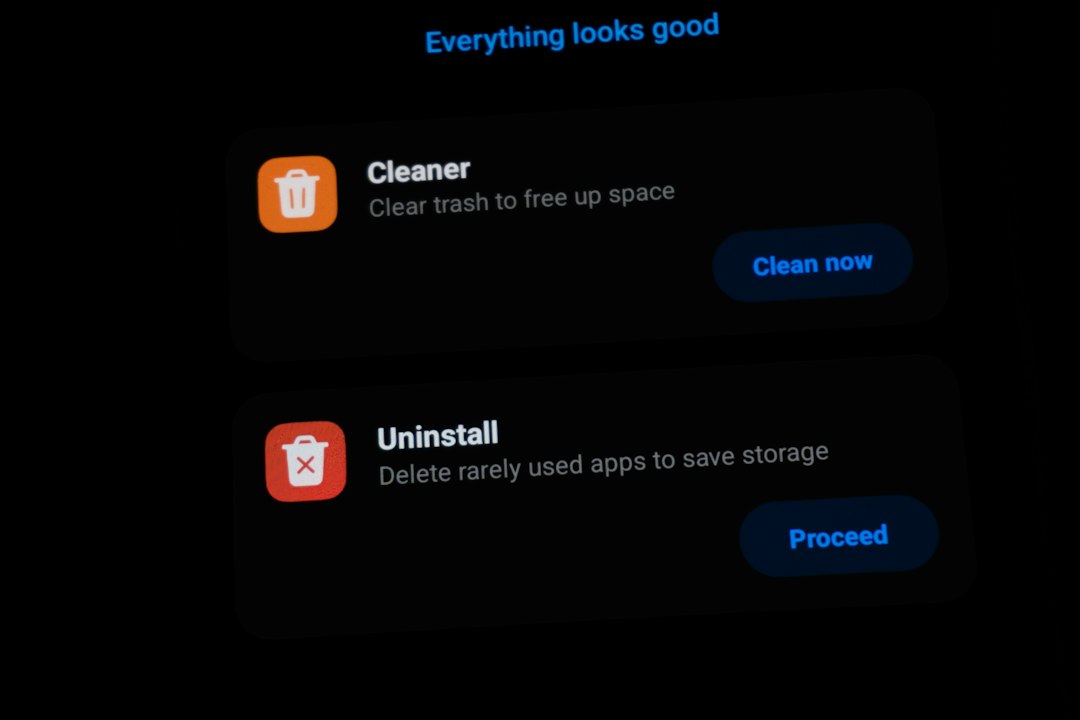
Storage management apps can be helpful, but not in the way many people expect. Due to iOS app privacy rules, one app generally cannot reach inside Instagram and delete its private cache. That means a cleaner app cannot simply press a magic button and wipe Instagram’s hidden files.
What these apps can do is clean up other storage-heavy areas, such as:
- Duplicate photos
- Large videos
- Blurry screenshots
- Old screen recordings
- Similar images from burst shots
- Large files stored in shared folders
This can still help. If your iPhone is full, Instagram is only part of the problem. A storage app might find 5 GB of duplicate videos while Instagram only holds 1.2 GB of cache. In that case, the cleaner app is worth using.
Storage Apps: Pros and Cons
Pros:
- Good for photo and video cleanup.
- Can find large files quickly.
- Useful if your camera roll is messy.
- Some apps group similar photos for faster review.
Cons:
- Usually cannot directly clear Instagram cache.
- Some push subscriptions too hard.
- Free versions may be limited.
- You must review deletions carefully.
The popups can get irritating. Some apps scan for 40 seconds, show big savings, then block cleanup behind a paid plan. Read the screen before deleting anything.

Which Option Should You Use?
If Instagram itself is huge, use built-in iPhone settings. Delete and reinstall the app. That is the cleanest fix.
If your whole iPhone is full, use a storage management app to review photos, videos, and large files. Then delete and reinstall Instagram if it still takes too much space.
Here is a simple rule:
- Instagram is the main storage problem: delete and reinstall Instagram.
- Photos and videos are the main problem: use a storage cleaner app.
- You only want privacy cleanup: clear Instagram search history.
How Often Should You Clear Instagram Cache?
Most people do not need to do it weekly. Once every month or two is fine if you use Instagram heavily. If you watch Reels for hours, post often, or manage multiple accounts, check storage more often.
A quick check takes less than 30 seconds. Go to Settings > General > iPhone Storage. If Instagram has grown past 2 GB, a reinstall may be worth it.
Bottom line: built-in settings are best for clearing Instagram cache. Storage apps are best for cleaning the rest of your iPhone. Use both when your storage is packed, but do not expect a cleaner app to reach directly into Instagram and empty its cache for you.